
ExamDiff Pro tutorial · CSV files and tables (Master edition)
How to Compare Two CSV Files on Windows
Compare two CSV or tab-separated files, such as two exports of the same data, even when the rows come in a different order and some columns always change. Sort the rows by a key column, ignore the noisy columns, and only the real changes are left.
Video
Steps
- Compare the two files: choose Files | New Comparison (Ctrl+E), select Compare Files, pick the files, and click Compare. CSV and TSV files open in table comparison by themselves, with each column in its own color. For other files, choose Tables in the Compare drop-down of the dialog, or Files | Compare As | Tables.
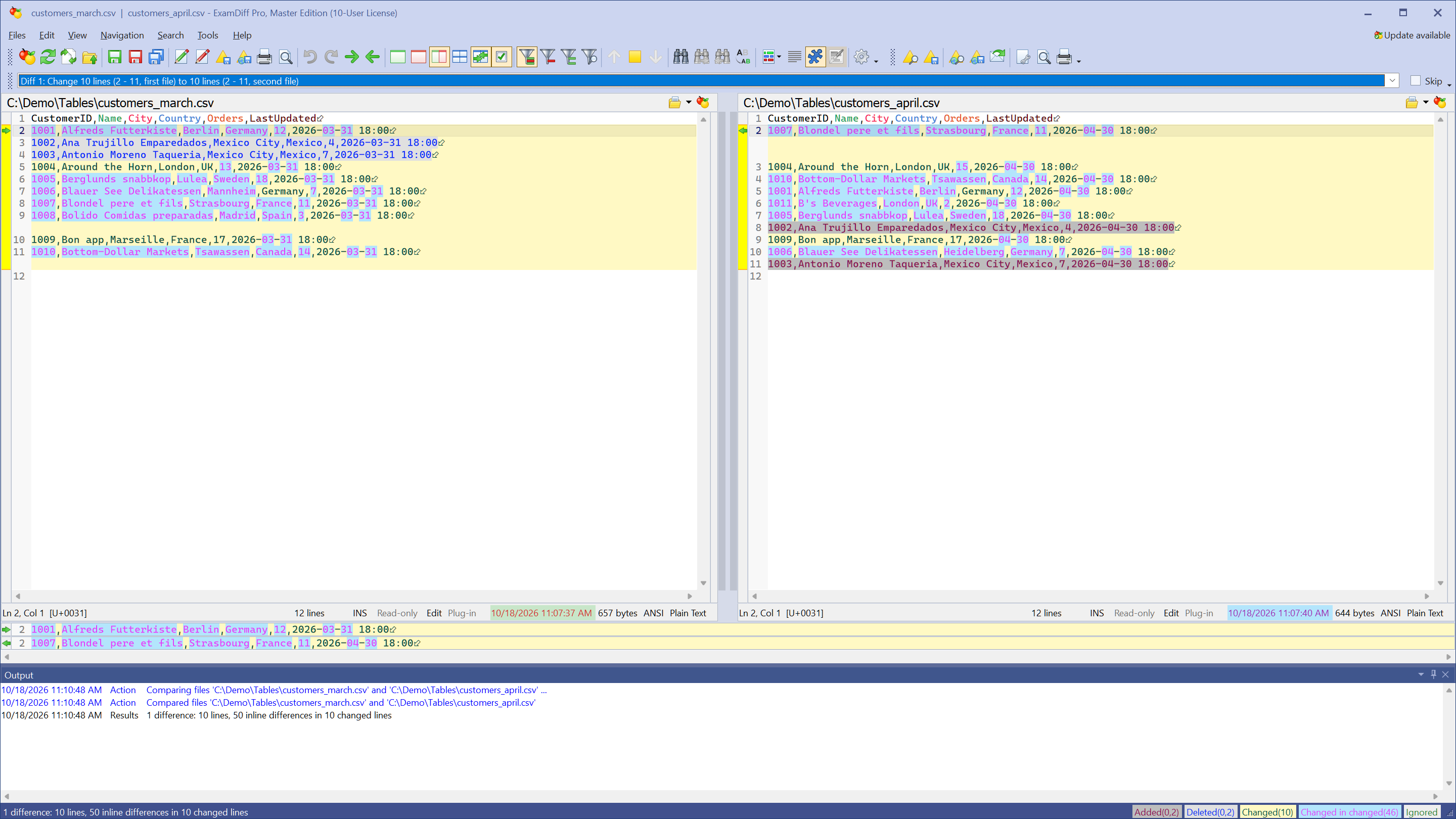
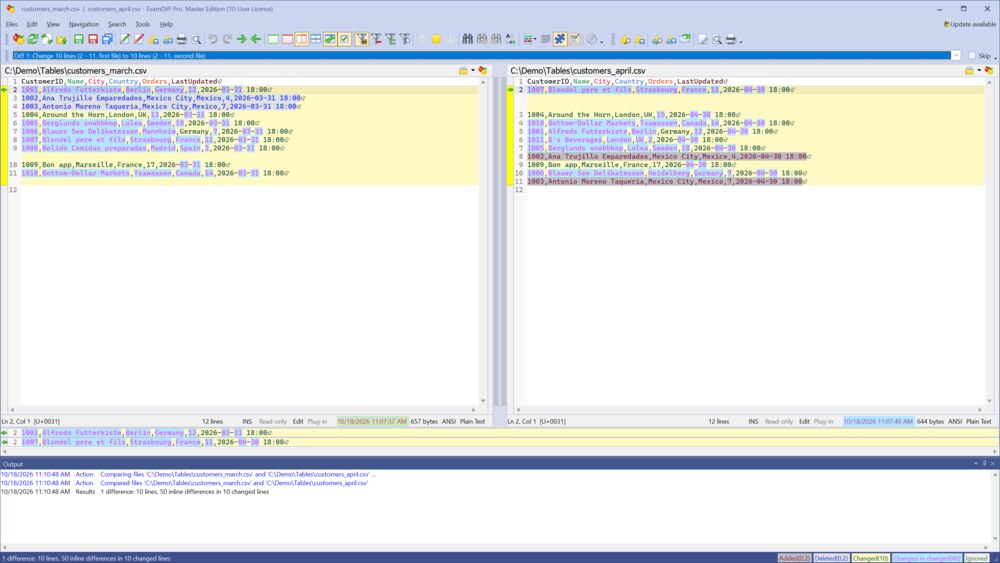 In the example, the rows are in a different order and the LastUpdated column changed on every row, so almost every row is marked as different.
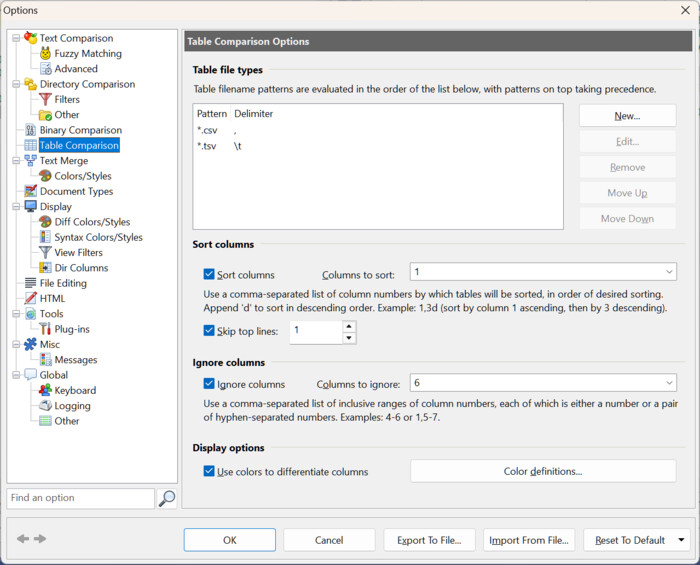
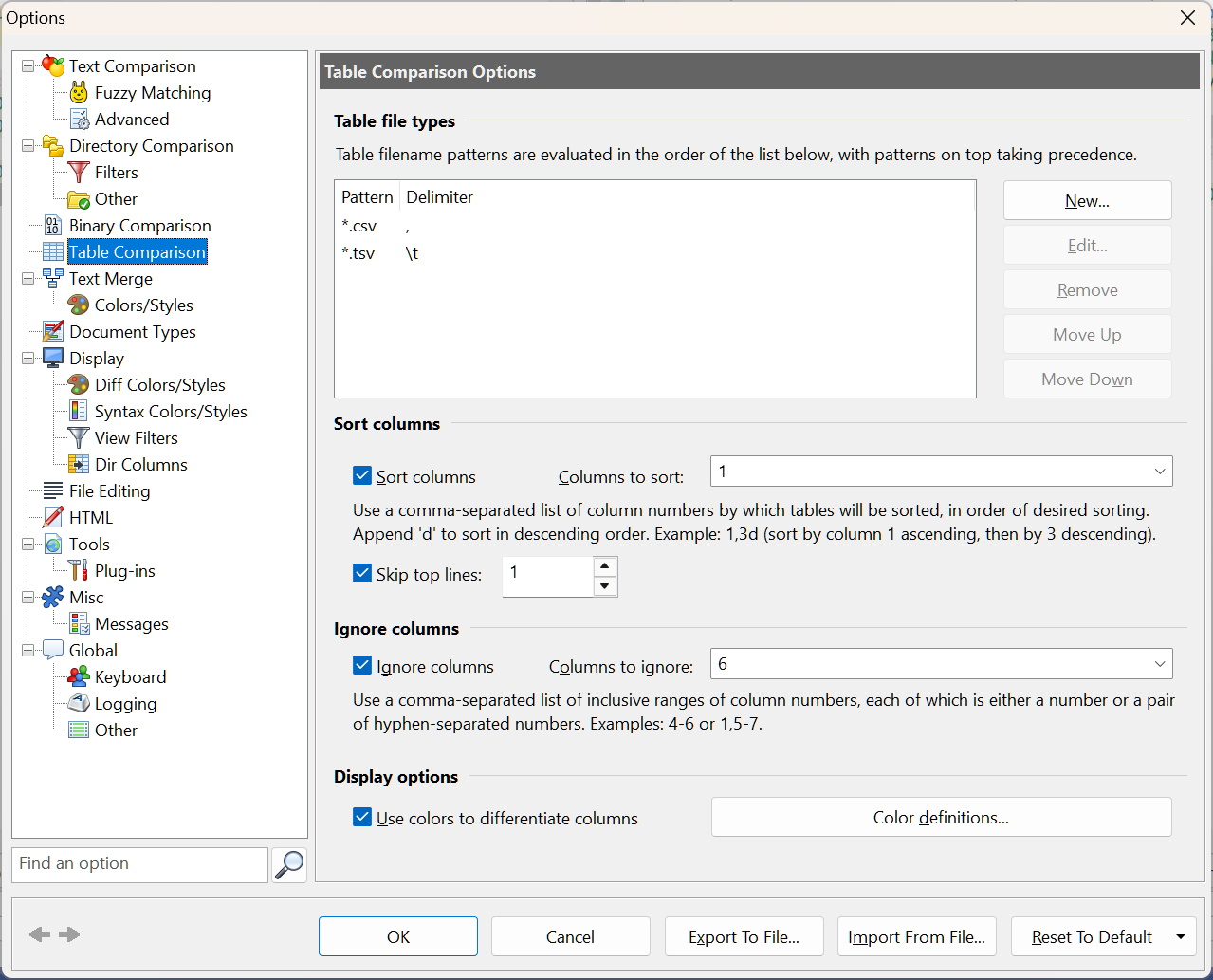
 - Choose Tools | Options and go to Table Comparison:
- Check Sort columns and enter the key column in Columns to sort, here
1for the customer ID. To sort by more than one column, list them in order, for example1,3d(column 3 descending). Check Skip top lines and enter1so the header row stays on top. - Check Ignore columns and enter the columns to leave out, here
6for the timestamp. Ranges work too, for example4-6or1,5-7.
- Check Sort columns and enter the key column in Columns to sort, here
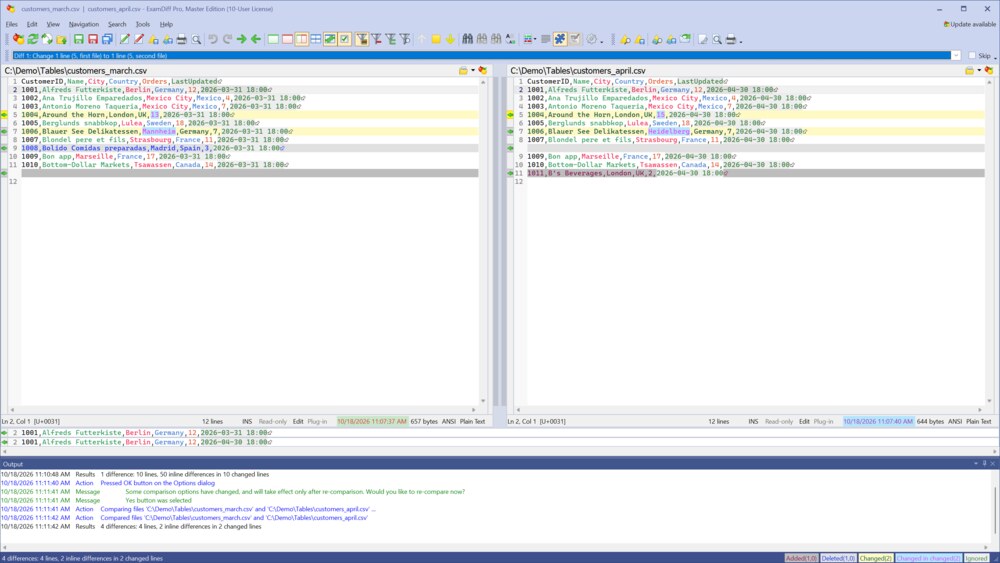
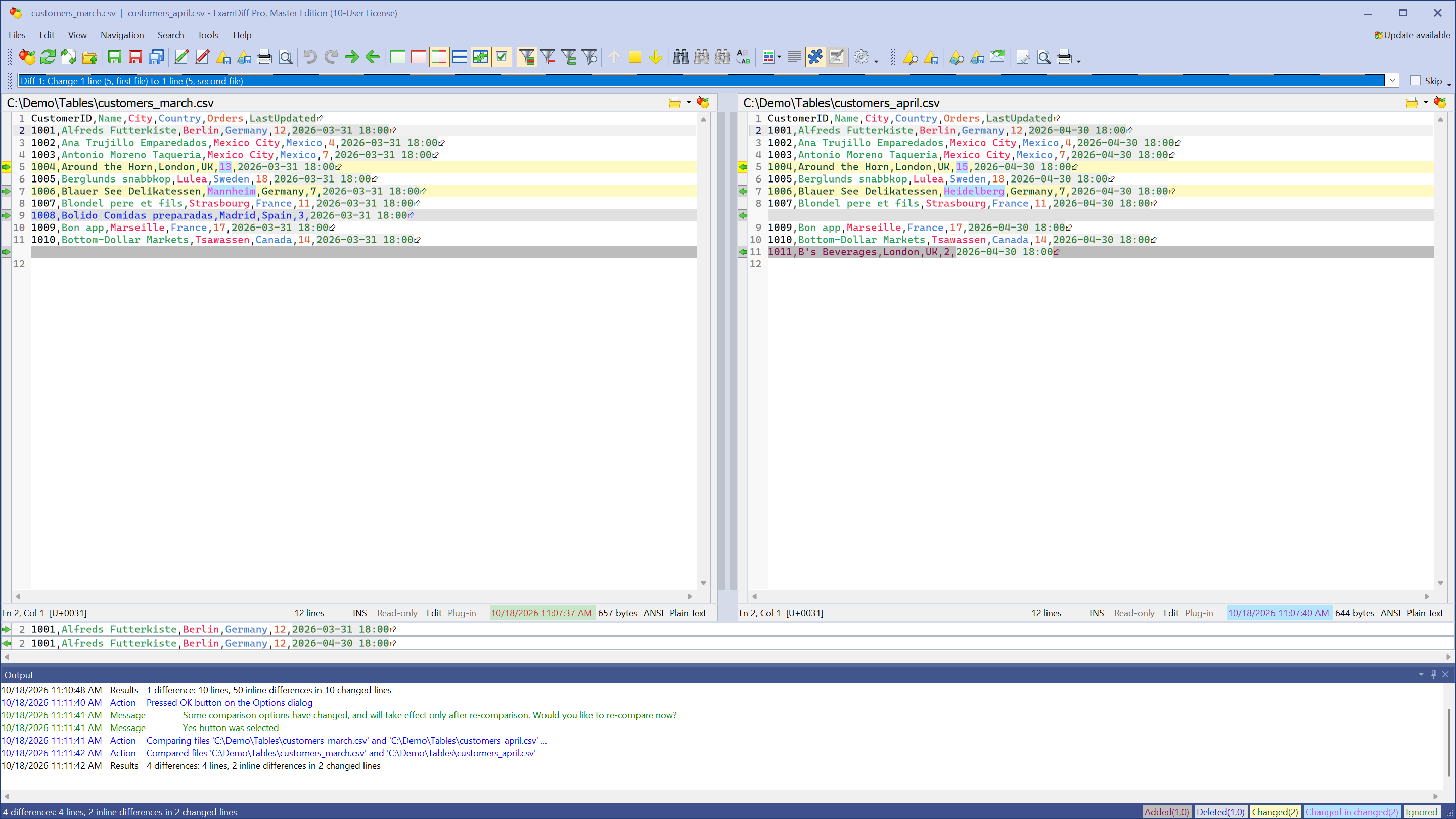
- Click OK and re-compare when asked. The rows now line up by ID, the timestamp no longer counts, and only the real changes are left: a changed order count, a changed city, a removed customer, and a new one.
Questions
Which edition do I need?
Table comparison is part of the Master edition. The free 30-day trial includes all Master edition features.
My files use semicolons or another delimiter. Can I compare them?
Yes. In Tools | Options | Table Comparison, click New under Table file types and enter the file name pattern and the delimiter.
Can I compare Excel workbooks?
Yes. ExamDiff Pro converts each worksheet to comma-separated rows, with cell values formatted as in Excel, and compares the workbooks sheet by sheet; see How to Compare Word, Excel, and PDF Files.
Where can I read more?
See Table Comparison and Table Comparison Options in the online help.