
ExamDiff Pro tutorial · Lists and plug-ins
How to Find What Two Lists Have in Common
Find the lines two lists share, even when they are in a different order: let a plug-in sort both files before they are compared, then show only the lines that are the same. The same approach works with any program that can prepare files for comparison.
Video
Steps
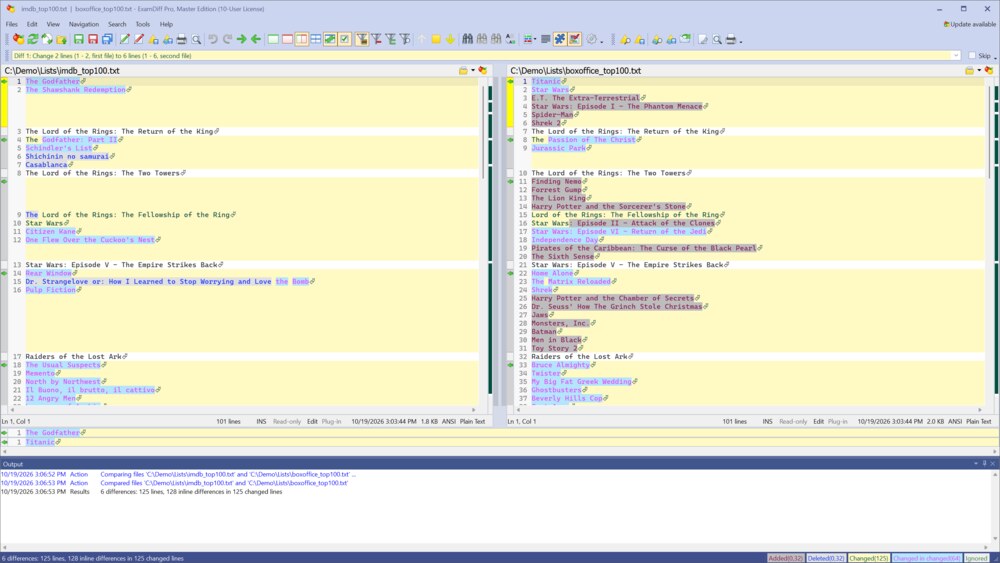
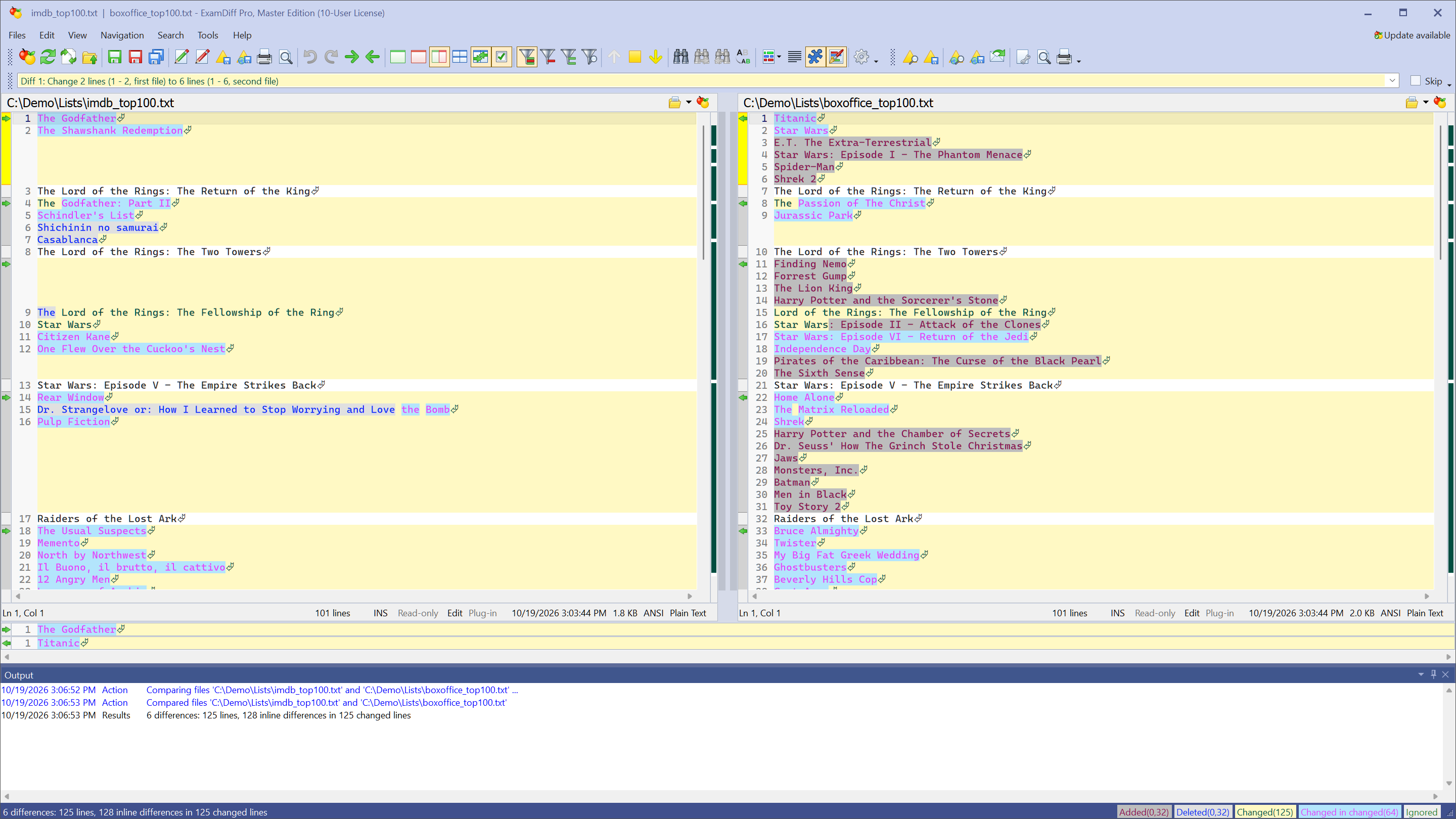
- Compare the two lists. In the example, two lists of 100 movies, by rating and by box office, are in a different order, so almost every line is marked as different.
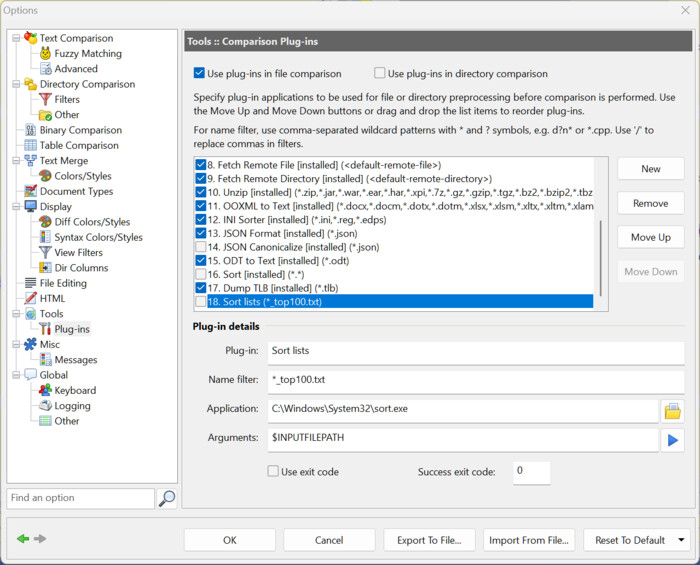
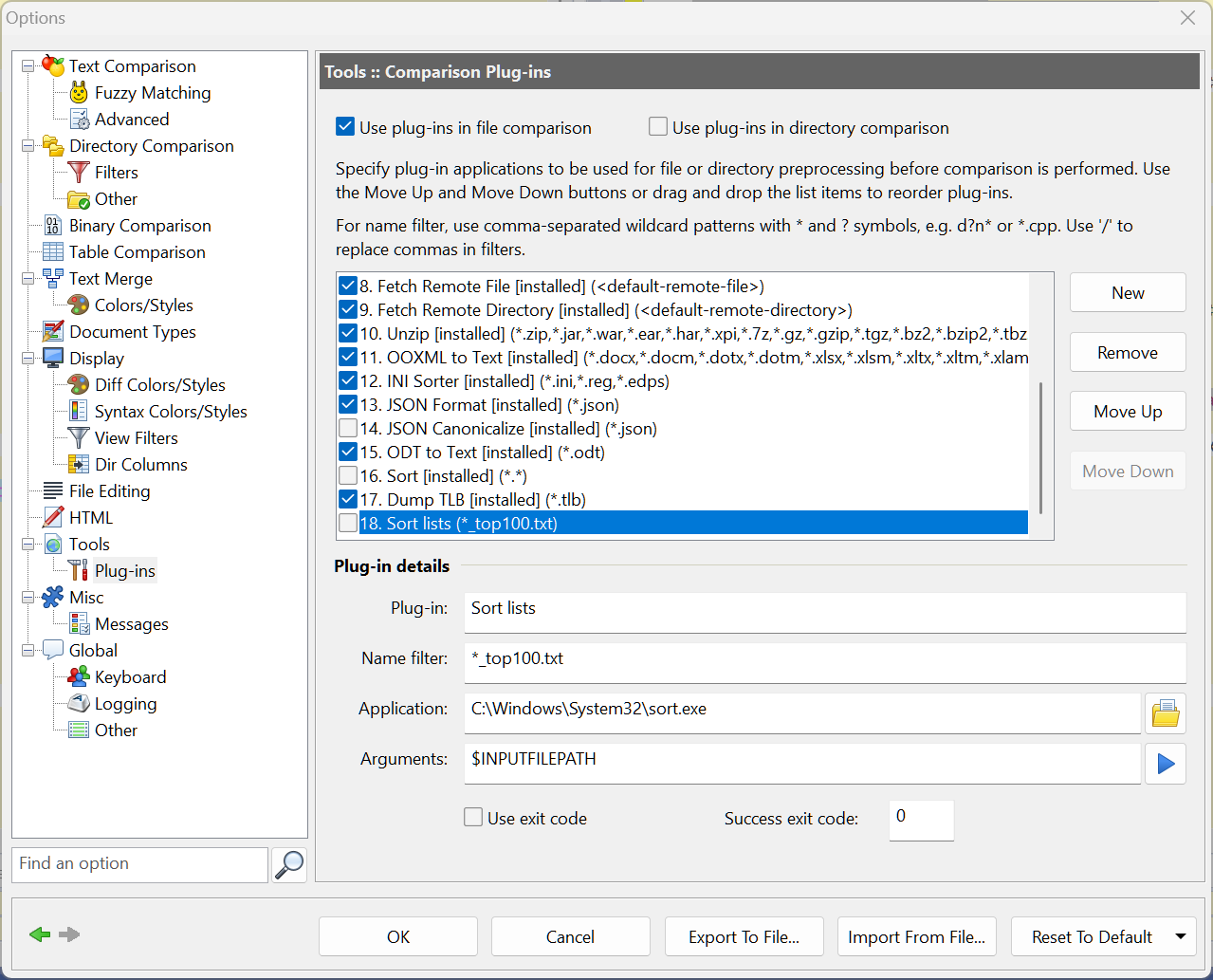
- Choose Tools | Options and go to Tools | Plug-ins. Click New and fill in the plug-in details:
- Plug-in: a name, for example
Sort lists - Name filter: the files to sort, for example
*_top100.txt - Application:
C:\Windows\System32\sort.exe - Arguments: click the arrow button and choose Input File Path (
$INPUTFILEPATH)
- Plug-in: a name, for example
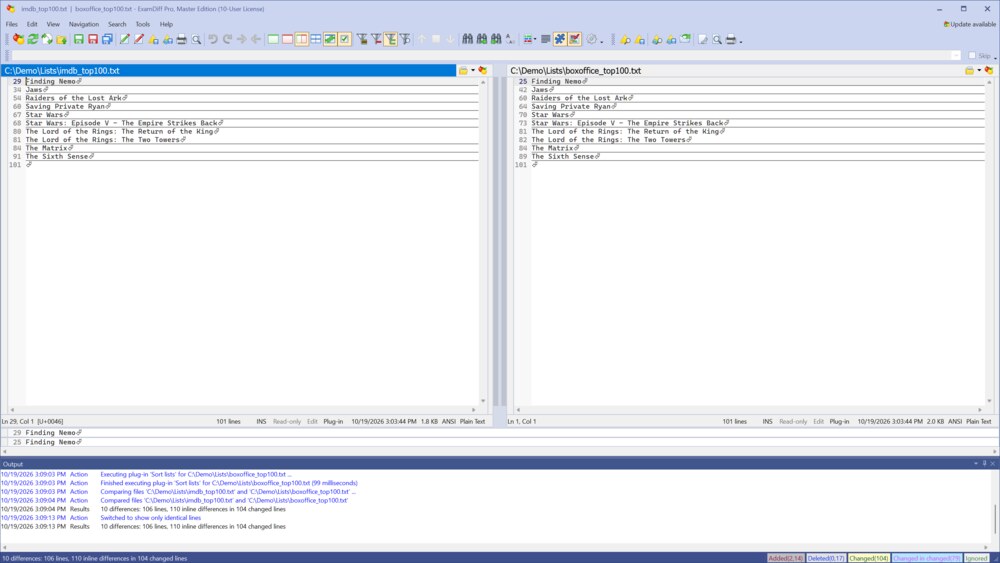
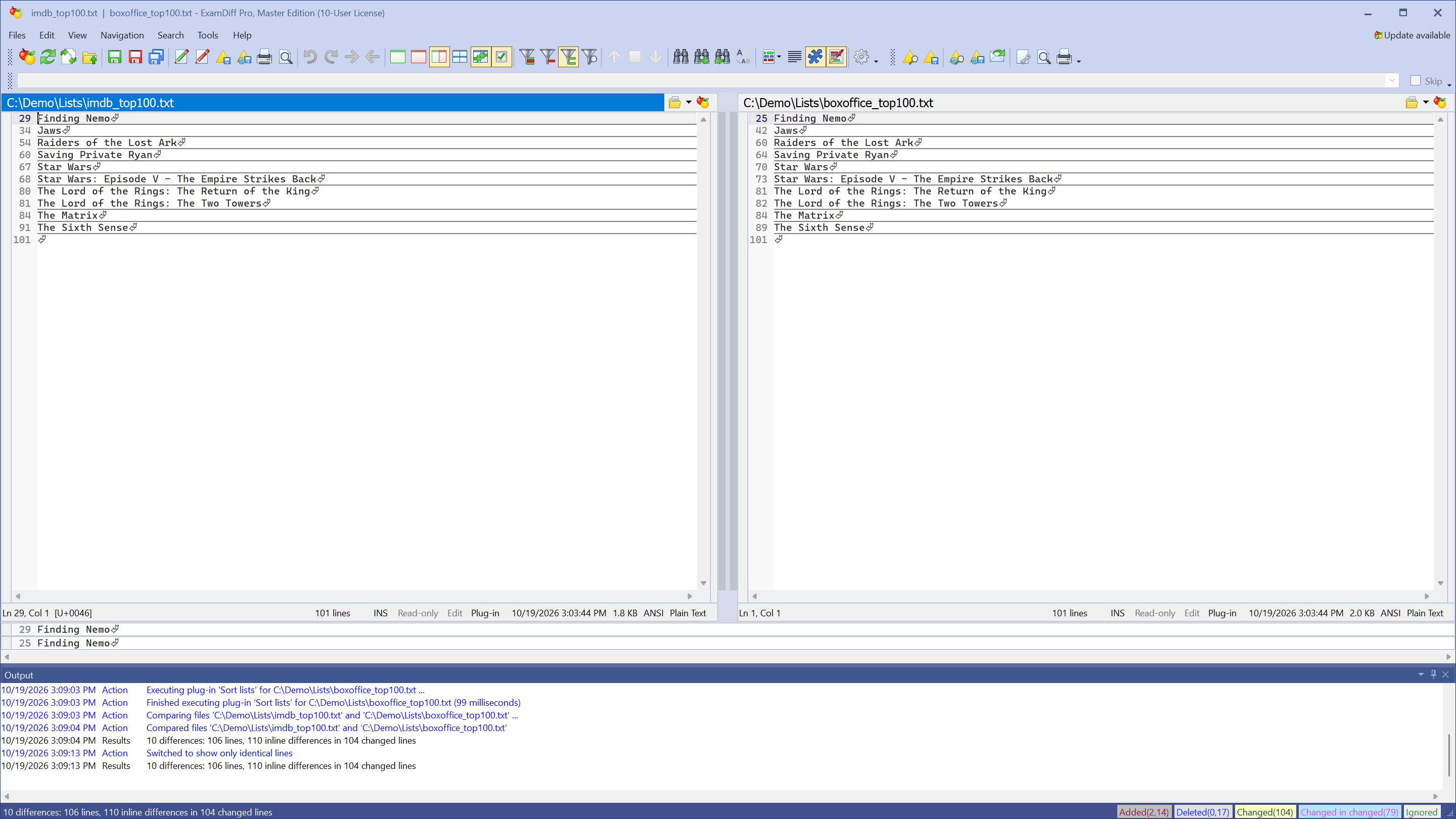
- Click OK and re-compare when asked. Both lists are now sorted, so the lines they share line up as identical lines.
- Choose View | Show Only Identical Lines. Only the lines on both lists are left. View | Show Only Differences shows the opposite, and View | Show All Lines brings back everything.
Questions
Is there a sort plug-in already?
Yes. The plug-in list includes Sort [installed], turned off by default. Check it to sort all files, or change its name filter to sort only some of them. Remember to turn it off again, since sorting changes how every matching file is compared.
What else can plug-ins do?
Anything a command-line program can do with a file: format JSON or XML, convert documents to text, unpack archives, or run your own script. ExamDiff Pro comes with plug-ins for Word, Excel, PowerPoint, and PDF files, Zip archives, and more; see Plug-ins.
My lists are tables with columns. Can I sort by one column?
Yes, with table comparison; see How to Compare Two CSV Files.