
ExamDiff Pro tutorial · Office documents
How to Compare Word, Excel, PowerPoint, and PDF Files on Windows
Compare two versions of a Word document, an Excel workbook, a PowerPoint presentation, or a PDF file and see exactly what changed in the text, lists, tables, and cell values. Microsoft Office does not need to be installed.
Video
Steps
- Choose Files | New Comparison (Ctrl+E), select Compare Files, and pick the two documents as you would any other files: type their paths, click Browse, choose them from the drop-down of recently compared files, or drag them onto the dialog.
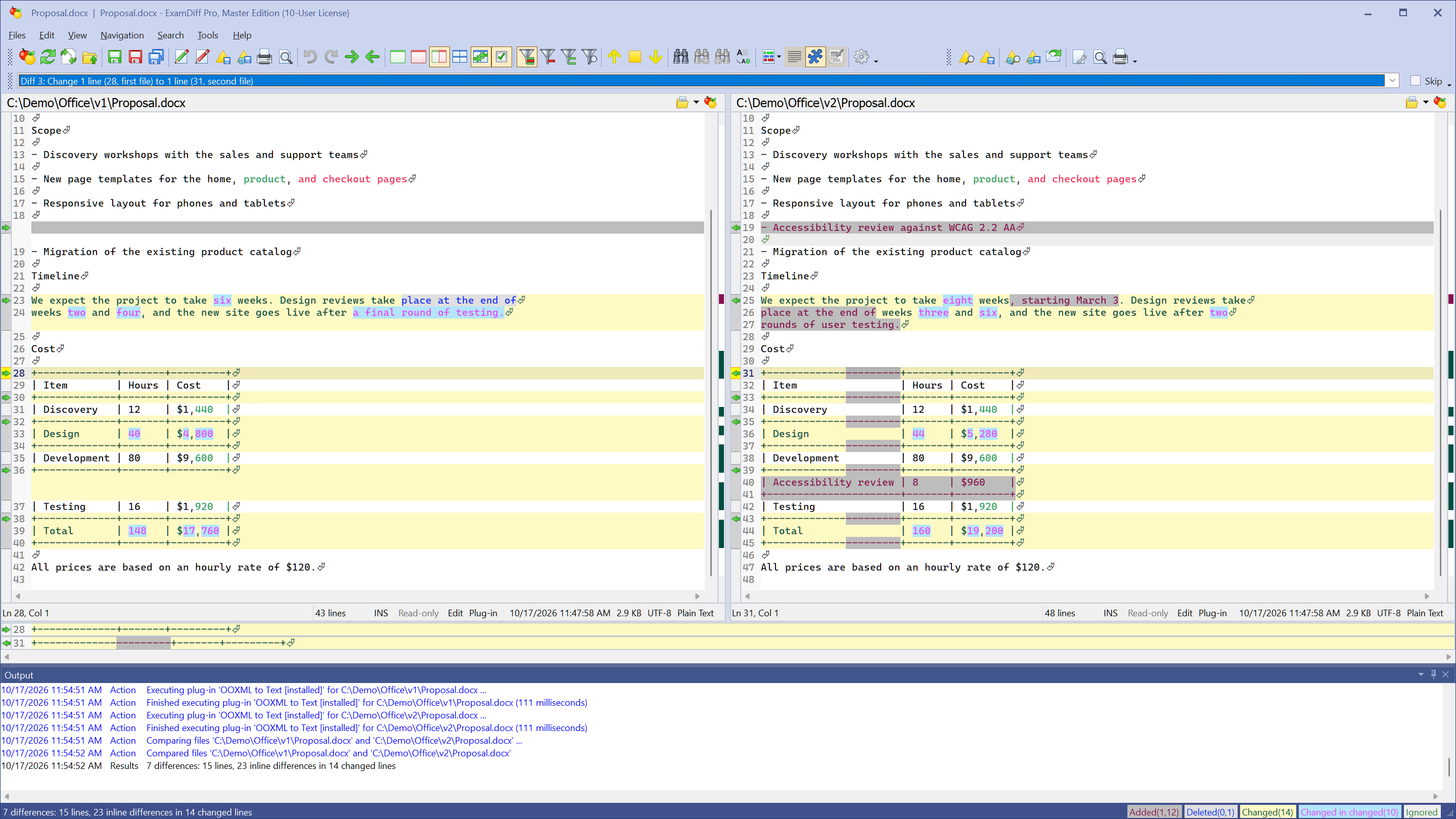
- Click Compare. ExamDiff Pro converts both documents to text with its built-in plug-ins and compares them side by side. Paragraphs, bulleted and numbered lists, and tables are kept, so a changed table cell shows up as a changed row of the table.
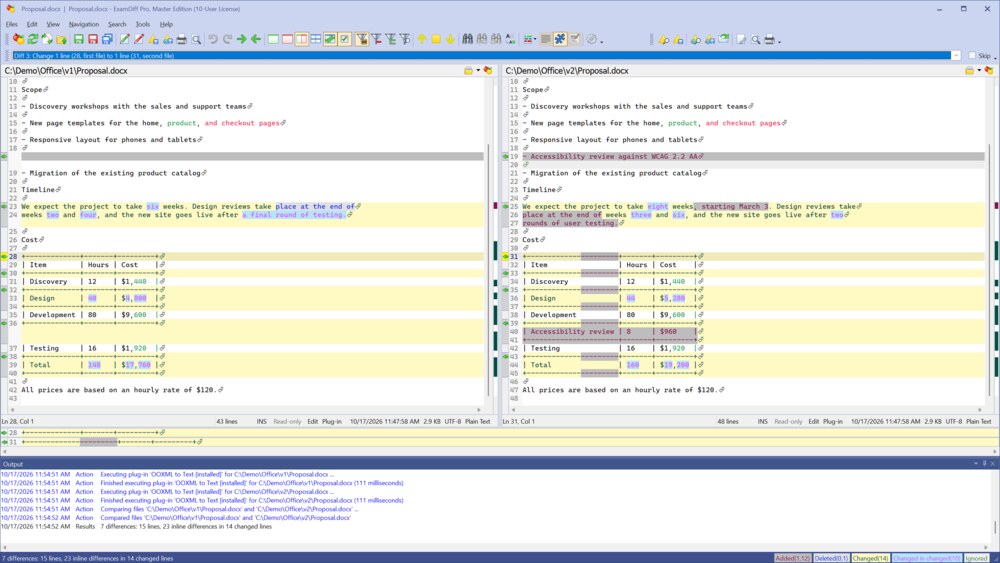
- Choose Navigation | Next Difference to go from one change to the next, and click a changed line to see which words differ within it.
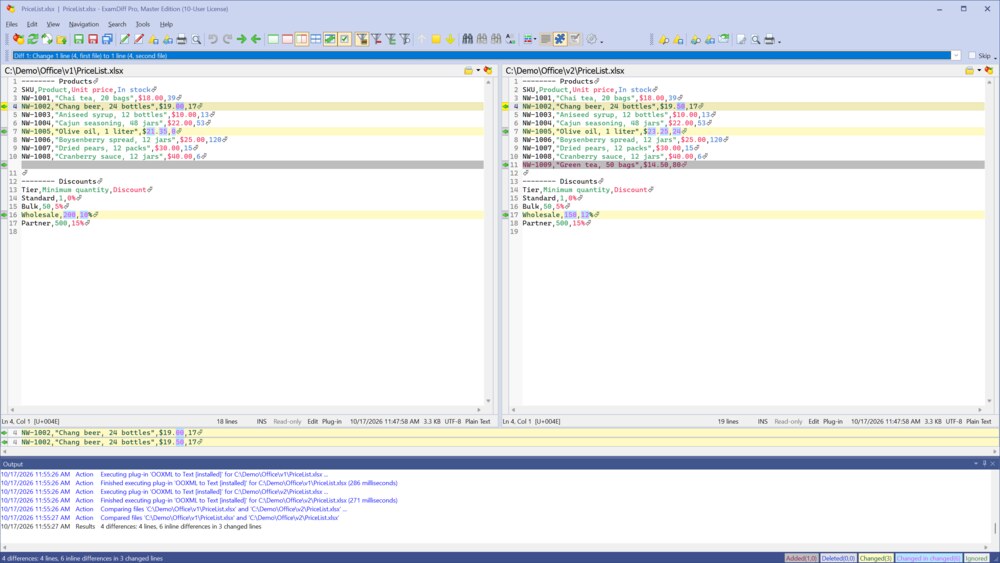
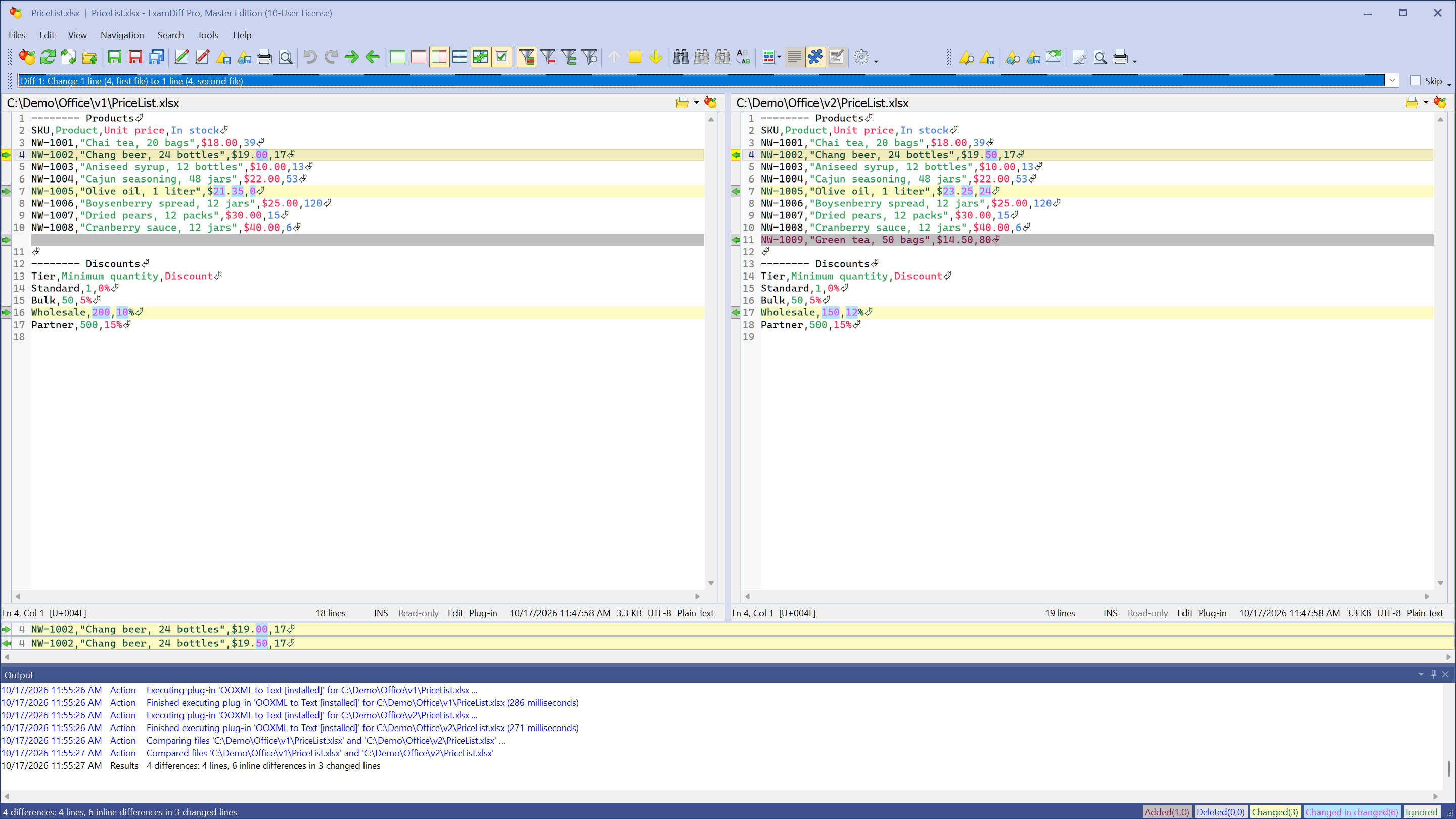
- Compare two Excel workbooks the same way. Each worksheet starts with a line that shows its name, and every row is shown as comma-separated cell values, formatted as in Excel, so you can see a changed price or an added row at a glance.
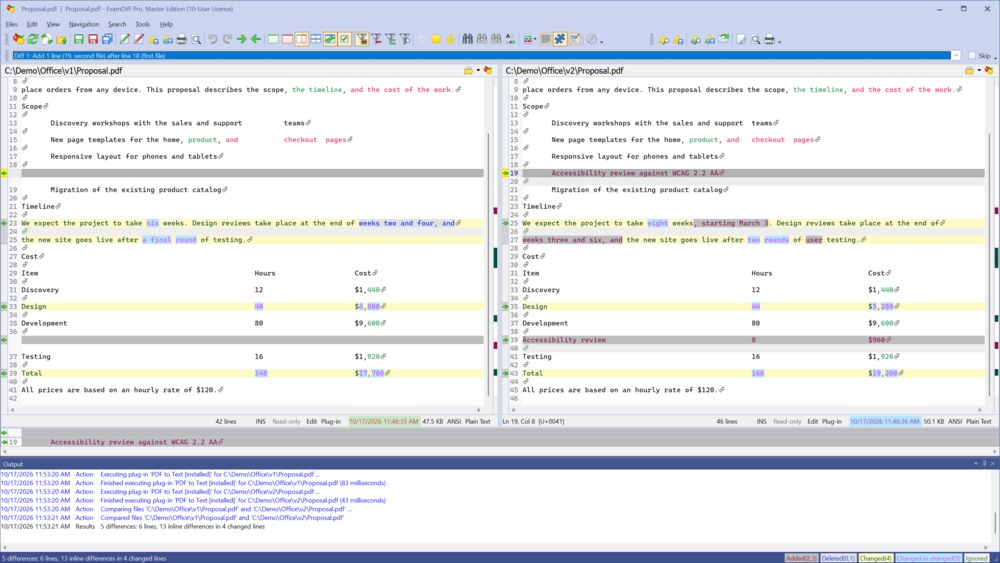
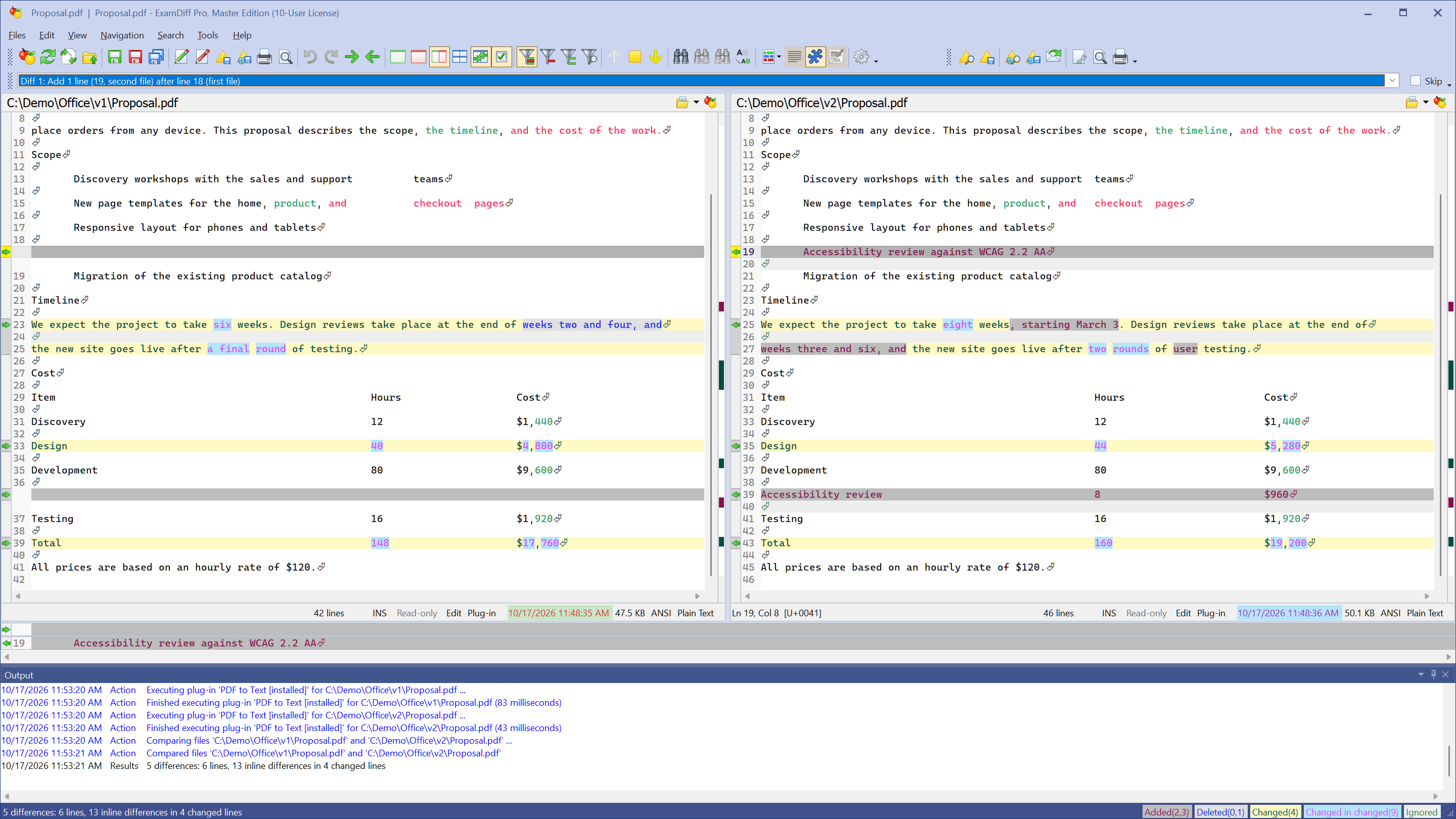
- PDF files and PowerPoint presentations work the same way. For a presentation, each slide starts with its number and title.
Questions
Do I need Microsoft Office or Adobe Acrobat?
No. The plug-ins that read Word, Excel, PowerPoint, and PDF files are installed with ExamDiff Pro and turned on by default.
Which file types are supported?
Word (.docx, .docm, .dotx, .dotm, and older .doc and .rtf), Excel (.xlsx, .xlsm, .xltx, .xltm, and older .xls), PowerPoint (.pptx, .pptm, .potx, .ppsx, and older .ppt), and PDF. You can see and change these settings in Tools | Options, on the Plug-ins page, and add plug-ins for other formats.
Are formatting changes shown?
No. ExamDiff Pro compares the documents' text, so changes in fonts, colors, or layout alone don't show up as differences.
Can I compare whole folders of documents?
Yes. In a folder comparison, double-click any pair of documents to compare them as shown here.
Can I compare documents online?
Yes, with DiffNow, which is powered by ExamDiff Pro.