
ExamDiff Pro tutorial · Folders
How to Compare Two Folders on Windows
Compare two folders and all their subfolders, see which files were changed, added, or deleted, in a tree or in one flat list, and open any changed file side by side.
Video
Steps
- Choose Files | New Comparison (Ctrl+E), select Compare Directories at the top of the Compare dialog, pick the two folders, and click Compare.
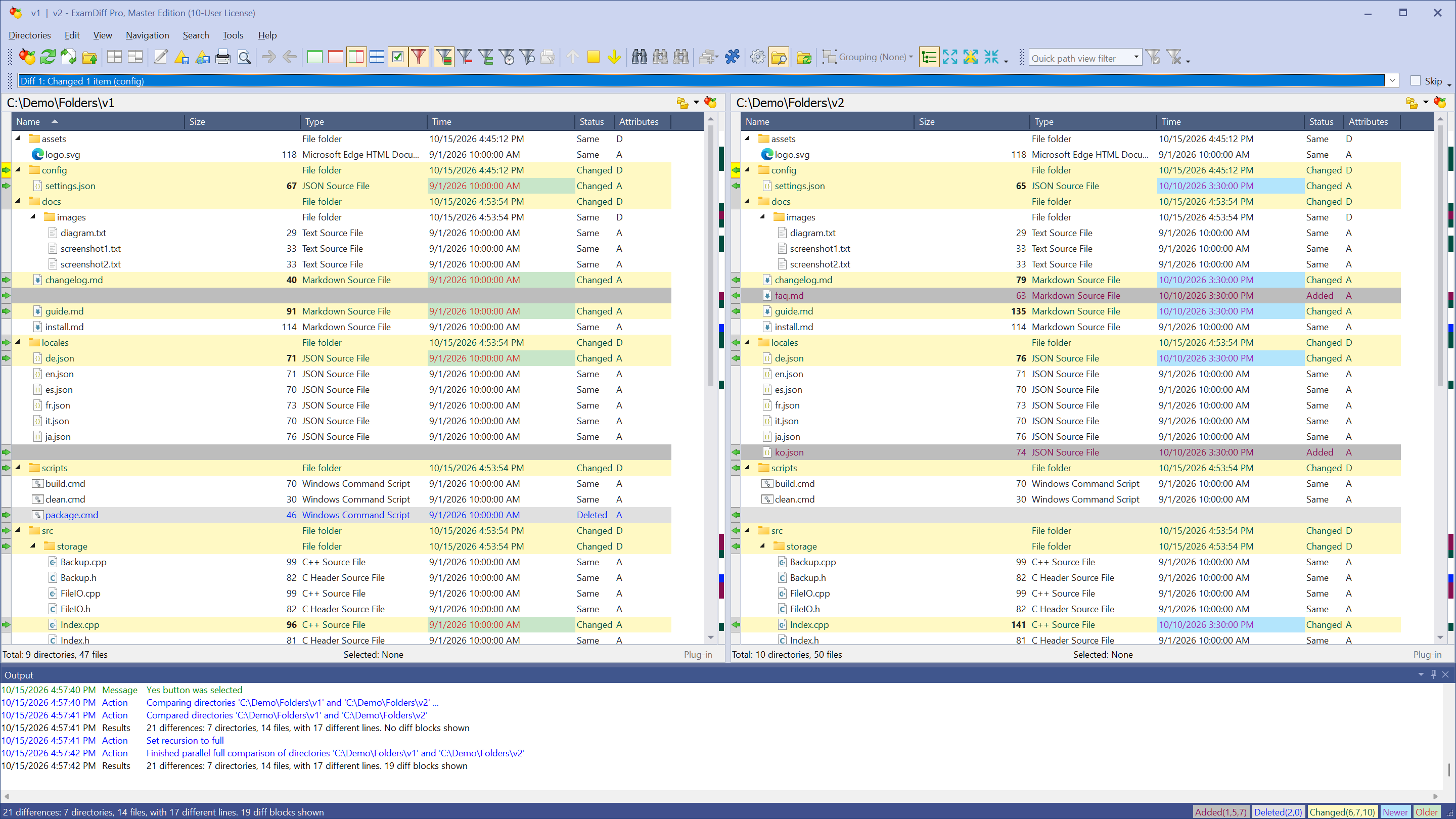
- The result is a tree, like in Windows Explorer. Choose View | Expand To Differences to open every folder that has changes. The Status column and the colors show which items are changed, added, deleted, or the same, and the dates show which copy is newer.
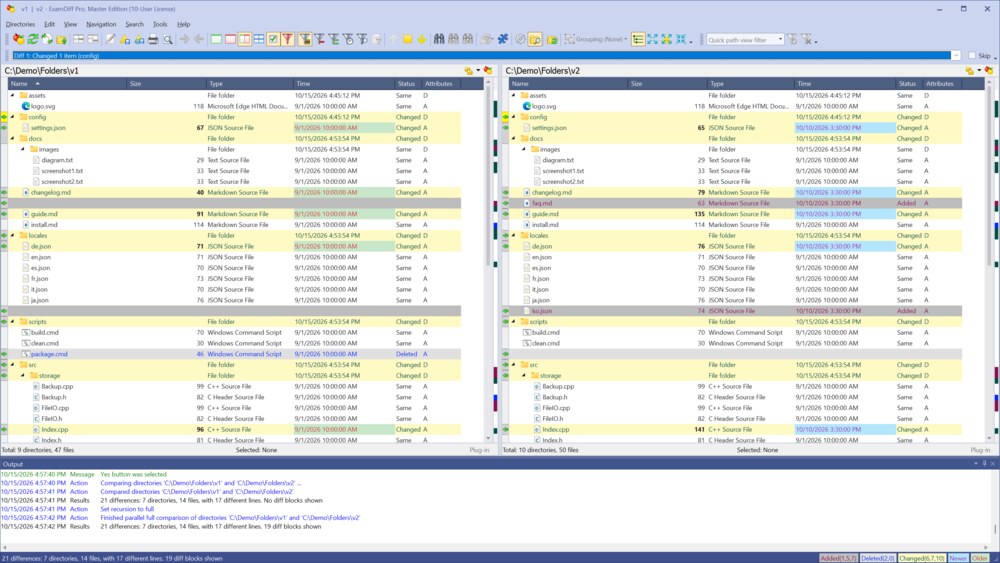
- Choose View | Show Only Differences to hide the identical items. A line in each folder tells you how many items are hidden; View | Show All Items brings them back.
- Double-click a changed file to compare it line by line. To return to the folders, choose Files | Up One Level for Both Files (Ctrl+U).
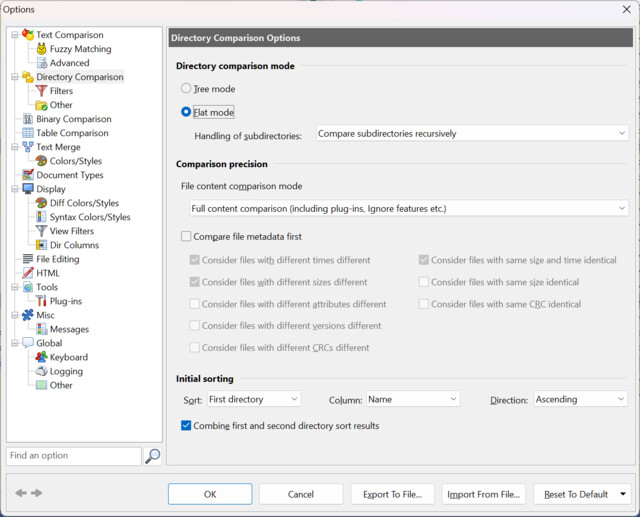
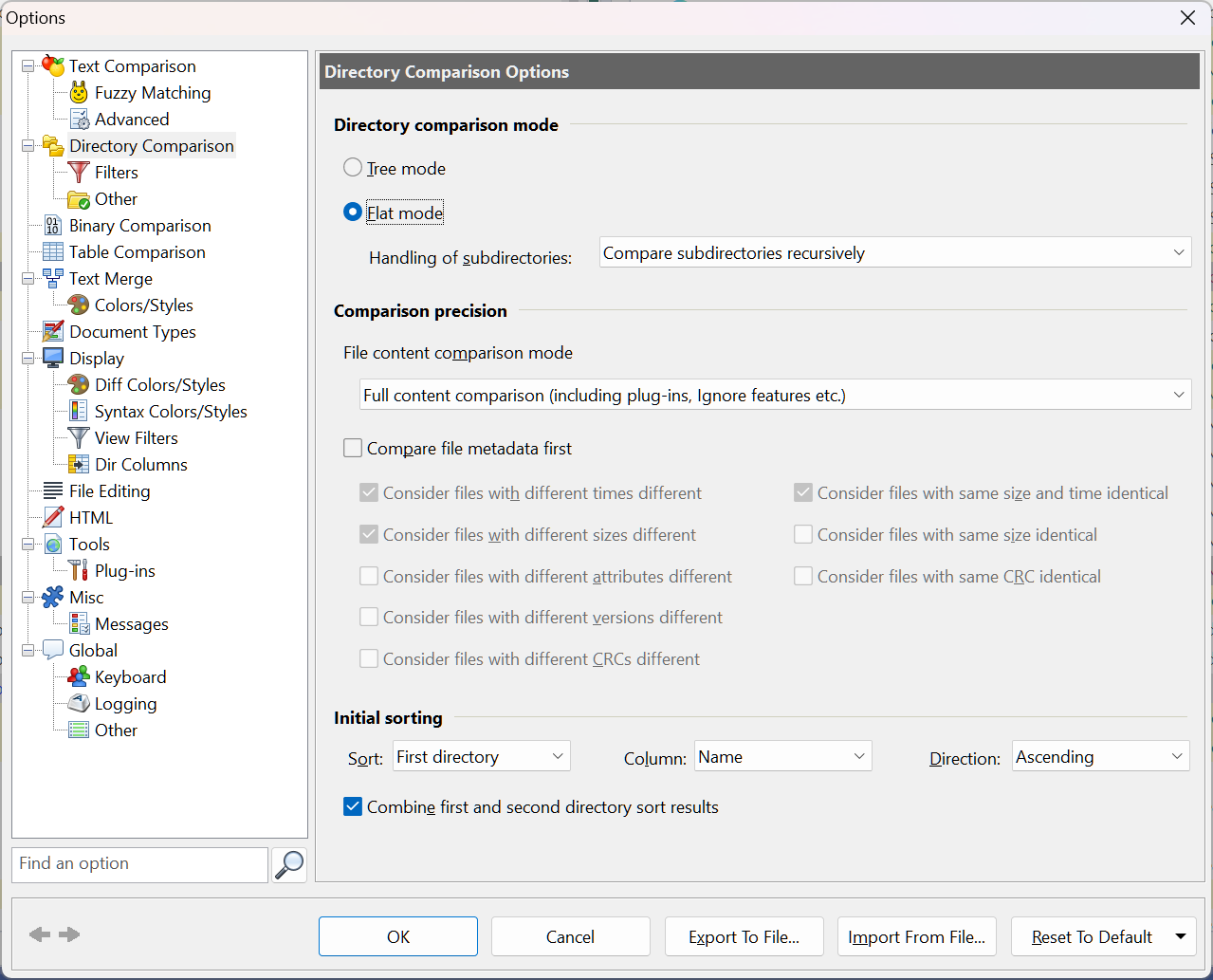
- To change how folders are compared, choose Tools | Options (Ctrl+J) and open the Directory Comparison page. Here you choose Tree mode or Flat mode, and the comparison precision: full content comparison (the default, which uses your plug-ins and Ignore options), a faster byte-by-byte comparison, or comparing file sizes and dates first.
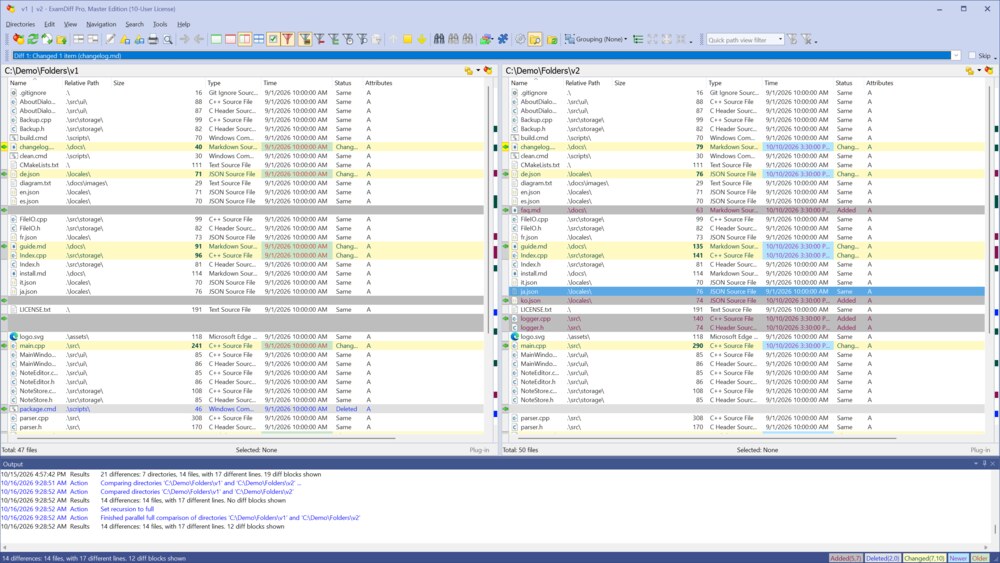
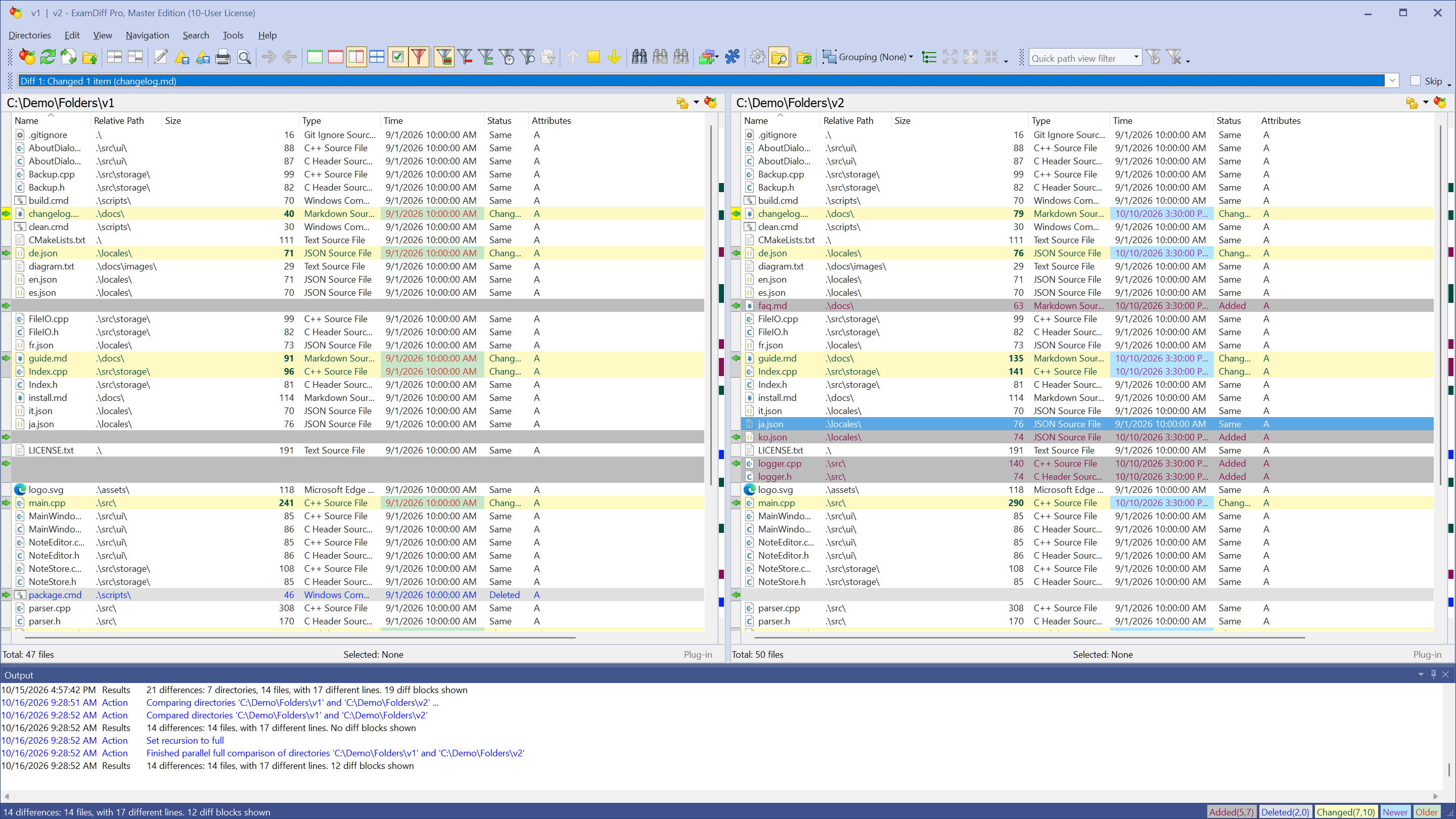
- In flat mode, the files from all subfolders appear in one list, with a Relative Path column that shows where each file is. Click any column heading to sort the whole list, for example by Time or Status, to see all changes together. View | Toggle Tree Mode switches between the two modes at any time.
Questions
Should I use tree mode or flat mode?
Tree mode shows the folder structure and suits large folders, where you open only the parts that changed. Flat mode lists every file in one sortable list, which is handy for seeing all changes at once or sorting them by date or size.
How do I leave out folders such as bin, obj, or .git?
Add them to the exclude filter on the Directory Comparison | Filters page of the options, as comma-separated patterns, for example bin,obj,.git.
Can I compare folders online?
Yes. DiffNow, which is powered by ExamDiff Pro, compares two folders uploaded as Zip archives.