
ExamDiff Pro tutorial · Folder synchronization
How to Synchronize Two Folders on Windows
Compare two folders, for example a working copy and a backup, then make them the same: copy the files missing on each side and replace older files with newer ones, in one direction or both. You see every copy before it happens.
Video
Steps
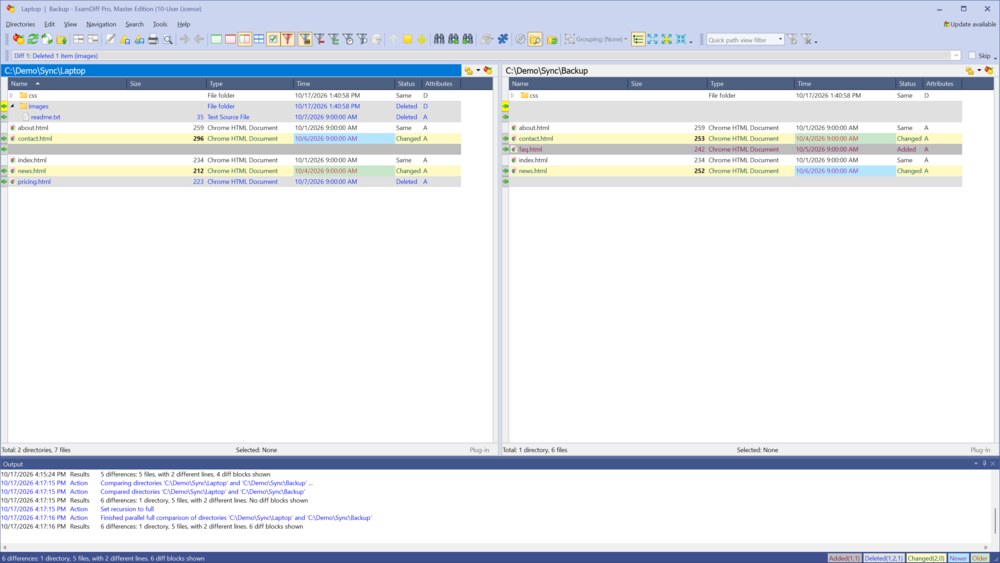
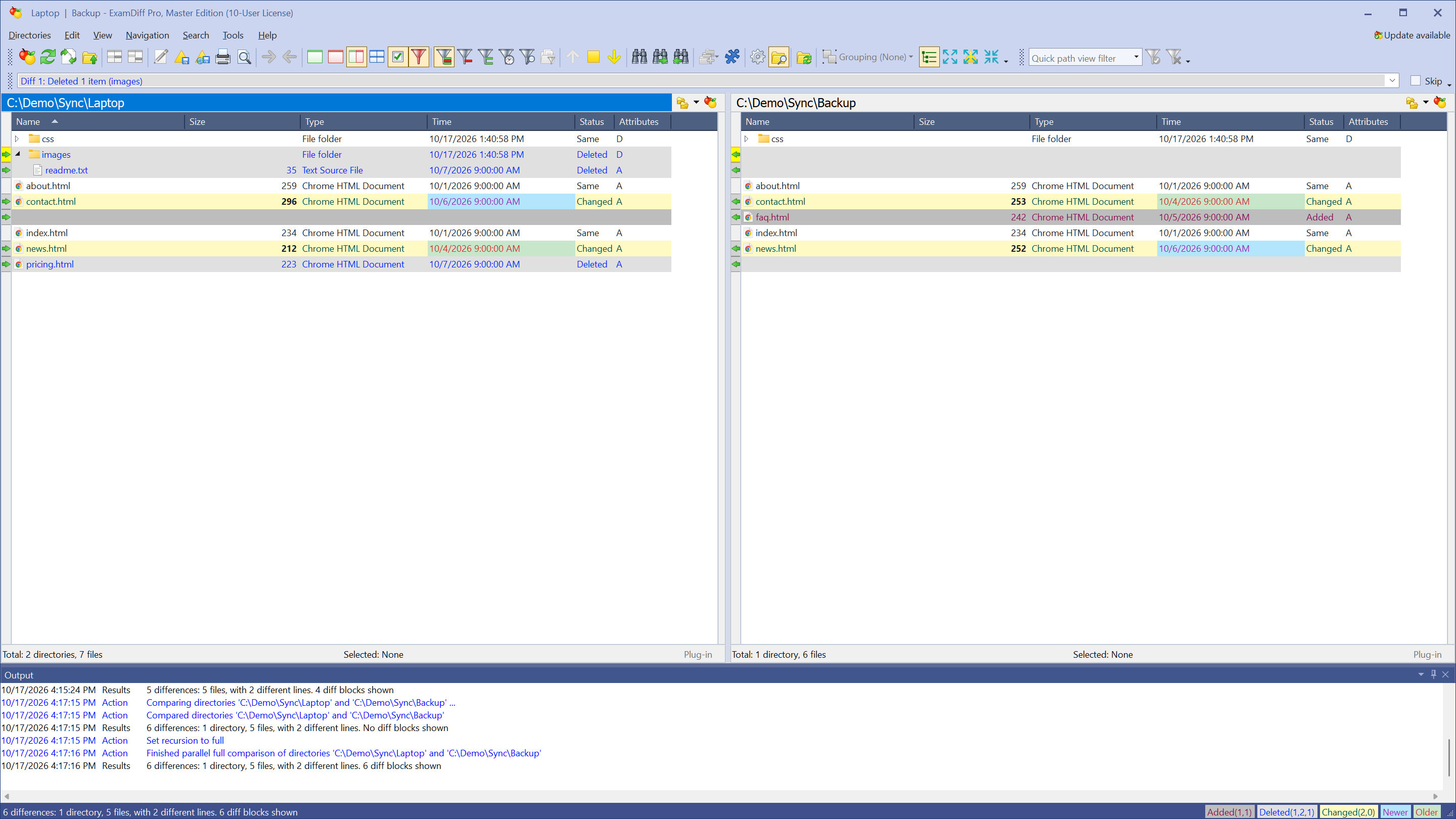
- Compare the two folders: choose Files | New Comparison (Ctrl+E), select Compare Directories, pick the folders, and click Compare. Changed files and files found on only one side are highlighted, and the Time column shows which copy of a changed file is newer.
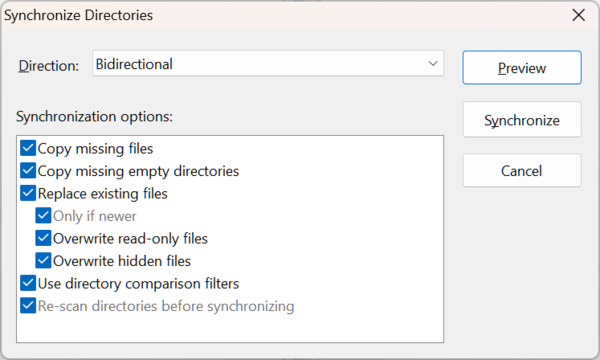
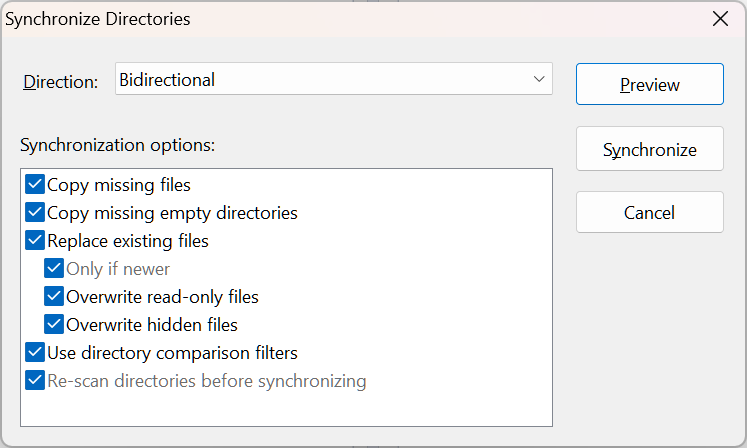
- Choose Edit | Synchronize Directories and pick the Direction:
- First -> Second or Second -> First makes one folder a copy of the other, for example to update a backup
- Bidirectional copies in both directions, so each folder gets the other's new files and the newer version of every changed file
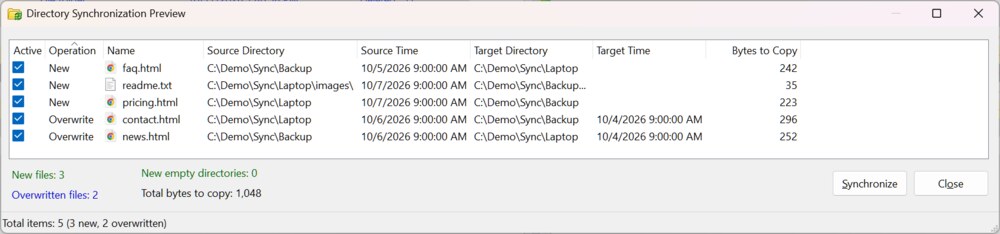
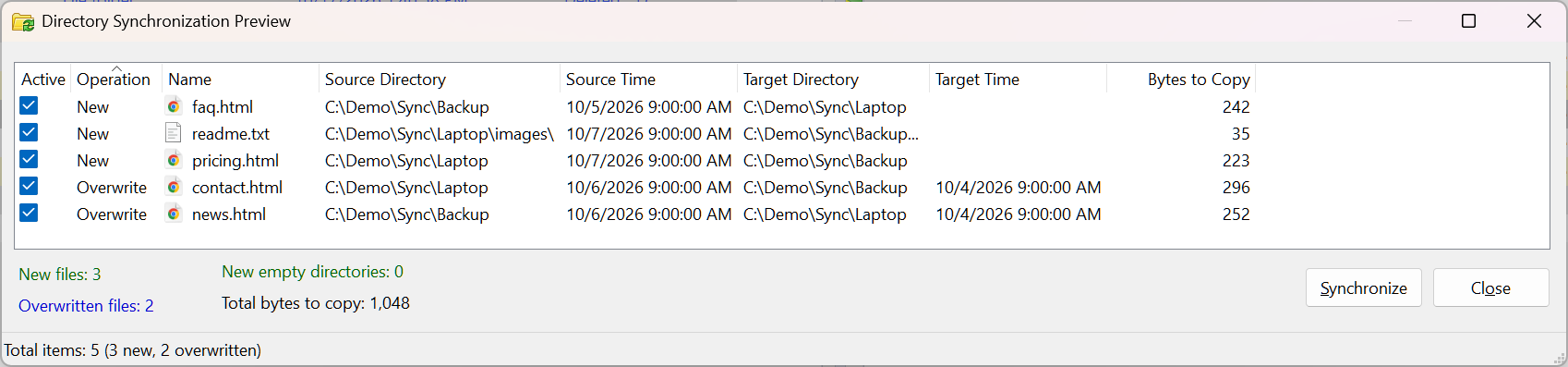
- Click Preview to see every file that will be copied, where it comes from, and where it goes. Clear a check box to leave that file out.
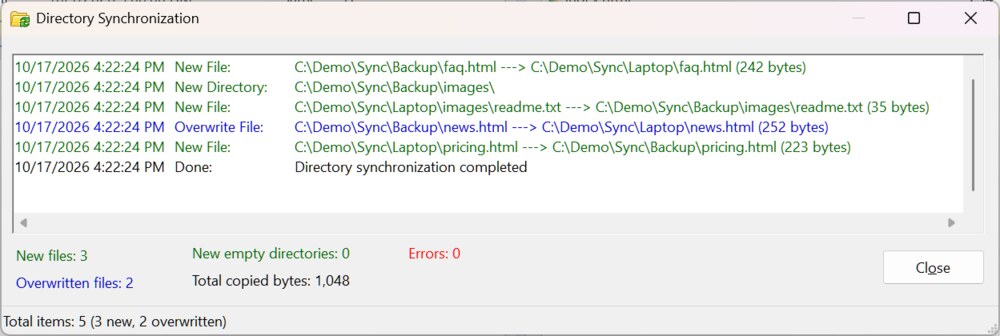
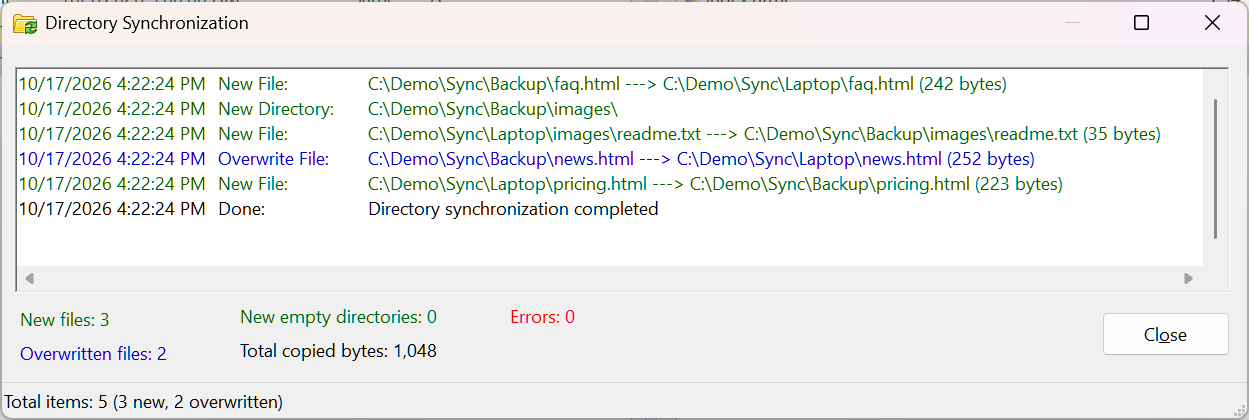
- Click Synchronize and confirm. The log lists each copy as it is made, with the number of new and overwritten files and any errors.
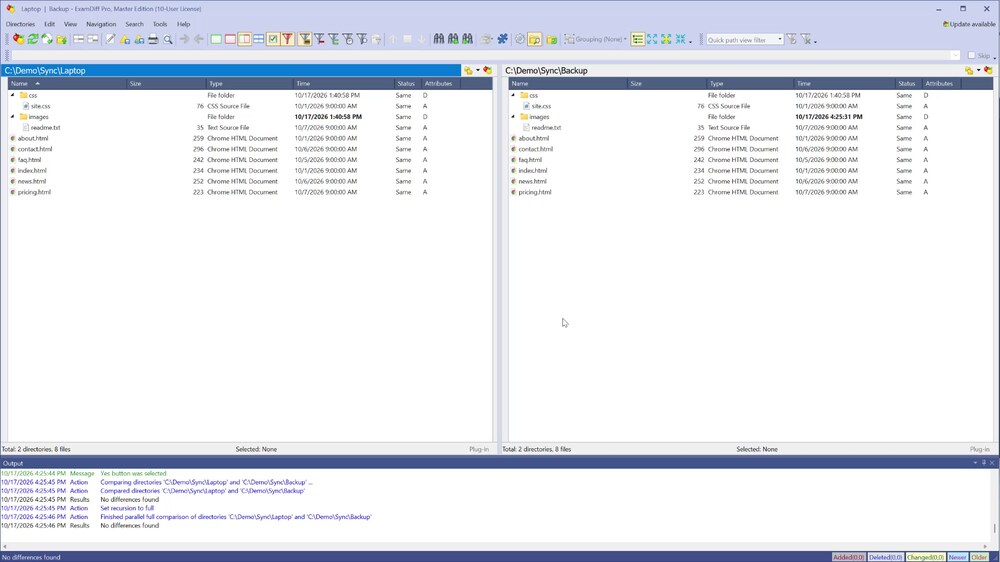
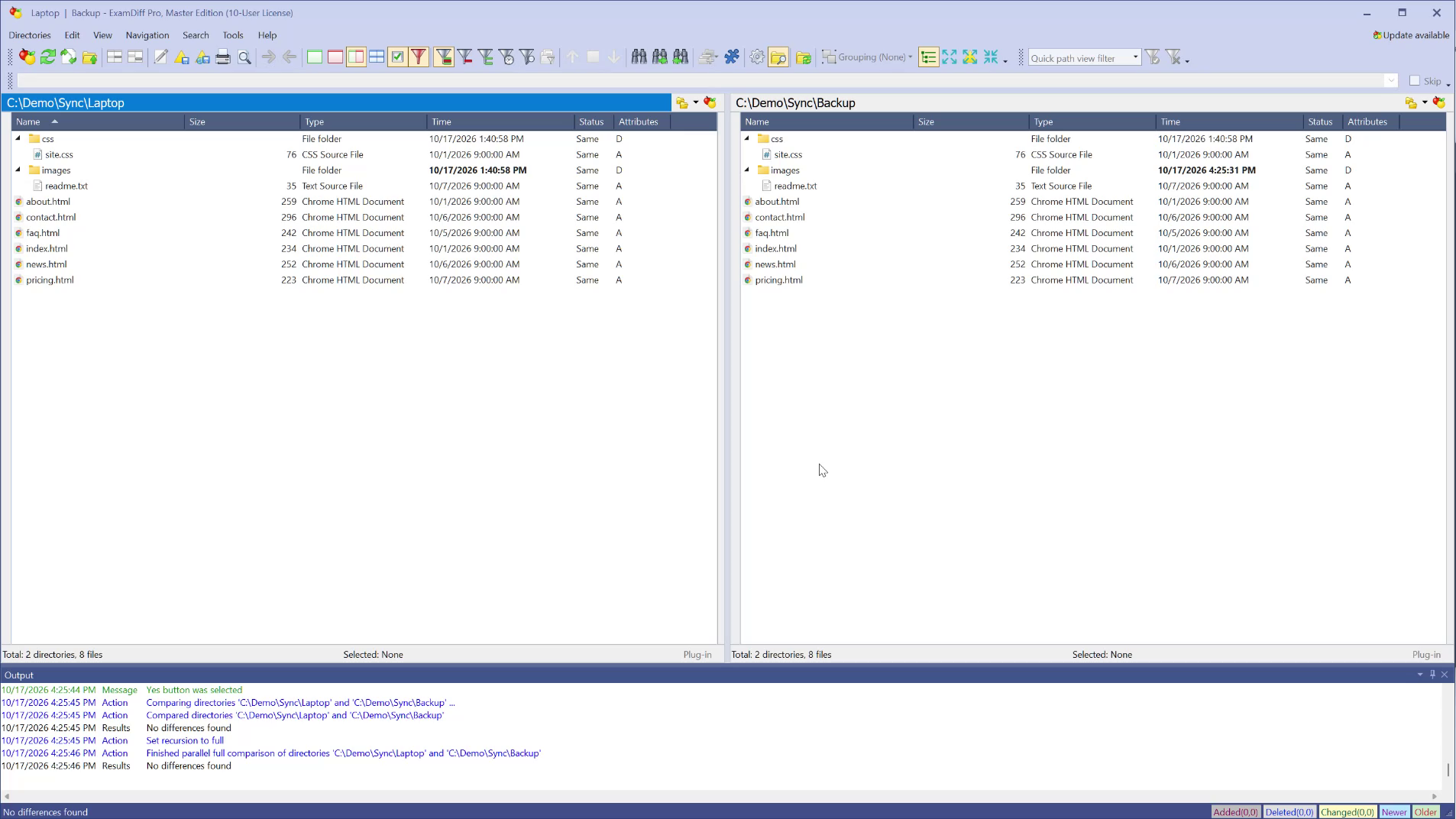
- Close the log and let ExamDiff Pro compare the folders again (or choose Directories | Re-Compare). After a bidirectional synchronization, all files are the same.
Questions
Does synchronization delete files?
No. It only copies files and folders and replaces existing files. To delete files, select them in the folder comparison and use the Edit menu.
Can I copy just a few files?
Yes. Select them in the folder comparison and choose Edit | Copy from First to Second Directory (Ctrl+F9) or Copy from Second to First Directory (Ctrl+F10).
Which edition do I need?
Folder synchronization works in both the Standard and Master editions.
Where can I read more?
See Synchronize Directories in the online help.