
ExamDiff Pro tutorial · HTML reports
How to Create and Share an Interactive HTML Diff Report
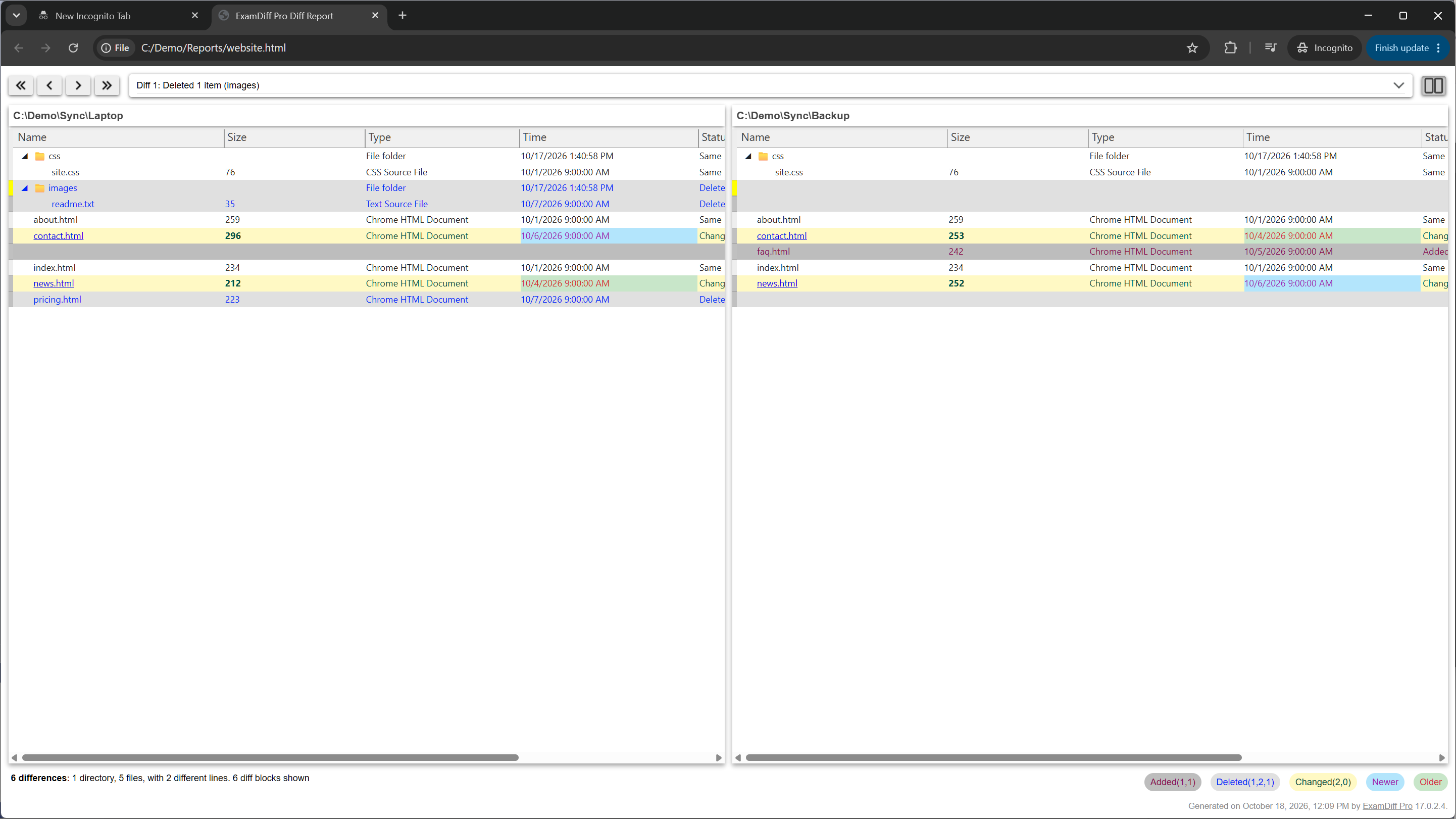
Save a file or folder comparison as an HTML report that anyone can open in a browser, with no software to install. It works like the app: jump from difference to difference, scroll both sides together, expand and collapse folders, and open each changed file's own diff report.
See for yourself: open the sample folder report from the video in your browser, or download it as a zip.
Video
Steps
- Compare two folders or two files.
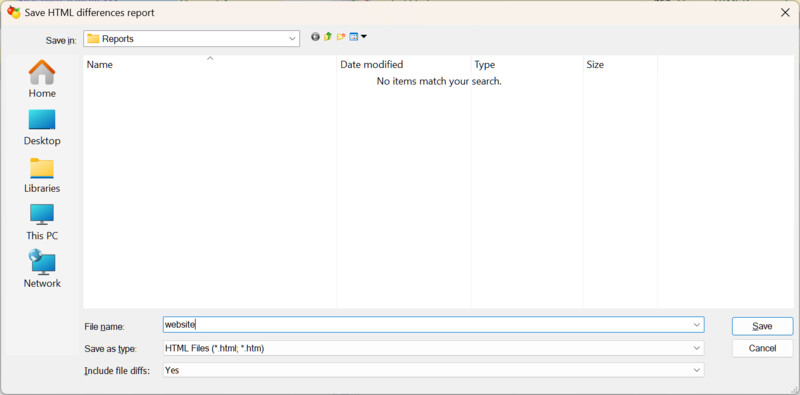
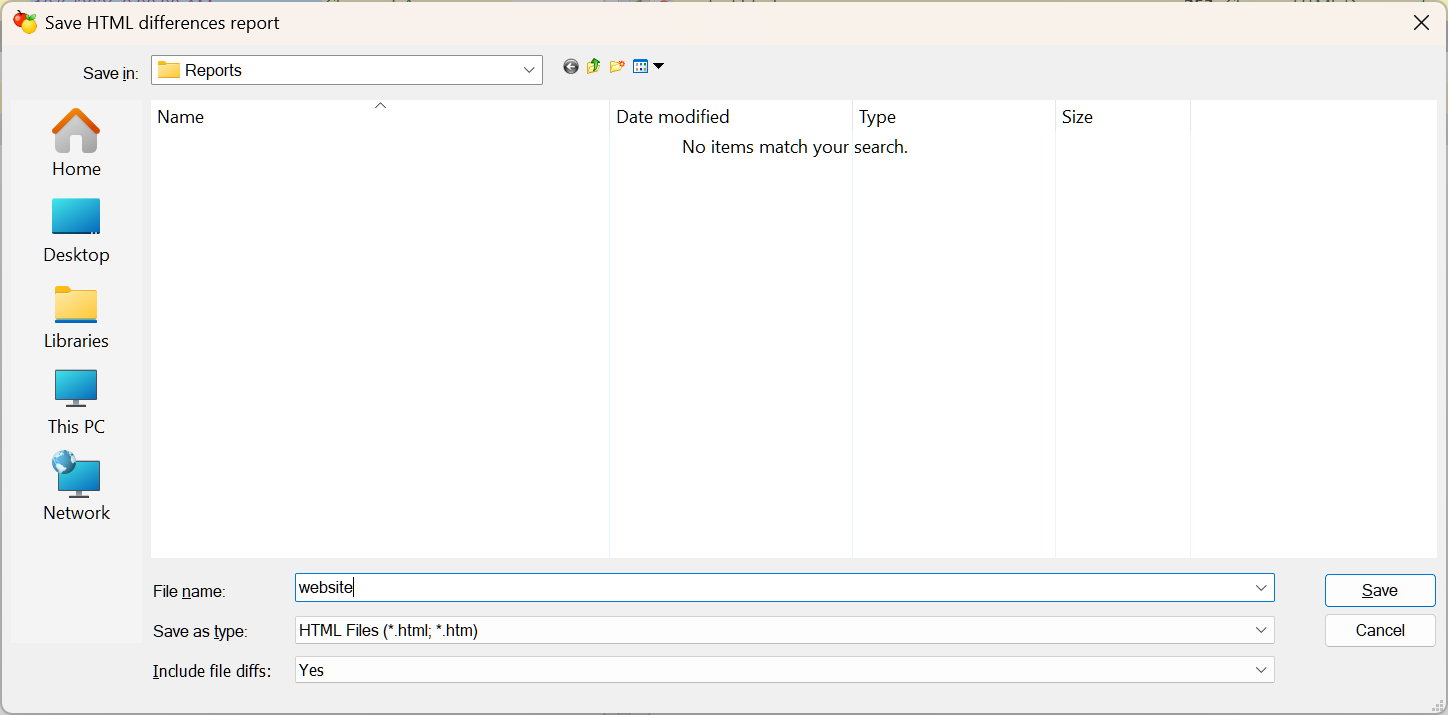
- Choose Report | Save HTML Diff Report (Ctrl+M) from the Directories menu (or the Files menu in a file comparison), and pick where to save the report. For a folder comparison, set Include file diffs to Yes to add a diff report for every changed file.
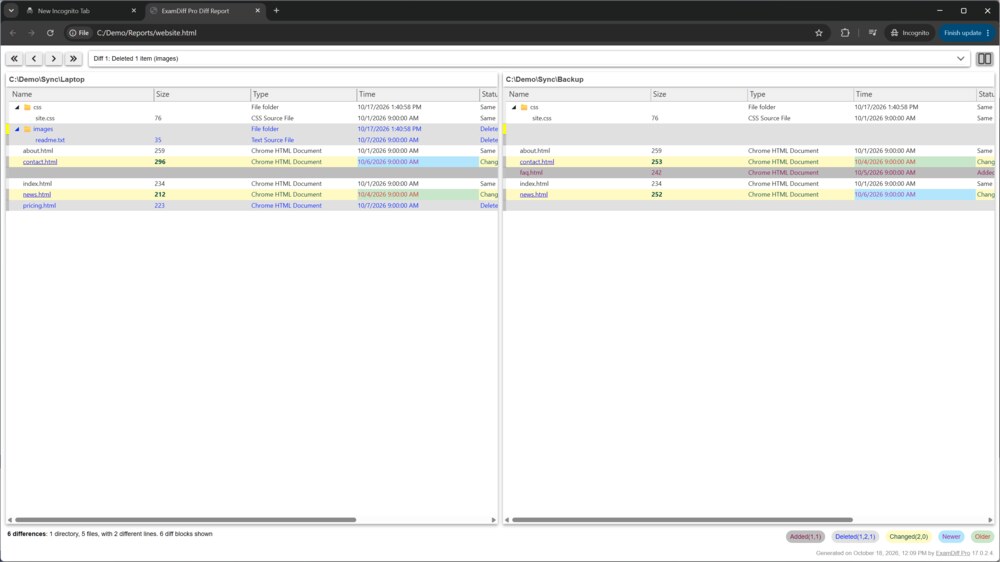
- Open the report in any browser. A folder report shows both folders side by side, just like the comparison in ExamDiff Pro: expand and collapse folders, and use the arrows at the top to go from one difference to the next.
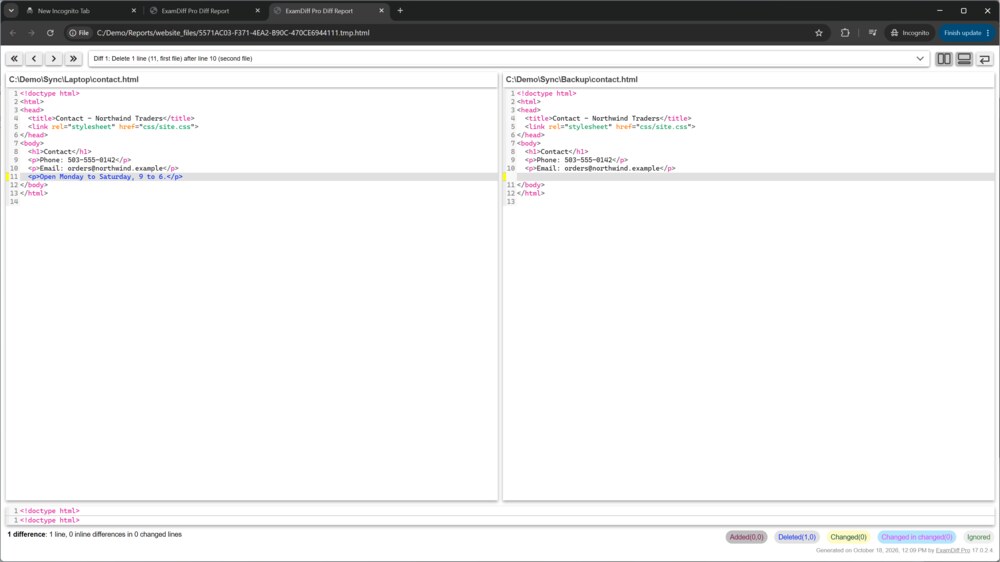
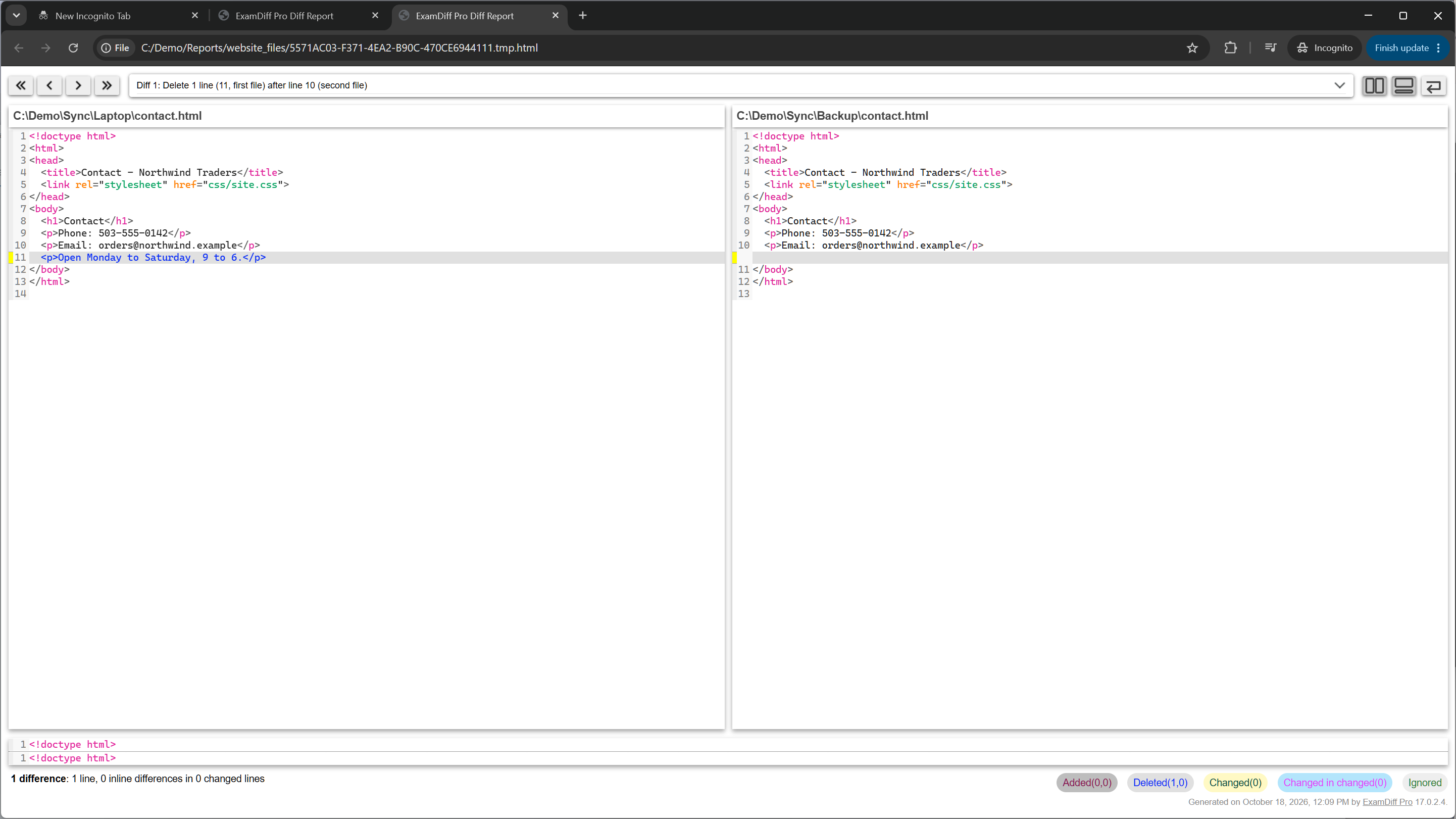
- Click a changed file to open its diff report: the two versions side by side with the differences highlighted, difference navigation, and both sides scrolling together.
- Share it. A folder report is one HTML file plus a folder of the same name with the file reports: zip them, email them, attach them to a ticket or code review, or put them on a shared drive or intranet. A file report is a single HTML file. To email a report directly, choose Report | Email HTML Diff Report.
Questions
Do the people I share it with need ExamDiff Pro?
No. Any modern browser opens the report. To make it work without an Internet connection too, turn on Enable offline report viewing in Tools | Options | HTML.
Which edition do I need?
HTML reports for files and folders work in both editions. Folder reports with file diffs (Include file diffs) are part of the Master edition; the free 30-day trial includes them.
Can I just look at the report without saving it?
Yes: Report | View HTML Diff Report opens a temporary report in your browser.
Can I print instead?
Yes; see How to Print a Diff Report.