
ExamDiff Pro tutorial · Directory snapshots
How to Compare a Folder with a Snapshot
Save a snapshot of a folder and compare it later, when the folder itself isn't available: a backup drive that's unplugged, a folder on another PC, or a program folder before you install an update. A snapshot is a small XML file with the folder's file list, sizes, dates, and, if you want, a checksum of every file.
Video
Steps
- Choose Files | Create Directory Snapshot (Ctrl+N), pick the folder, and click OK. In a folder comparison, you can also save a snapshot of either side with Directories | Snapshot | Save Snapshot of First Directory (Ctrl+F11) or Second Directory (Ctrl+F12).
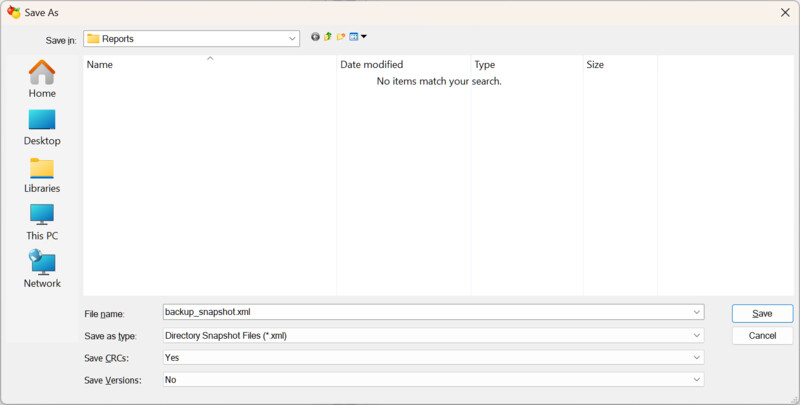
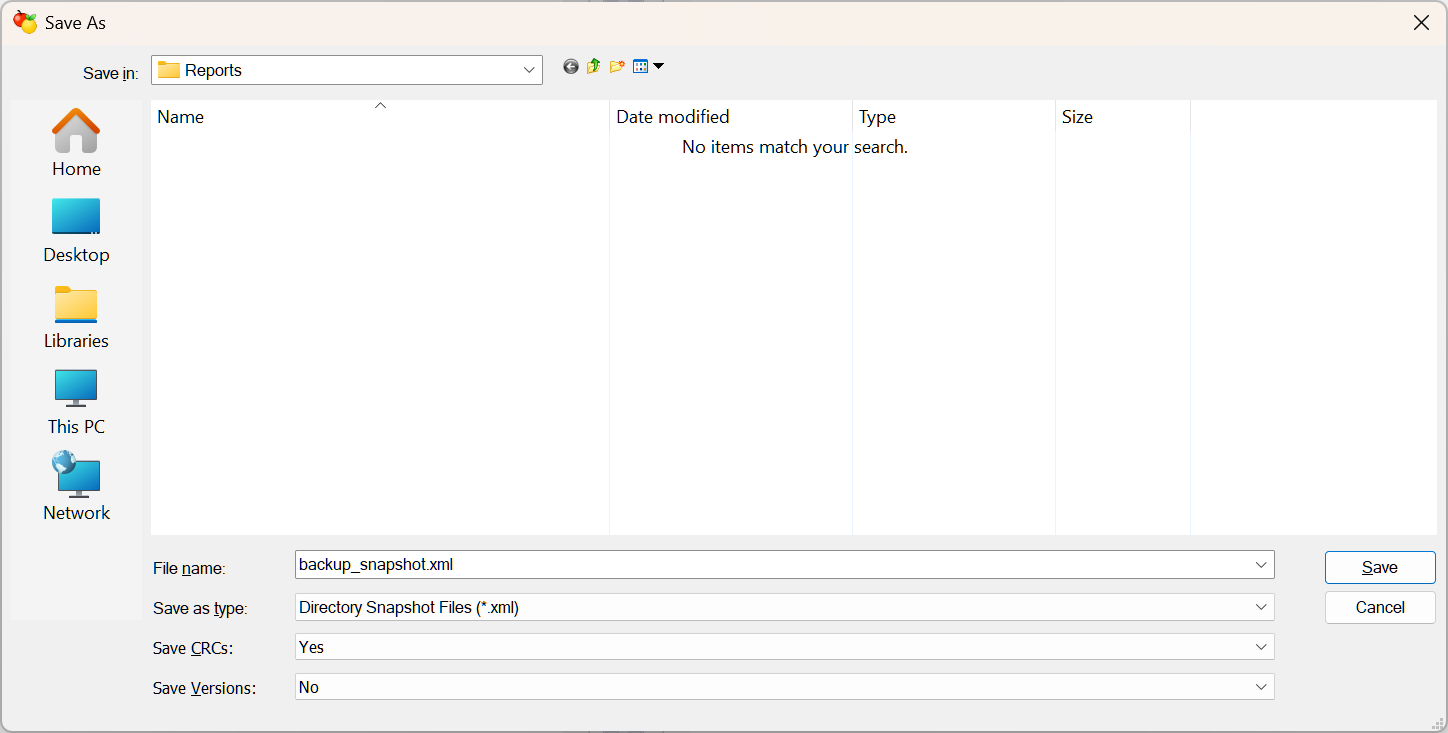
- Choose where to save the snapshot. Two options control what goes into it:
- Save CRCs: records a checksum of every file, so a later comparison can tell whether a file's contents changed even when its size and date didn't. Creating the snapshot takes longer, because every file is read.
- Save Versions: records the version numbers of programs and DLLs, useful for comparing installed program folders.
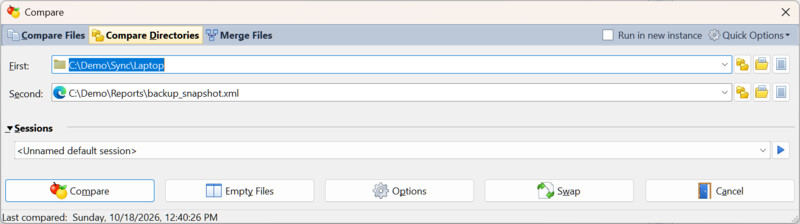
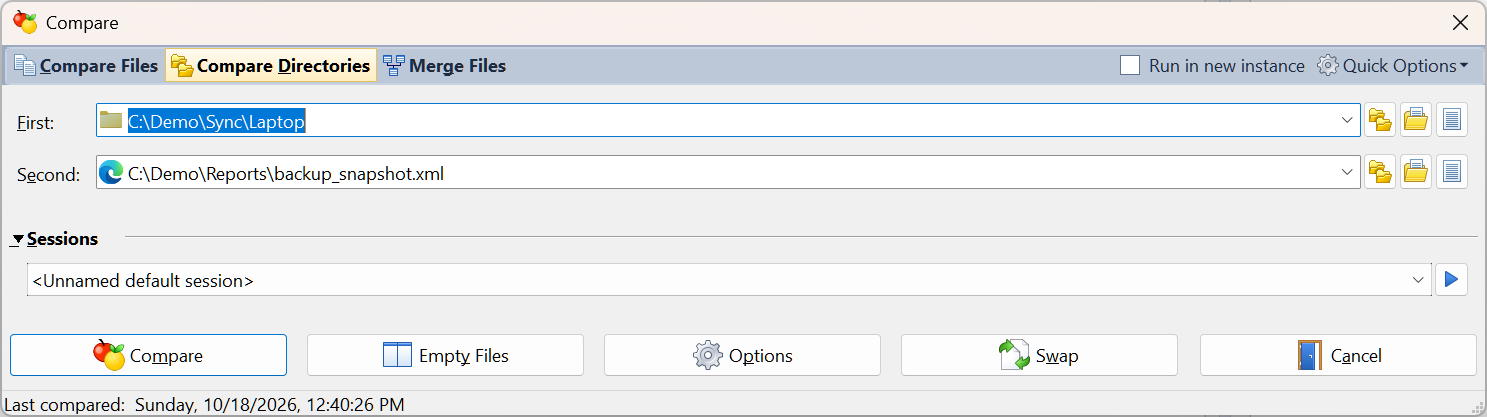
- To compare, choose Files | New Comparison (Ctrl+E) and select Compare Directories. Pick a folder for one side, and for the other side click the Browse for directory snapshot button next to the box and pick the snapshot. You can also compare two snapshots.
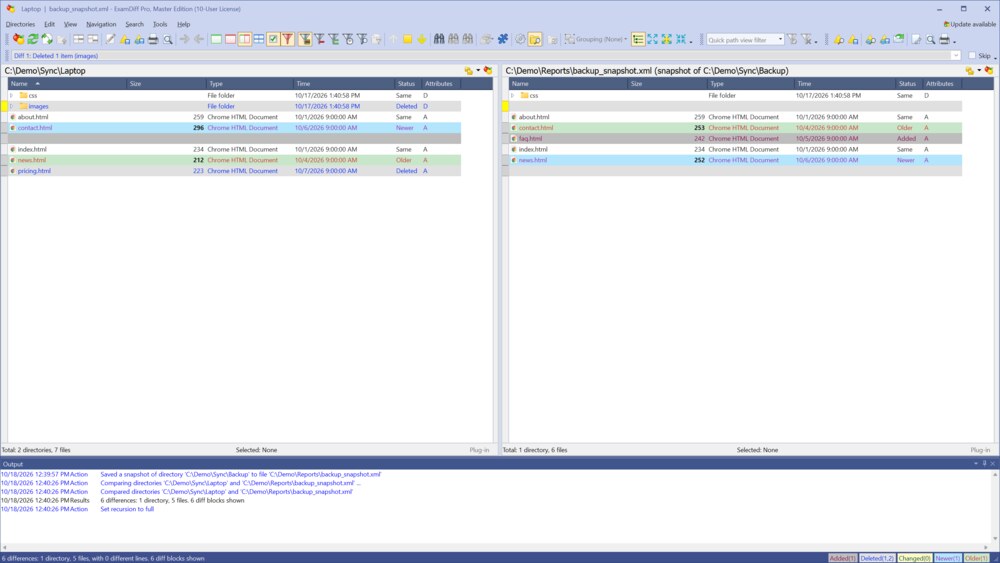
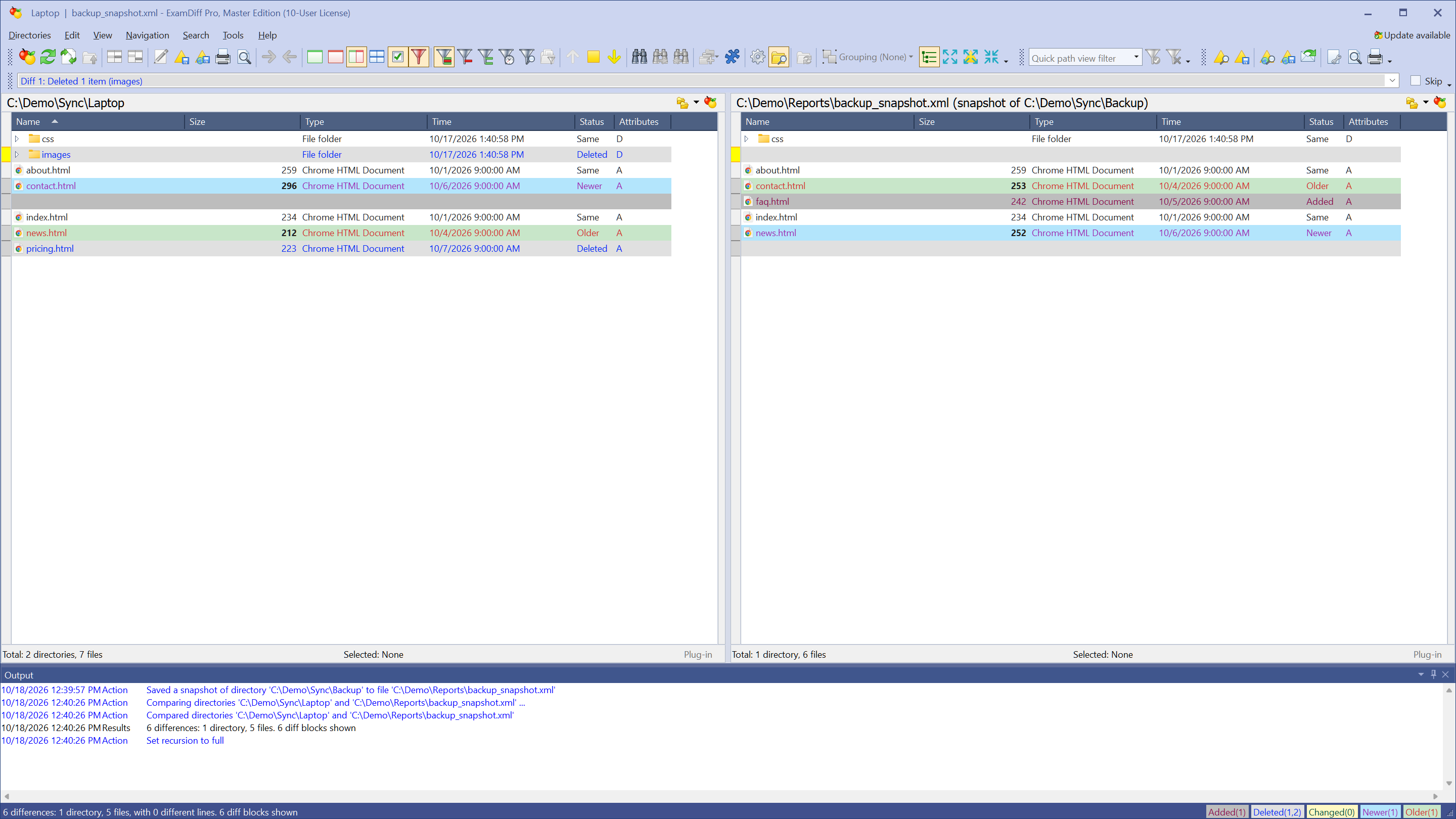
- Click Compare. The result looks just like a regular folder comparison, and the snapshot's pane title shows which folder it was taken of.
- To bring a snapshot up to date later, compare it with any folder and choose Directories | Snapshot | Refresh Snapshot of First Directory (or Second Directory).
Questions
Can I open the files in a snapshot?
No. A snapshot holds only the file list and file details, not the files themselves, so you can see which files differ but not compare their contents.
How do I use the checksums in a comparison?
Turn on Consider files with different CRCs different in Tools | Options | Directory Comparison. Files with the same size and date but different contents are then marked as changed.
Where can I read more?
See Create Directory Snapshot and Directory Comparison Options in the online help.