
ExamDiff Pro tutorial · Windows Explorer
How to Compare Files and Folders from Windows Explorer
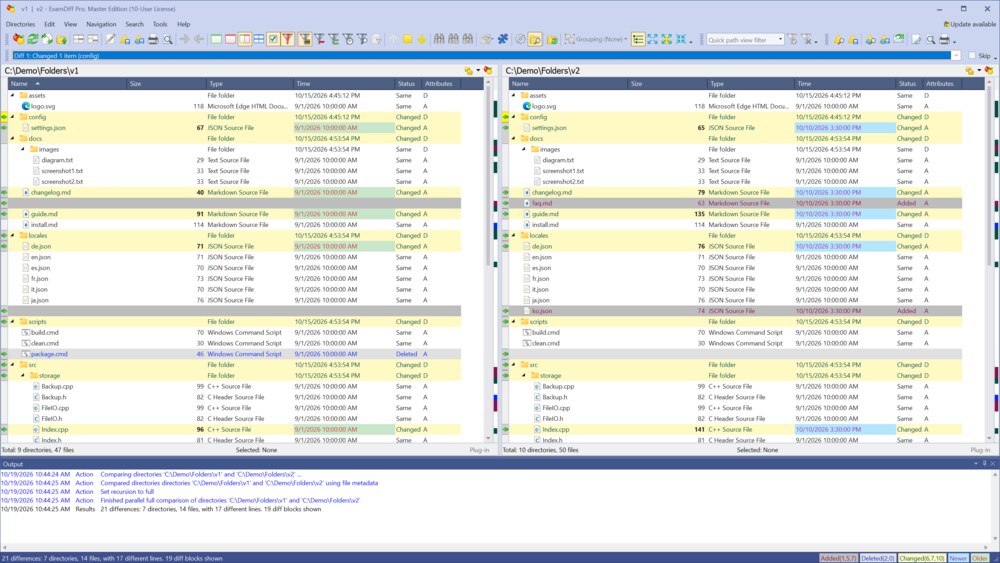
Start a comparison without opening ExamDiff Pro first: right-click files or folders in Windows Explorer and compare them from the ExamDiff Pro menu.
Video
Steps
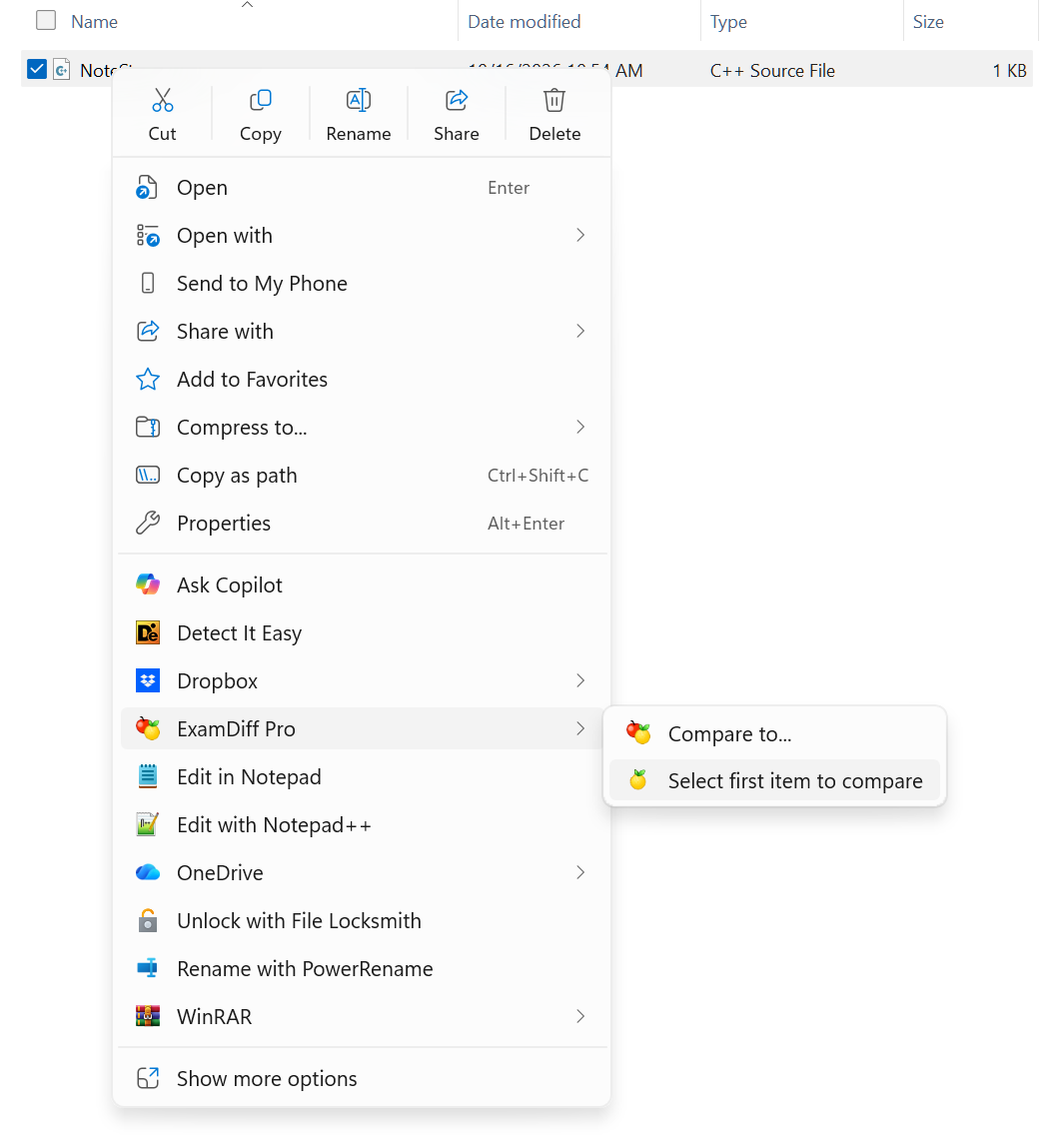
- Files or folders in different places: right-click the first one and choose ExamDiff Pro | Select first item to compare.
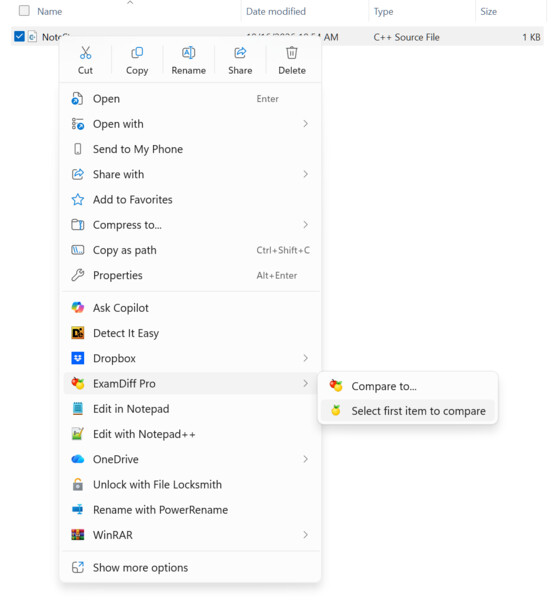
- Right-click the second one and choose ExamDiff Pro | Compare to, followed by the first item's path, for example Compare to "C:\Demo\Files\v1\NoteStore.cpp". ExamDiff Pro opens with the comparison. To pick the other item yourself instead, choose Compare to....
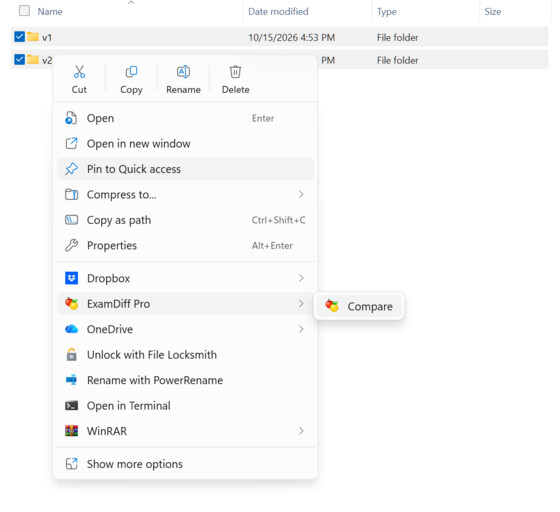
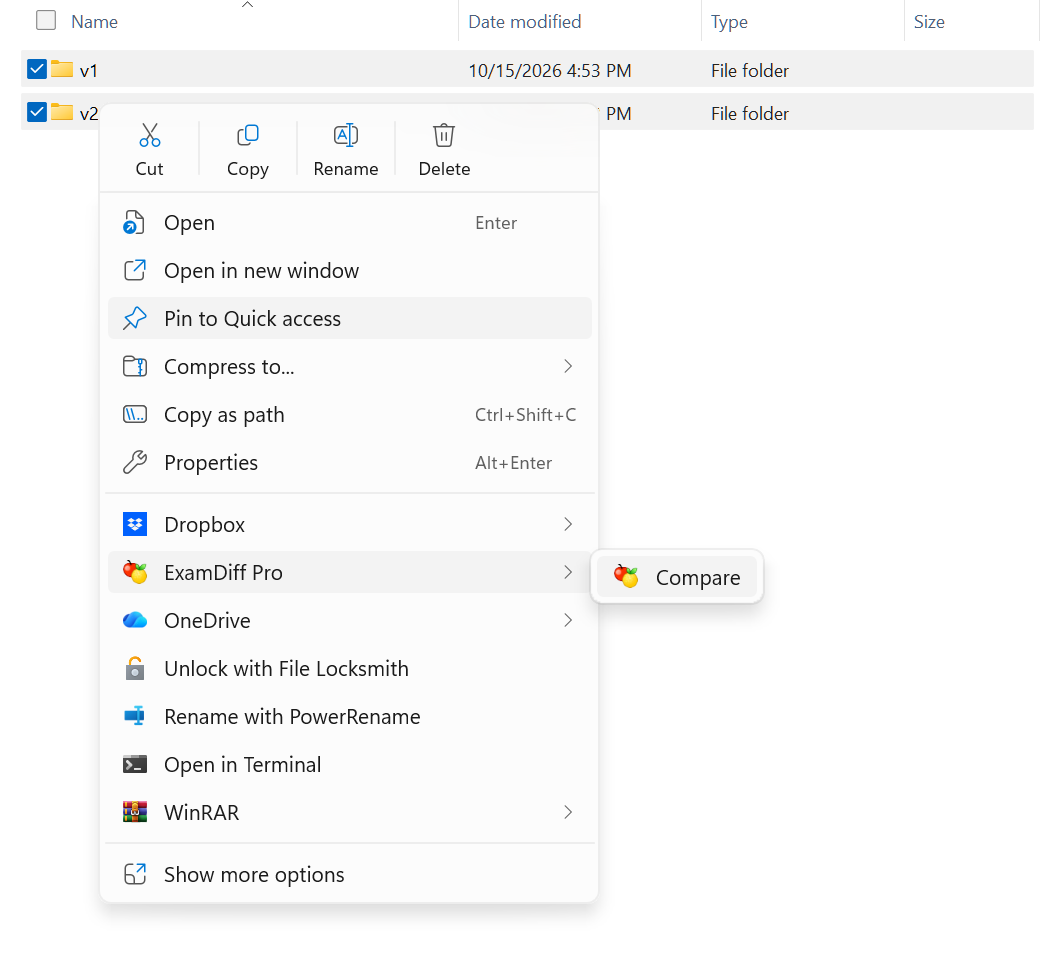
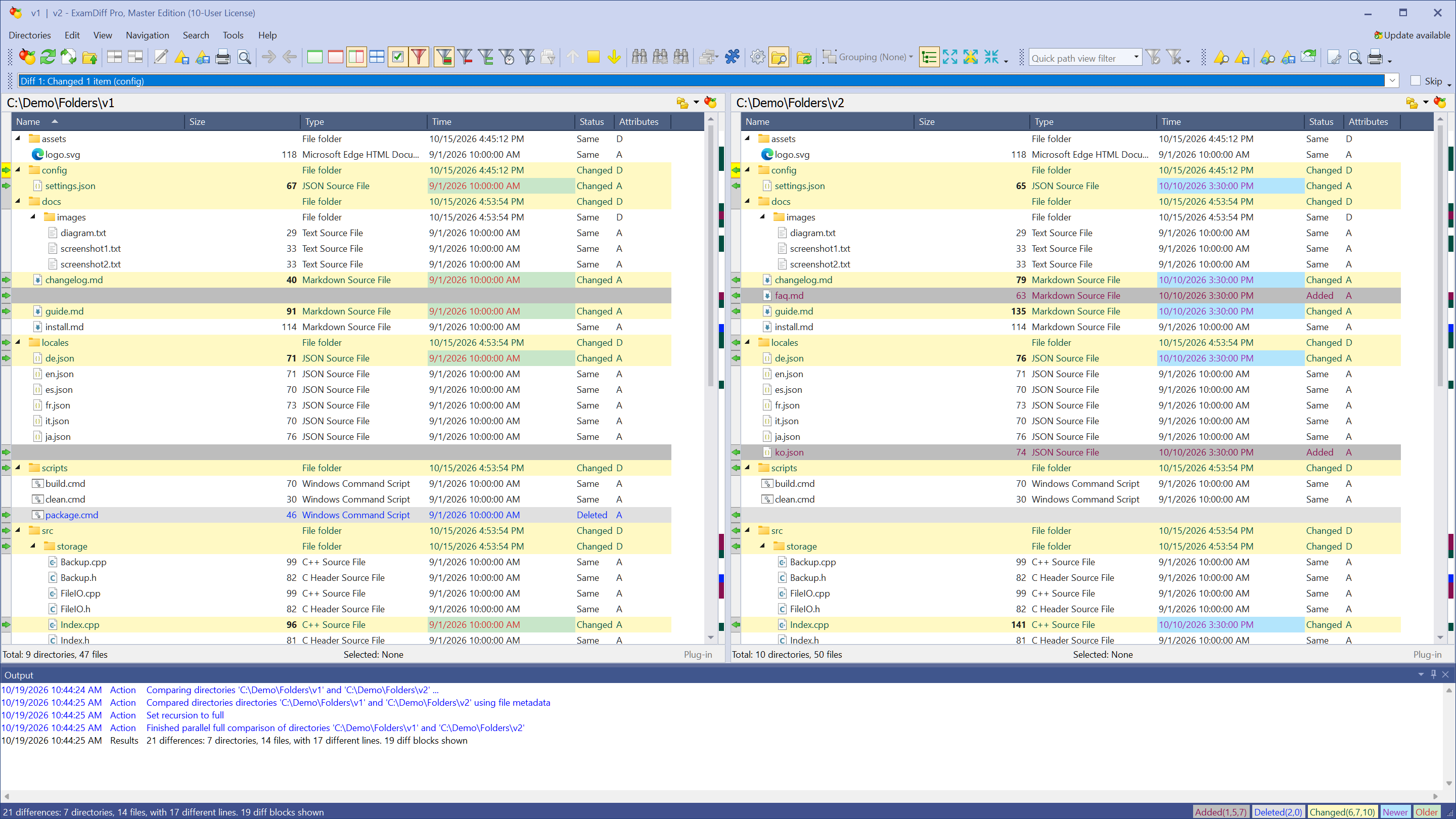
- Two files or folders in the same folder: select both, right-click, and choose ExamDiff Pro | Compare.
Questions
I don't see the ExamDiff Pro menu. How do I turn it on?
Choose Tools | Options, go to Global, and check Enable Windows Explorer (Shell) integration. The same page sets the order of the compared items and whether a file can be compared to a folder.
Can I open the Windows Explorer menu from ExamDiff Pro?
Yes. Right-click a file in a comparison and choose Explorer Menu to get the same menu as in Windows Explorer.
Can I start a comparison from the command line?
Yes: ExamDiff.exe file1 file2, or two folders. See Command Line Options in the online help.