
ExamDiff Pro tutorial · Ignoring unimportant changes
How to Ignore White Space, Comments, and Other Unimportant Changes
Reindented code, edited comments, blank lines, and timestamps can make two files look completely different when only one value changed. Tell ExamDiff Pro what to ignore, and only the real changes are left.
Video
Steps
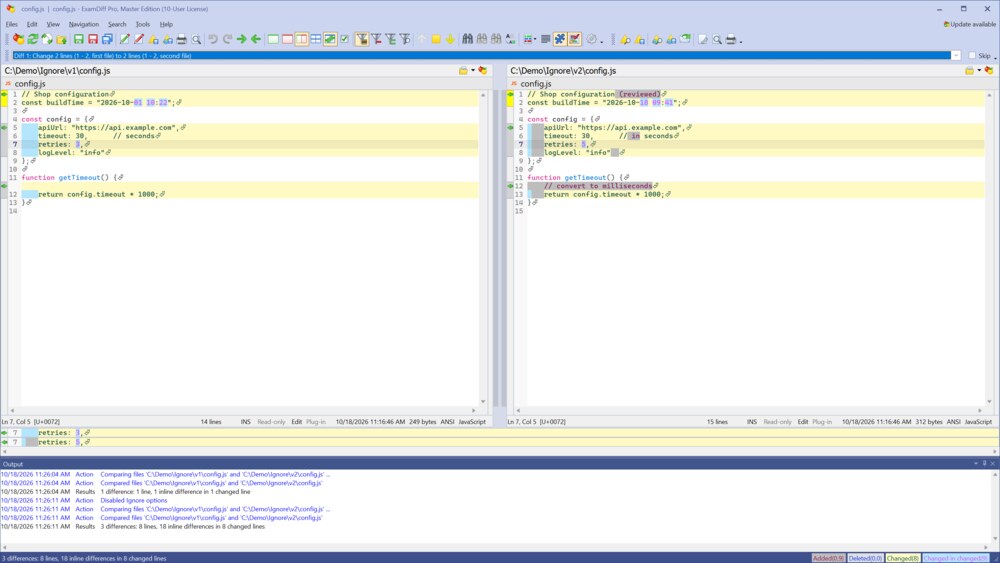
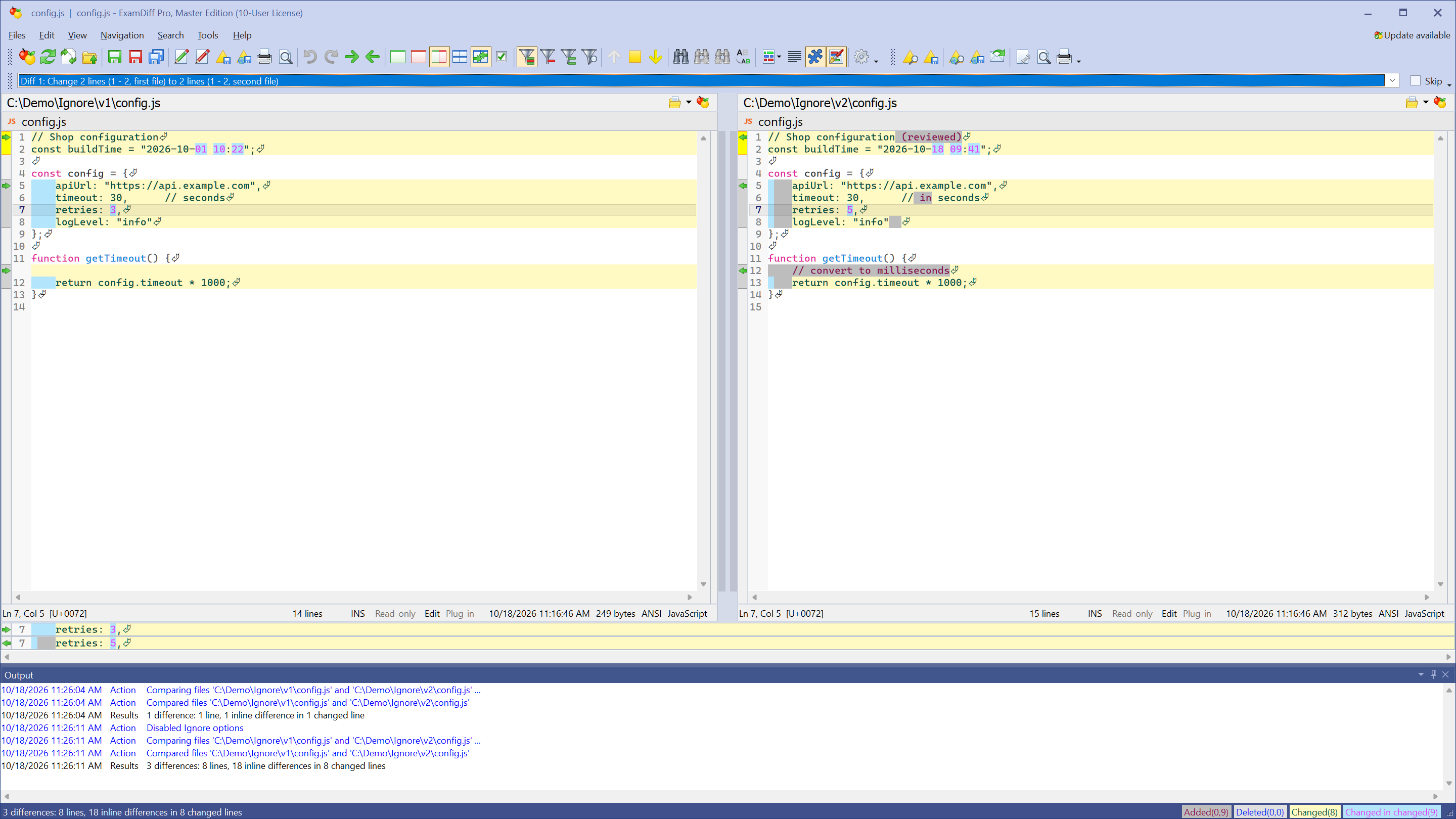
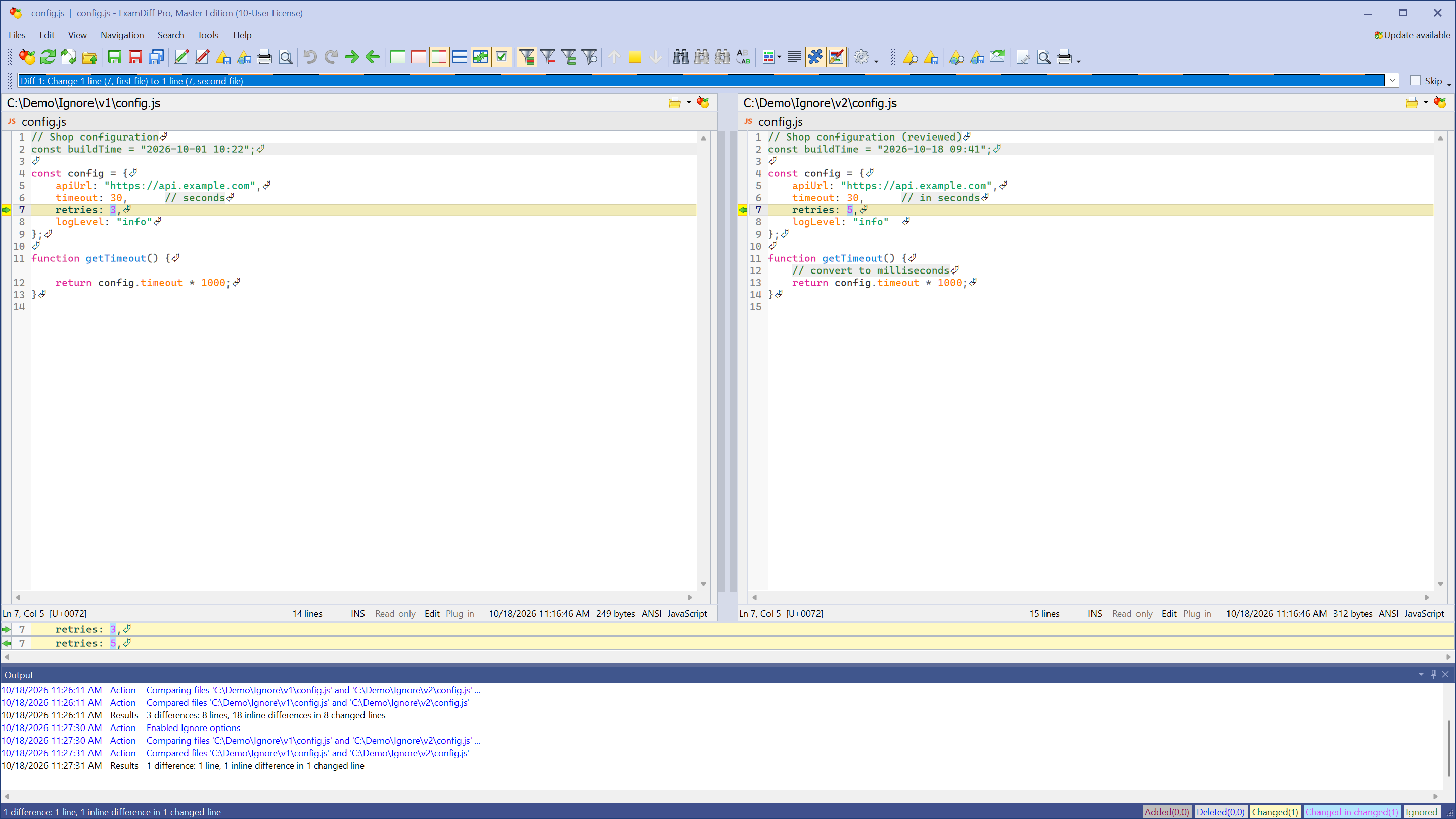
- Compare the two files. In the example, the second file was reindented (tabs replaced by spaces), its comments were edited, and its build timestamp changed, so almost every line is marked, although only one setting really changed.
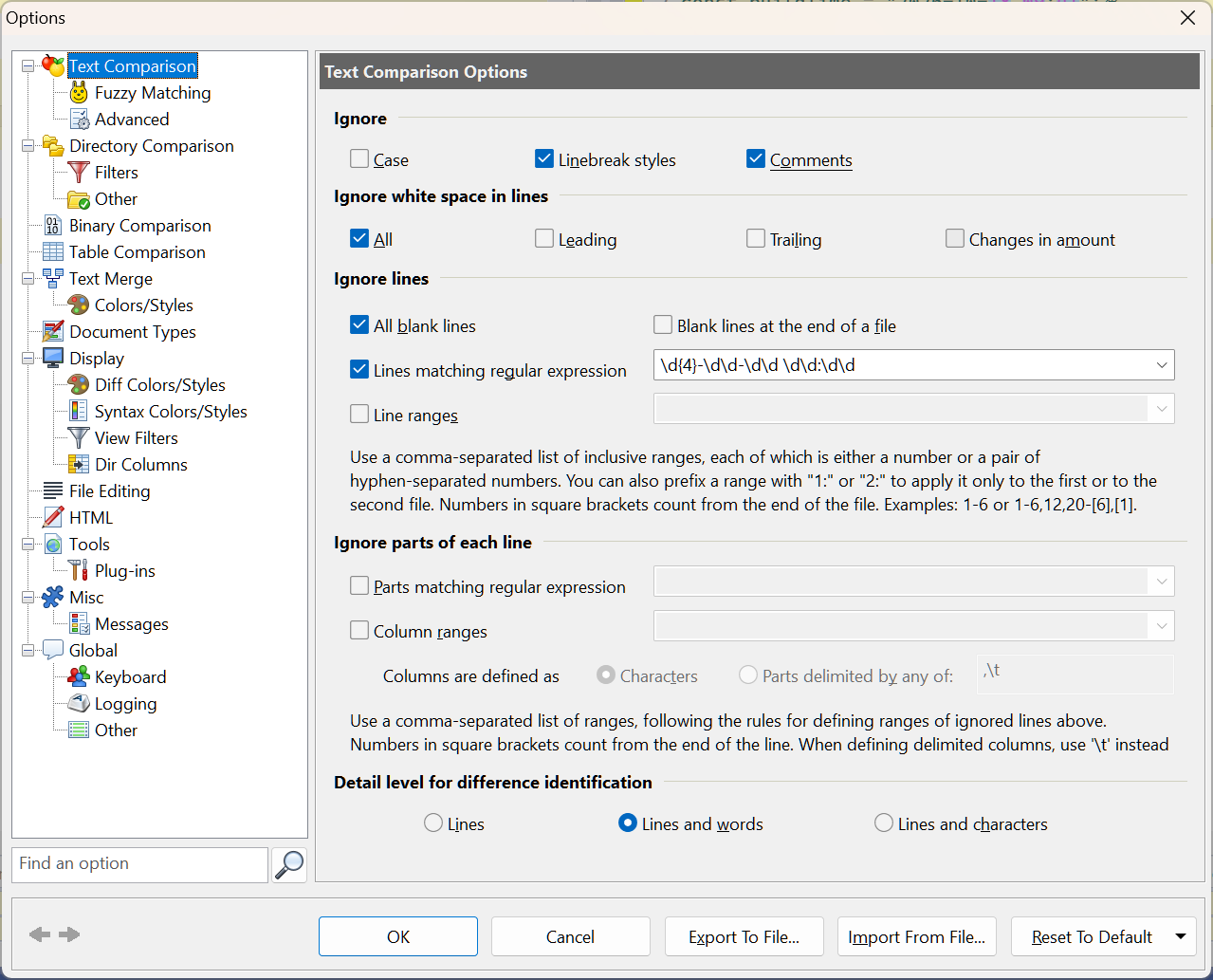
- Choose Tools | Options and go to Text Comparison. Choose what to ignore:
- Ignore: Comments (recognized for the file's language), Case, and Linebreak styles (Windows vs Unix line endings)
- Ignore white space in lines: All, or only Leading, Trailing, or Changes in amount
- Ignore lines: All blank lines, blank lines at the end of a file, Lines matching regular expression, or line ranges
- Ignore parts of each line: Parts matching regular expression or column ranges
\d{4}-\d\d-\d\d \d\d:\d\dignores the line with the build timestamp.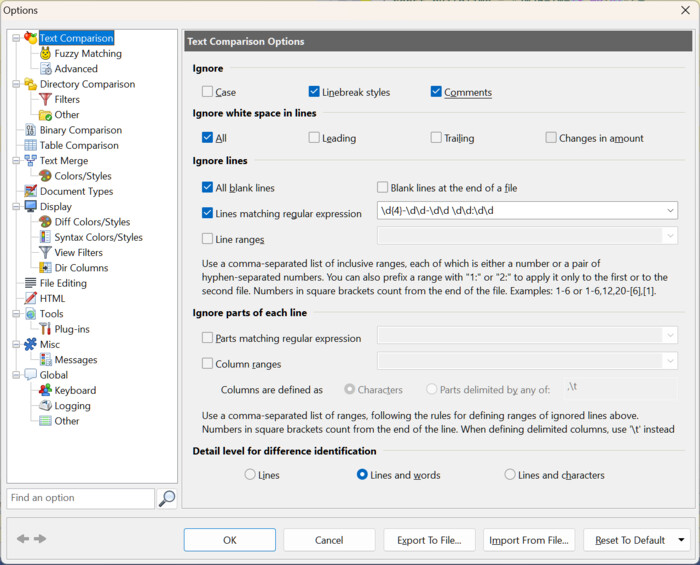
- Click OK and re-compare when asked. Ignored differences are no longer marked, and only the real change is left.
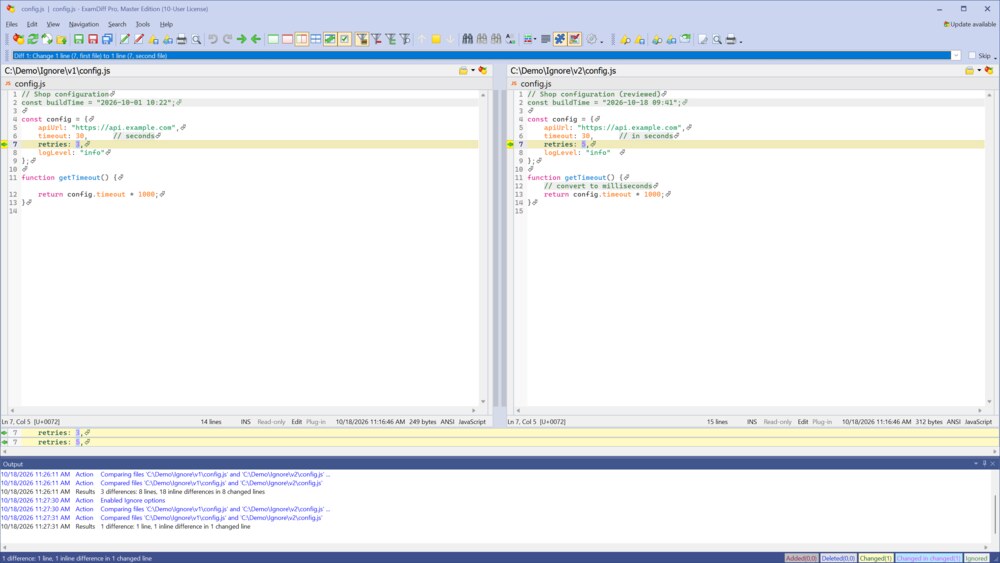
- To switch quickly, use the Ignore White Space, Ignore Blank Lines, and Ignore Comments toolbar buttons. Tools | Use Ignores (Ctrl+I) turns all ignore options off and back on at once, without losing your settings; it's also in the Quick Options of the Compare dialog.
Questions
Should I ignore whole lines or parts of lines?
Ignore whole lines when a line never matters, such as a generated header. Ignore parts of lines when the rest of the line still matters: for example, \d{4}-\d\d-\d\d under Parts matching regular expression ignores only the dates, so other changes on the same line still show.
How does ExamDiff Pro know what a comment is?
From the file's document type: for most languages it uses its built-in parser, and you can also define comments with a regular expression. See Document Types in the online help.
Can I leave files out of a folder comparison?
Yes, with folder filters; see the folder comparison tutorial.
Where can I read more?
See Text Comparison Options and Regular Expressions in the online help.