
ExamDiff Pro tutorial · Source code
How to Compare Source Code on Windows
Compare two versions of a source file with full syntax highlighting, see which function you are in and which functions changed, and let ExamDiff Pro match functions and classes by their signatures, so the diff lines up the right code.
Video
Steps
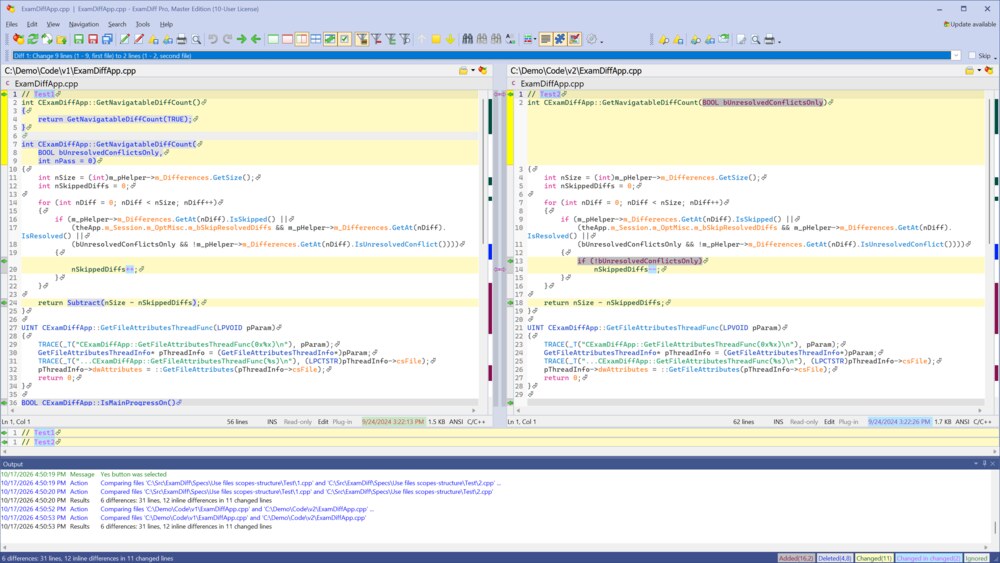
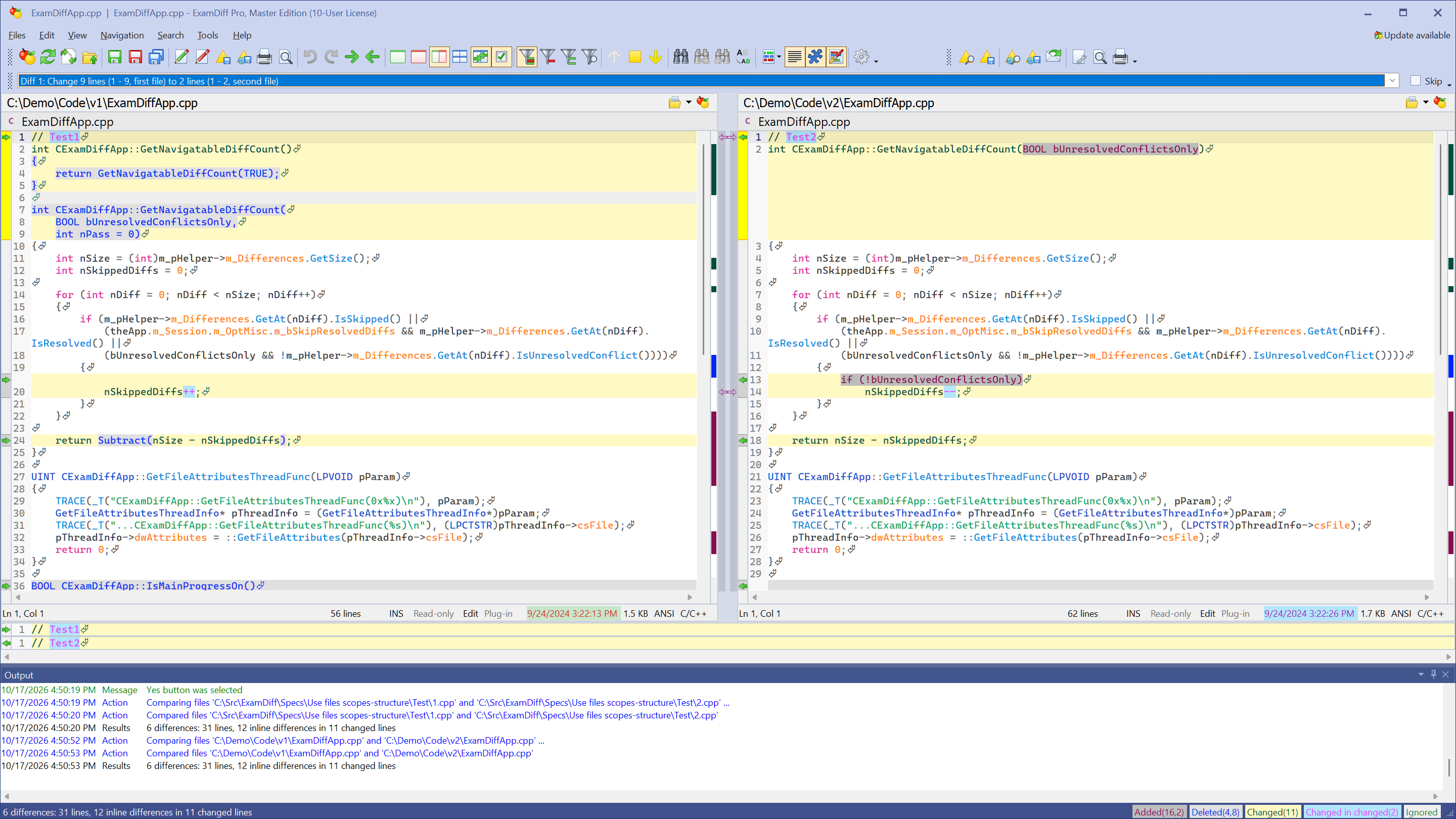
- Compare the two files: choose Files | New Comparison (Ctrl+E), select Compare Files, pick the files, and click Compare. ExamDiff Pro recognizes the language from the file extension, or from the content for files without a known extension, and highlights the syntax in both panes.
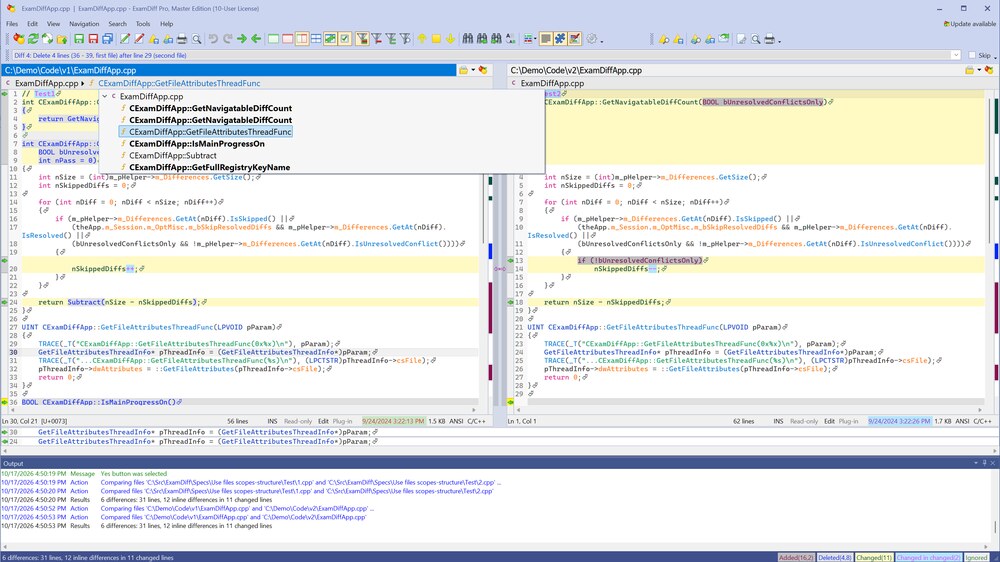
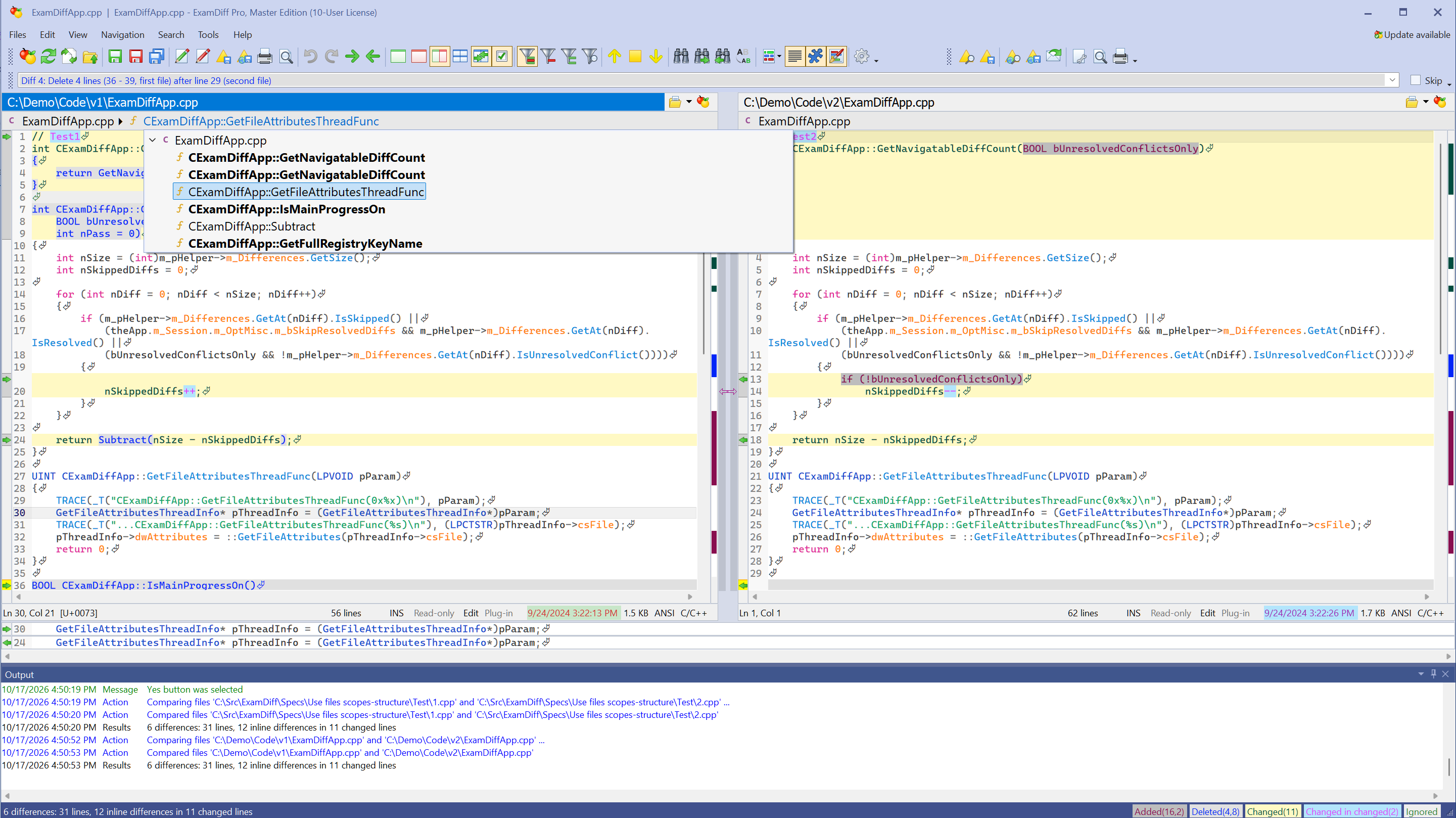
- Click anywhere in a file. The scope bar above each pane shows where you are, for example the class and function. Click a part of the scope bar to list everything at that level: functions that changed between the two files are in bold, and clicking one jumps to it. If the scope bars are hidden, choose View | Scope Bars.
- Matching lines alone can pair the wrong code. In the example, the old file has two versions of
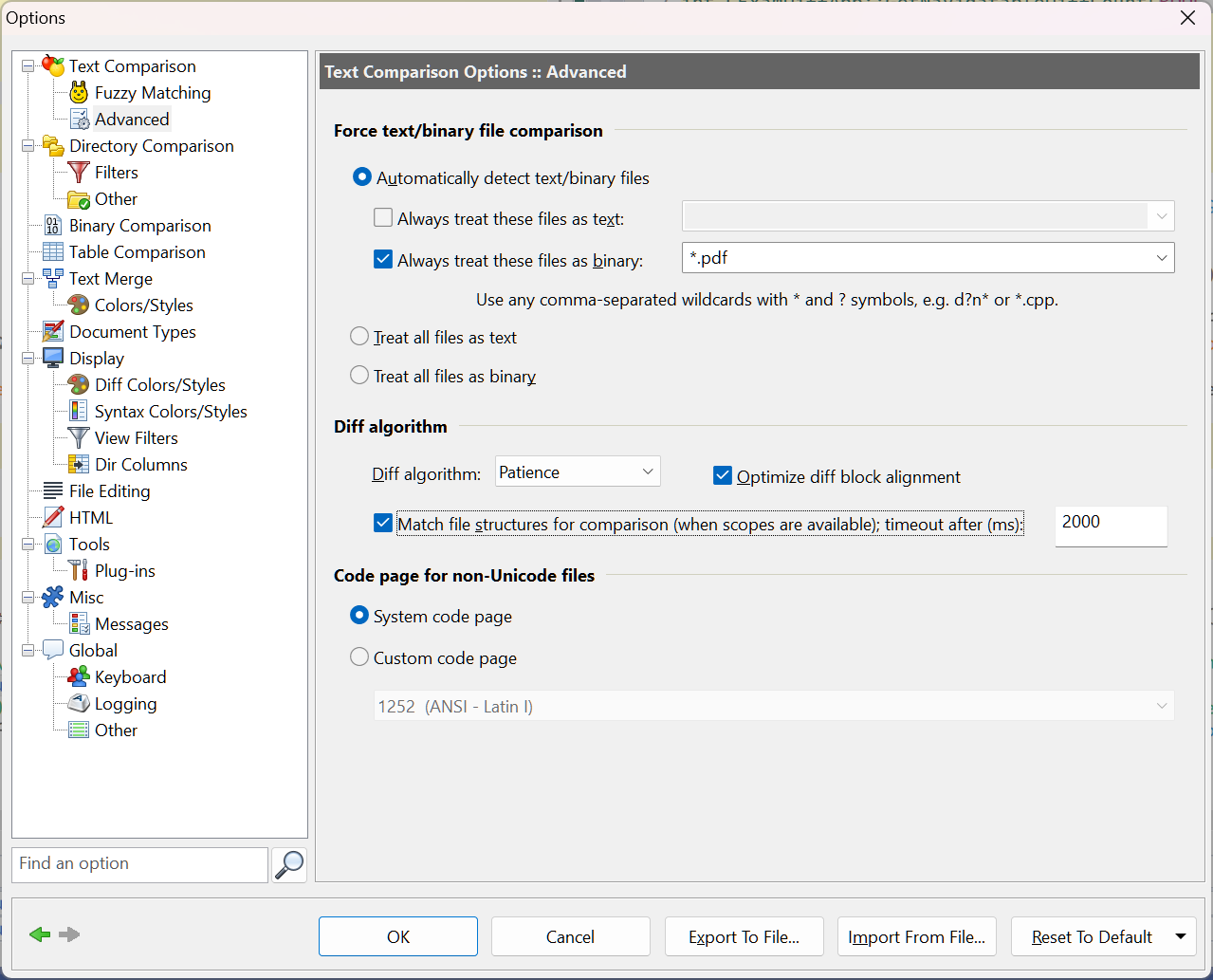
GetNavigatableDiffCount(a short wrapper on line 2 and the real function on line 7), and the new file has one. Line matching pairs the new function with the wrapper. To fix this, choose Tools | Options, go to Text Comparison | Advanced, and turn on Match file structures for comparison.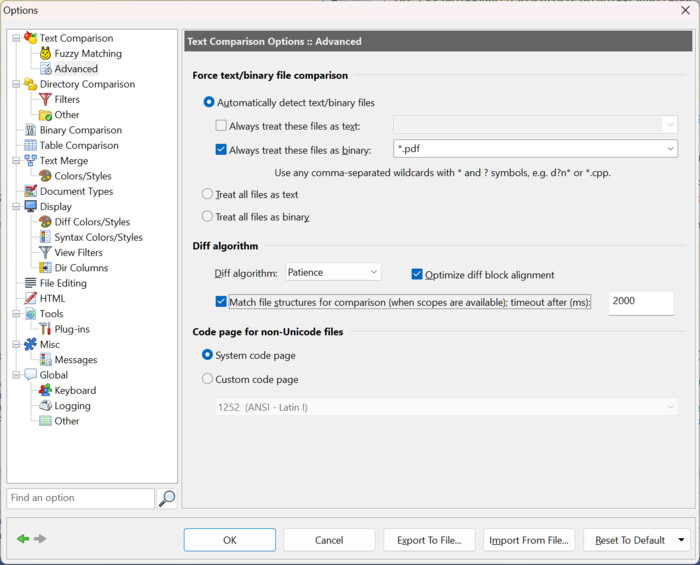
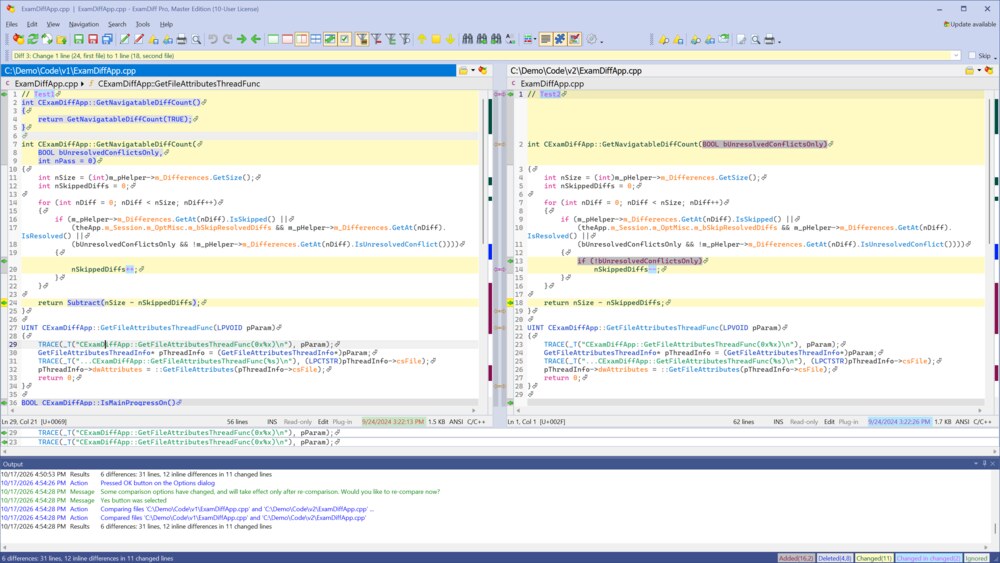
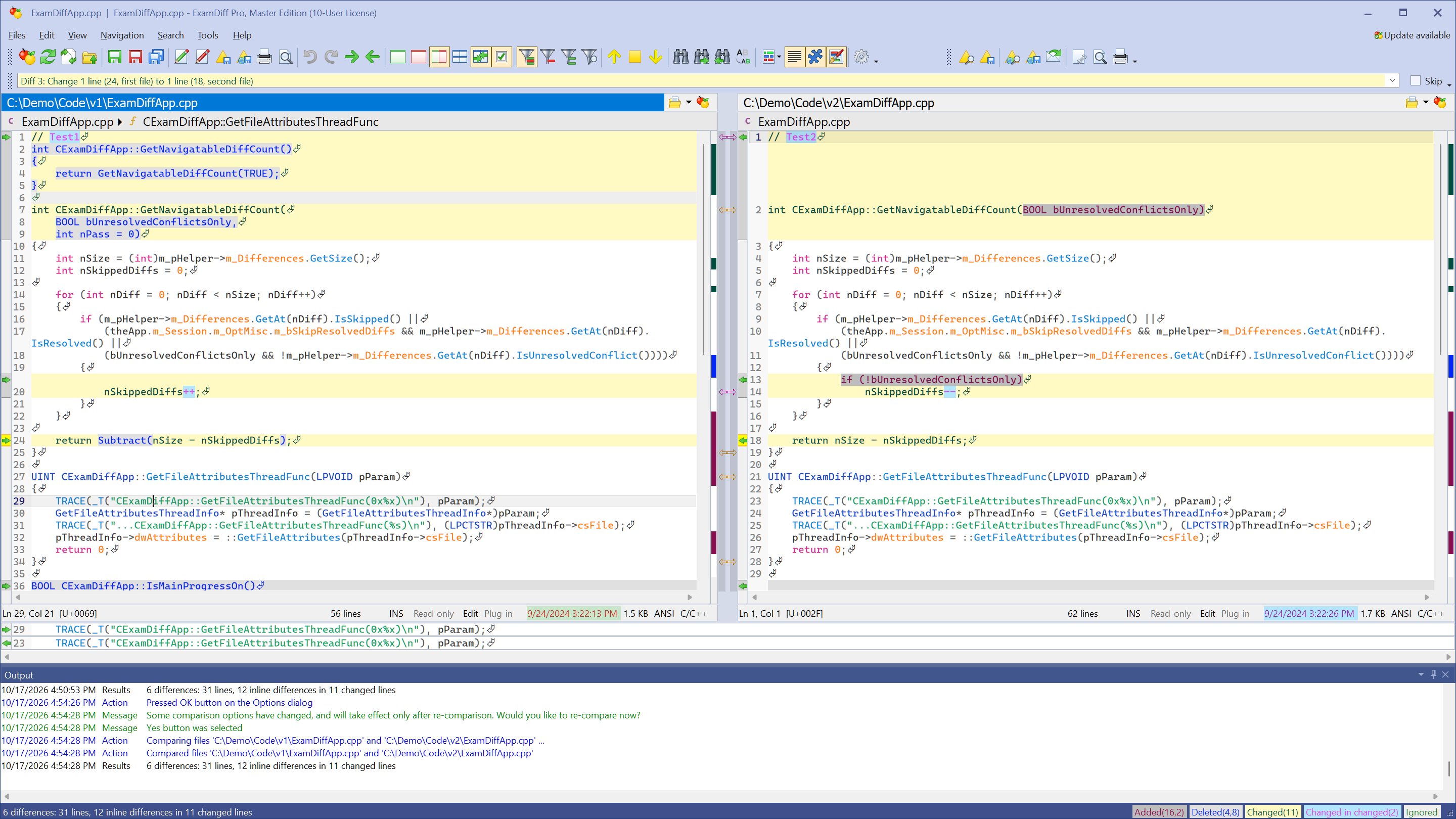
- Re-compare when asked. ExamDiff Pro now matches functions and classes by their signatures and aligns them, so the new function is paired with the real one on line 7. To see these matches as links, turn on View | Show Synchronizing Splitter and, in the options, Display | Show fuzzy/structure links. Structure links are drawn as orange outlines and fuzzy matching links as magenta outlines; links you add yourself are filled in green.
Questions
Which languages are supported?
C, C++, C#, Java, JavaScript, TypeScript, Python, Go, Rust, PHP, SQL, XML, HTML, JSON, YAML, and many more. See Document Types in the online help for the full list and to add your own extensions.
When should I turn on structure matching?
When functions or classes were added, removed, renamed, or overloaded and the comparison pairs the wrong ones. In most comparisons, matching by line content already lines up the right code.
Can I ignore comments or white space when comparing code?
Yes, with the Ignore Comments, Ignore White Space, and Ignore Blank Lines toolbar buttons, or in Tools | Options.
Can I use this with Git?
Yes. See How to Use ExamDiff Pro with Git.