
ExamDiff Pro tutorial · Alignment
How to Line Up Similar and Moved Lines
Make a file comparison line up the way you expect: fuzzy matching matches similar lines within changed blocks, moved blocks are marked as moved instead of deleted and added, and a manual link matches any two lines you choose.
Video
Steps
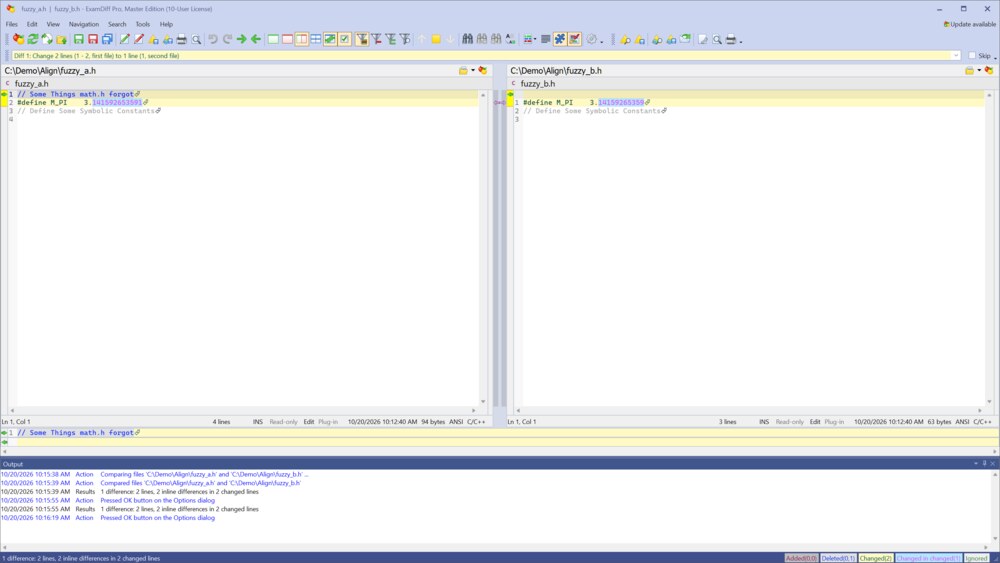
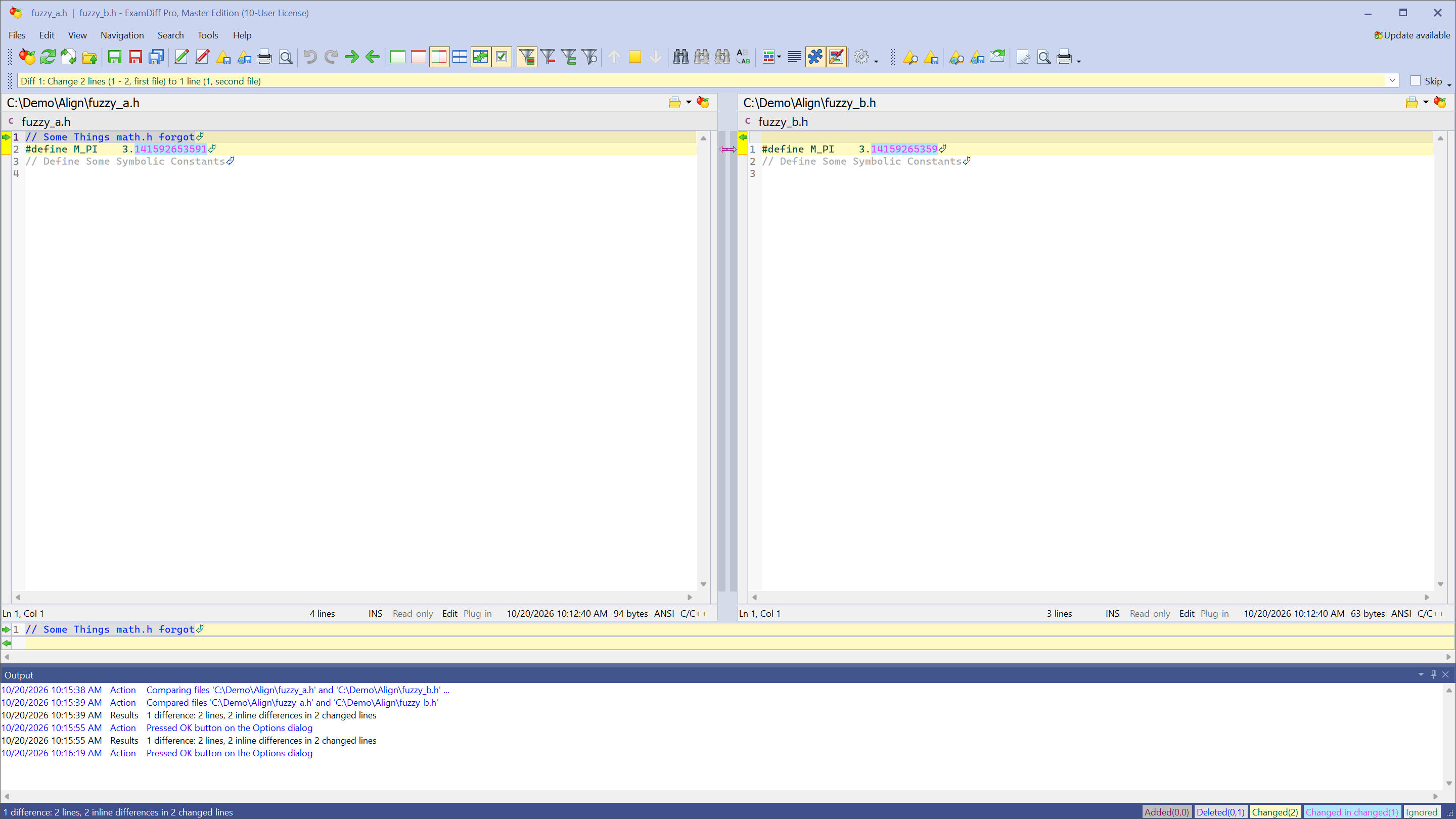
- Similar lines. Compare two files. Without fuzzy matching, the lines of a changed block are matched in order: first with first, second with second. With it, each line is matched with the most similar line on the other side of the block, so lines that belong together line up and the changed characters in them are highlighted. A magenta outline in the splitter between the panes links the two lines.
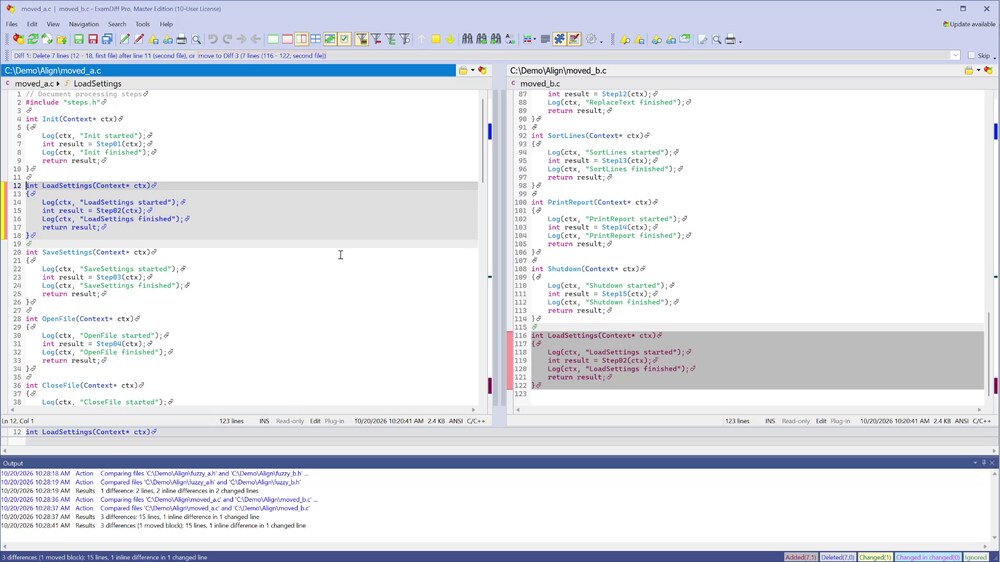
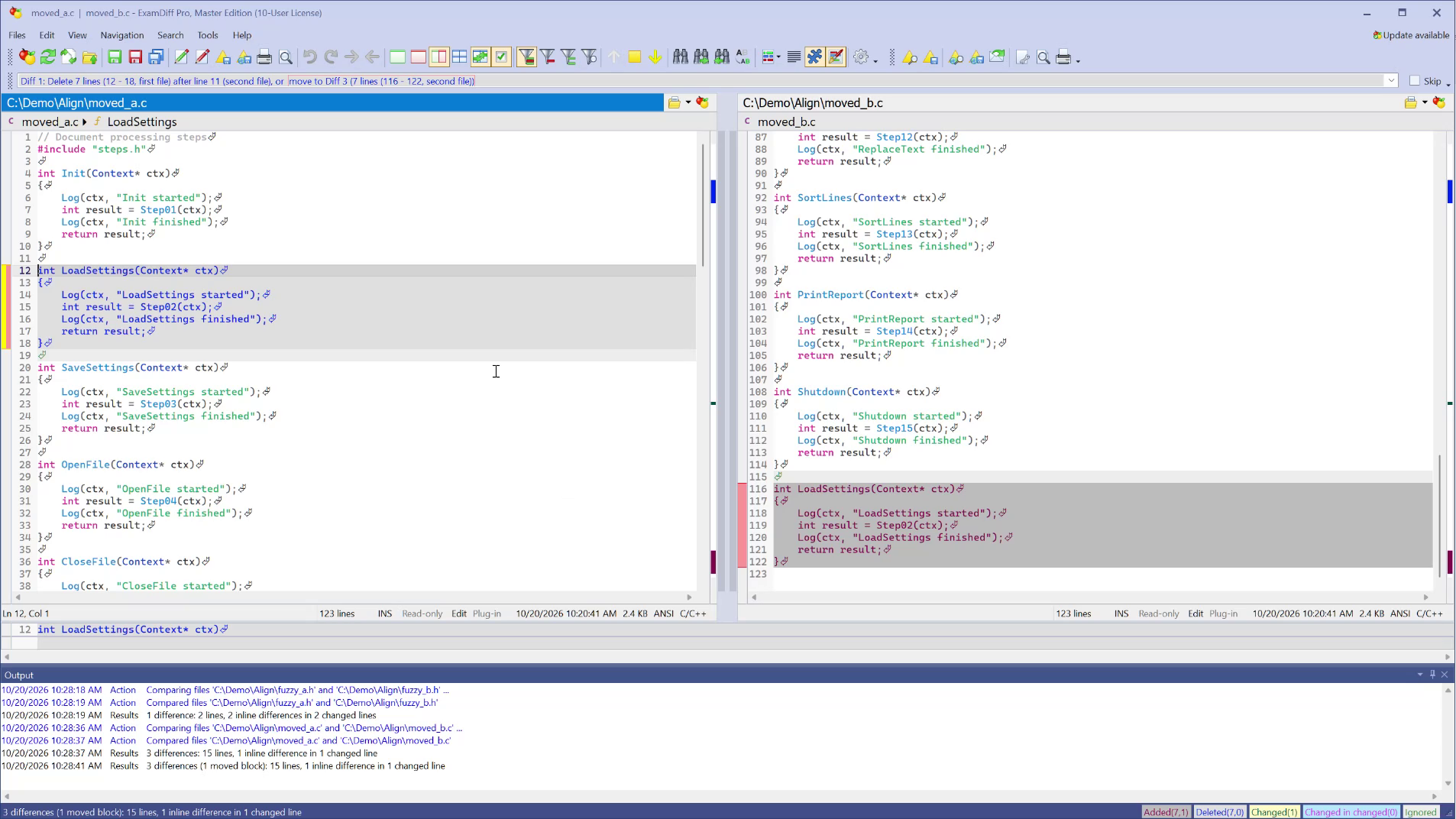
- Moved blocks. Compare a file in which a block of lines was moved, for example a function moved to the end of the file. Right-click the block's diff bar (the colored bar at the left of the pane) and choose Show Moved Blocks. The block is marked as moved on both sides.
- Right-click the diff bar again and choose Locate Matching Moved Block. The other pane scrolls to where the block moved, so the two copies are side by side. To show both, the panes are temporarily out of step with each other.
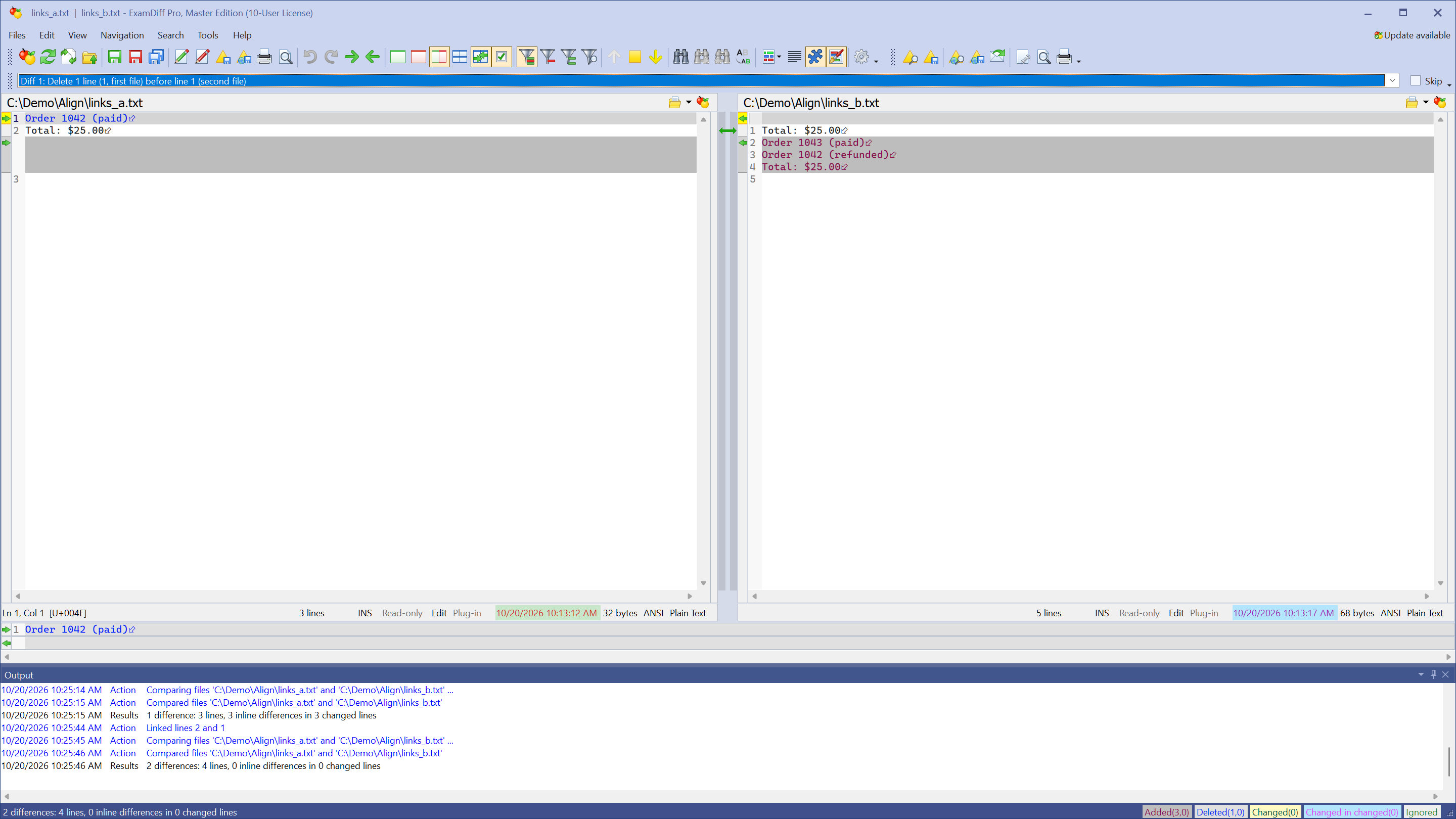
- Manual links. A manual link overrides the line matches found by the comparison, for example to match a line with another copy of a line that appears more than once. Choose View | Show Synchronizing Splitter, then drag from the line in the first file, across the splitter, to the line you want it matched with in the second file. The files are re-compared and line up around the link, shown as a filled green band.
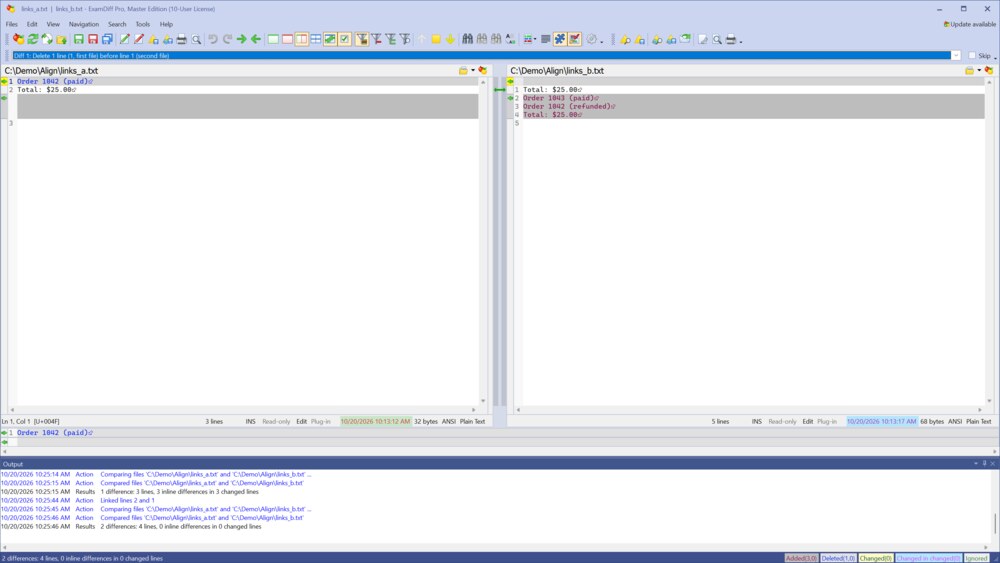
- To remove a link, right-click it and choose Delete Link, or Delete All Links to remove them all. The same menu has Previous Link and Next Link to move between links.
Questions
Fuzzy matching matches lines I don't want matched. Can I change it?
Yes. Choose Tools | Options and go to Text Comparison | Fuzzy Matching. Move the How similar must lines be slider toward No fuzzy matching to match only lines that are nearly the same, or turn fuzzy matching off. By default it runs only when both files are smaller than a set size, which you can change on the same page.
Can moved blocks always be shown?
Yes. Show Moved Blocks is the same setting as Show moved blocks in Tools | Options, Display, so it stays on for later comparisons until you turn it off.
What are the orange and magenta outlines in the splitter?
Links that ExamDiff Pro made by itself: magenta for lines matched by fuzzy matching, orange for code structure (functions and classes) matched in source code comparison. Links you add are filled green. To hide the outlines, clear Show fuzzy/structure links in Tools | Options, Display.
Are my links kept for next time?
Yes. ExamDiff Pro saves manual links for each pair of files and restores them when you compare the same pair again. If either file has changed since, the saved links are not used, so they never match the wrong lines.
Can I undo a link?
Yes. Delete it as in step 5, and the files are re-compared without it.