
ExamDiff Pro tutorial · Folder filters
How to Filter a Folder Comparison
Leave build output, logs, and other noise out of a folder comparison, see what was filtered out, show only the differences, and find files fast. Comparison filters decide what is compared at all; view filters only hide items that were compared.
Video
Steps
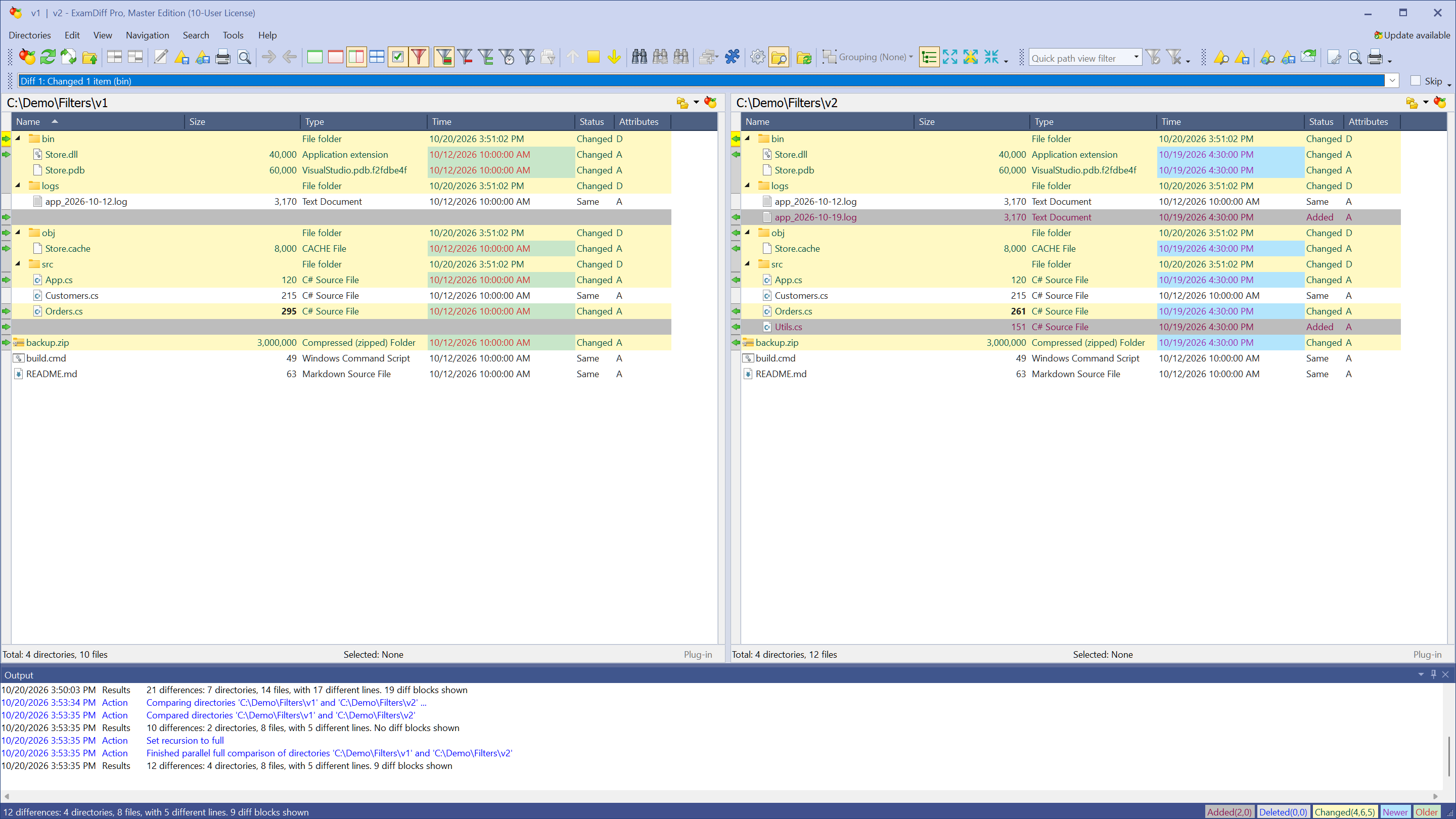
- Compare the two folders. In the example, an old and a new build of a project are compared, and the build output (
bin,obj), logs, and a backup archive make up most of the differences.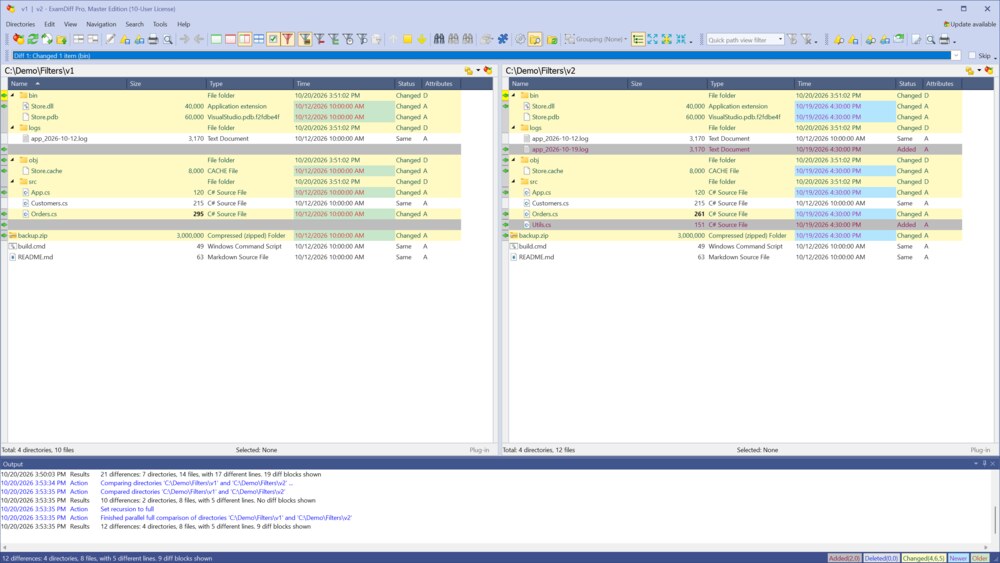
- Right-click a folder you don't need, such as
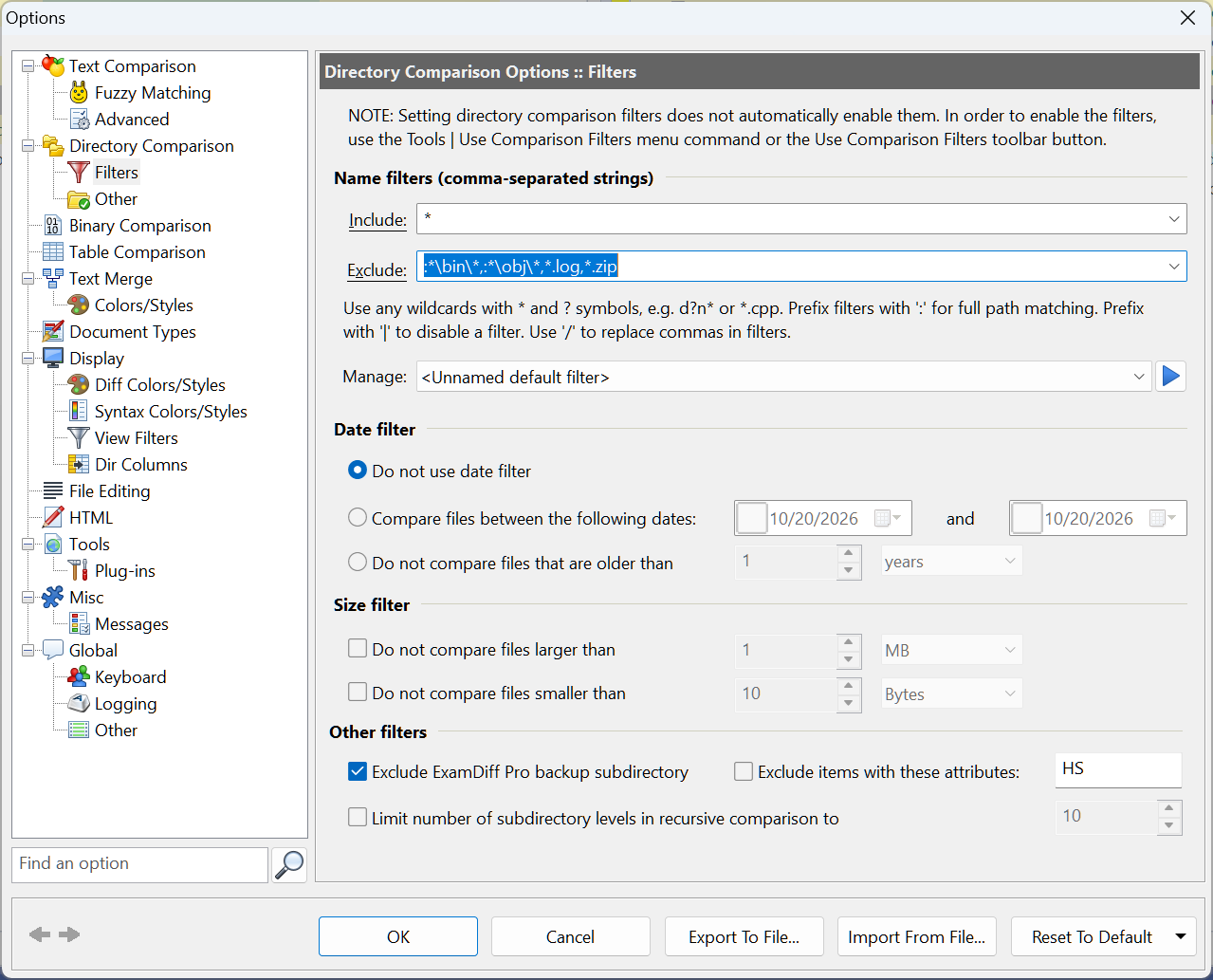
bin, and choose Filter | Exclude Directory. Right-click a file and choose Filter | Exclude Extension to leave out all files of that type, such as*.log. ExamDiff Pro asks to re-compare after each change. The same menu can exclude a single name, or files by date or size. - The patterns go to Tools | Options, Directory Comparison | Filters. Add more there, separated by commas, for example
*.zip. Patterns match names; start a pattern with:to match the full path, as in:*\bin\*. The same page has include patterns and date, size, and attribute filters, and you can save the patterns as named filter sets.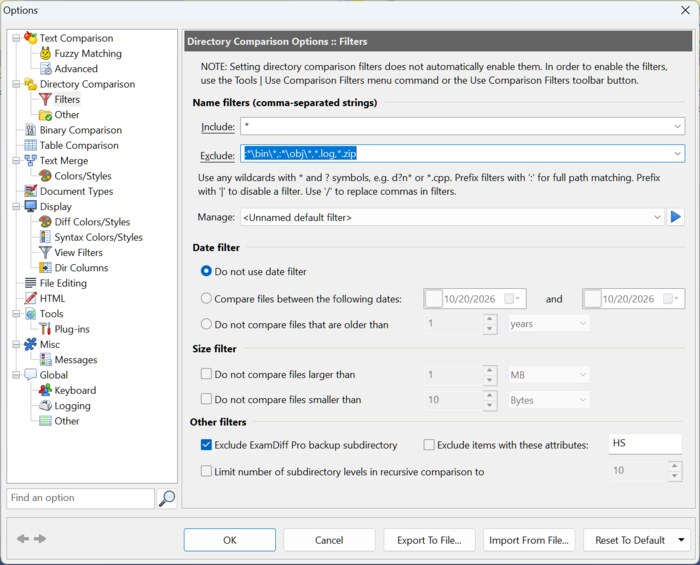
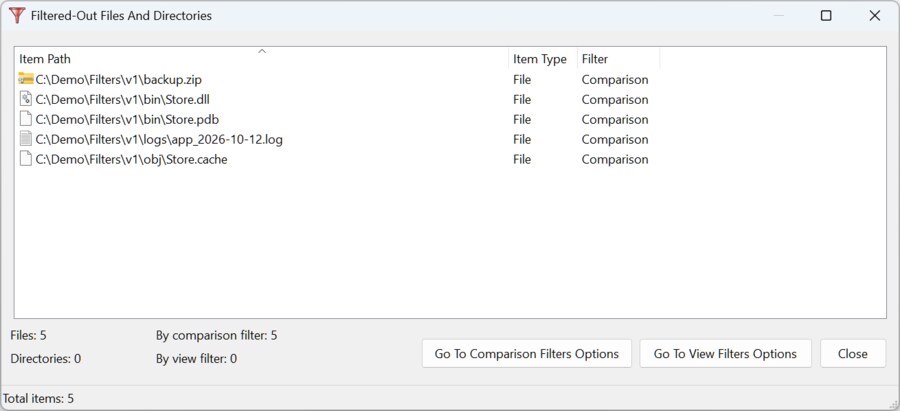
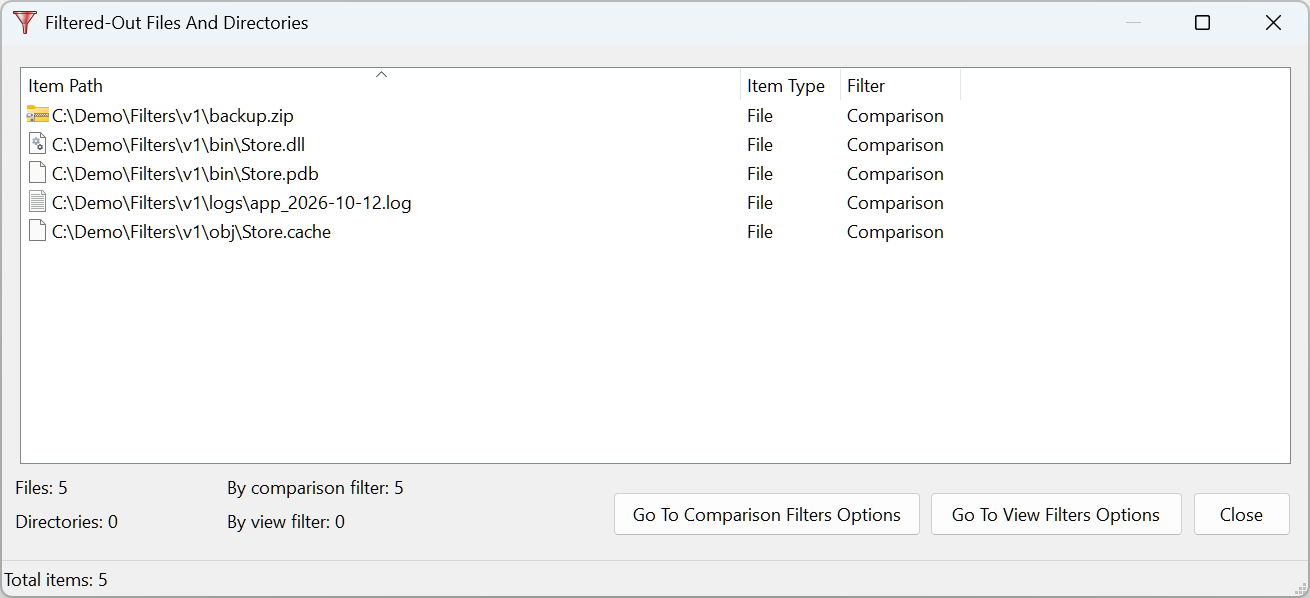
- A red filter icon at the left of a pane's status bar means that items are filtered out. Click it to see them in the Filtered-Out Files And Directories dialog, which also shows which filter left each item out. The dialog is also on the right-click menu as Show Filtered-Out Items.
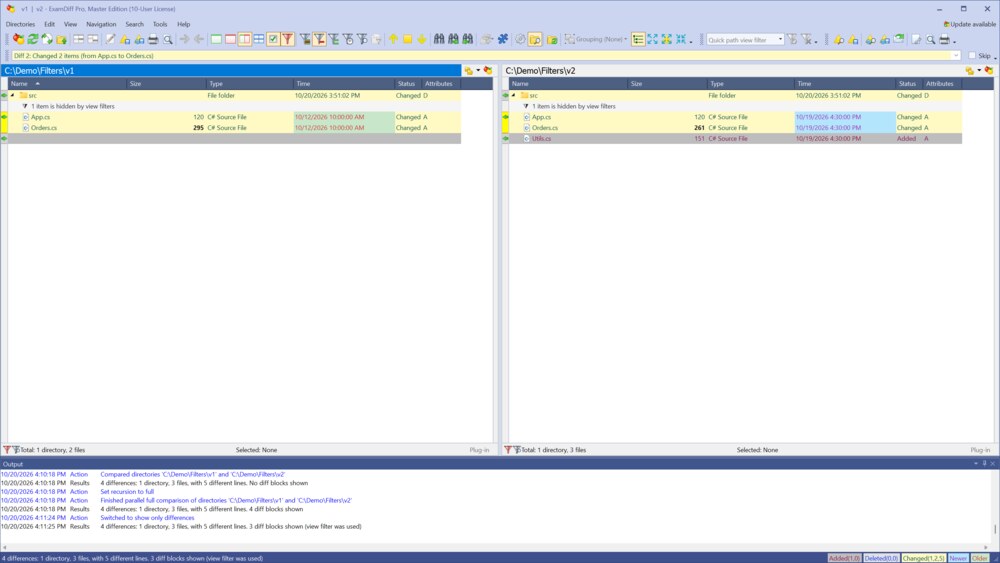
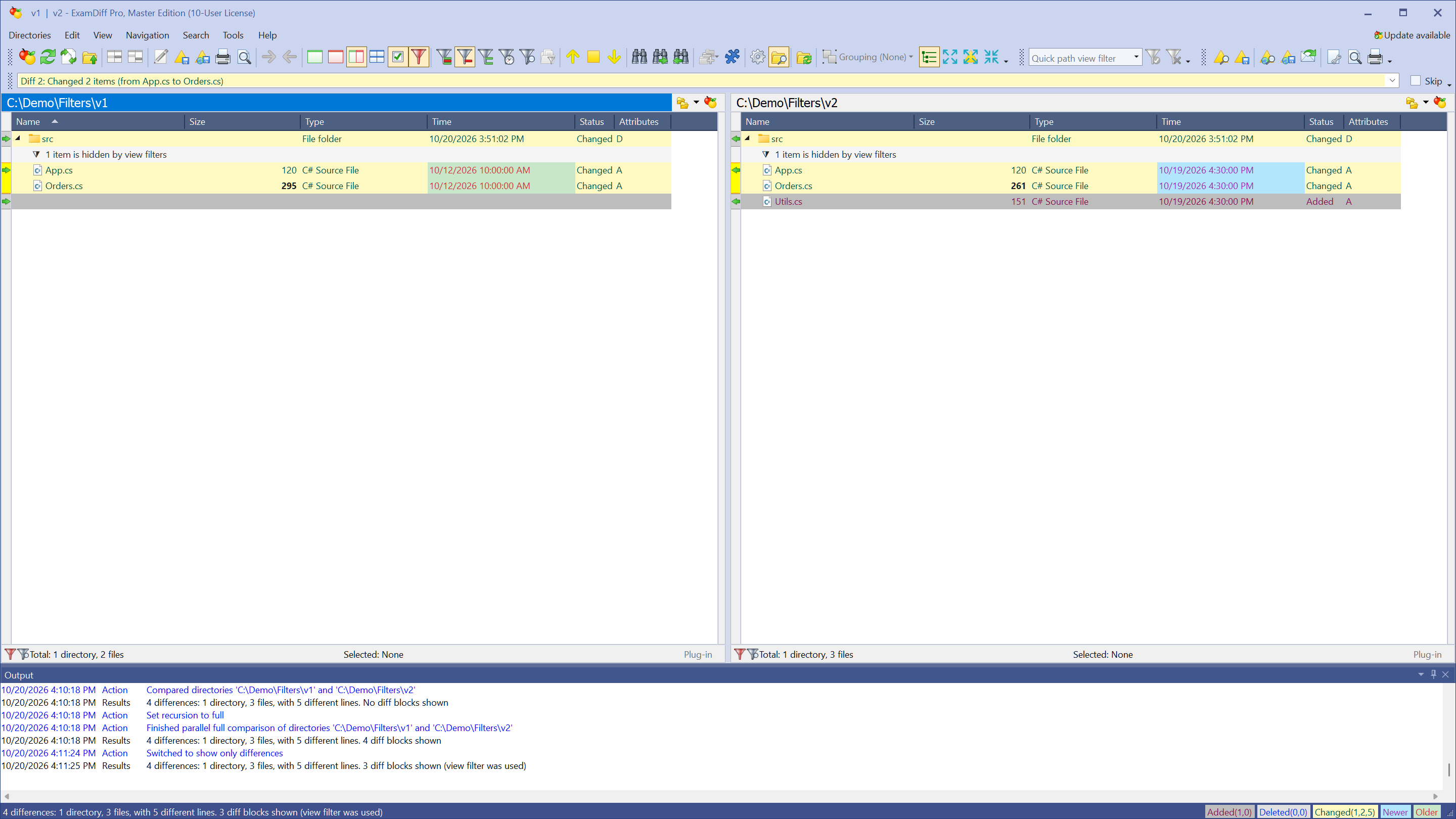
- Choose View | Show Only Differences to hide identical items. They are still compared, just not shown. View | Show Only Newer/Older Items and Show Only Identical Items work the same way, and View | Show All Items shows everything again.
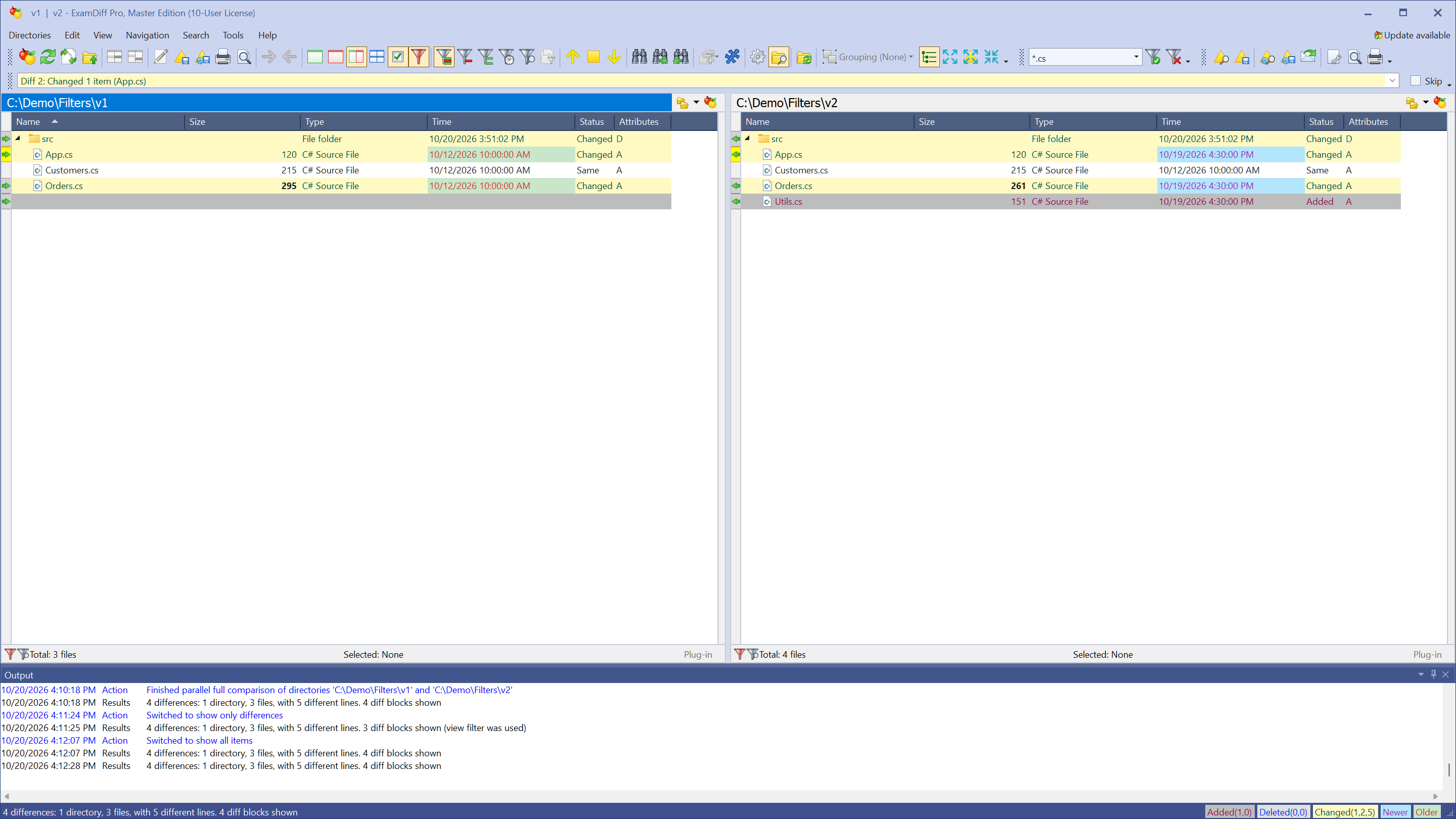
- To find files fast, type a pattern such as
*.csin the quick path view filter box on the toolbar and press Enter. Only matching items are shown. Click Clear Filter next to the box to show all items again.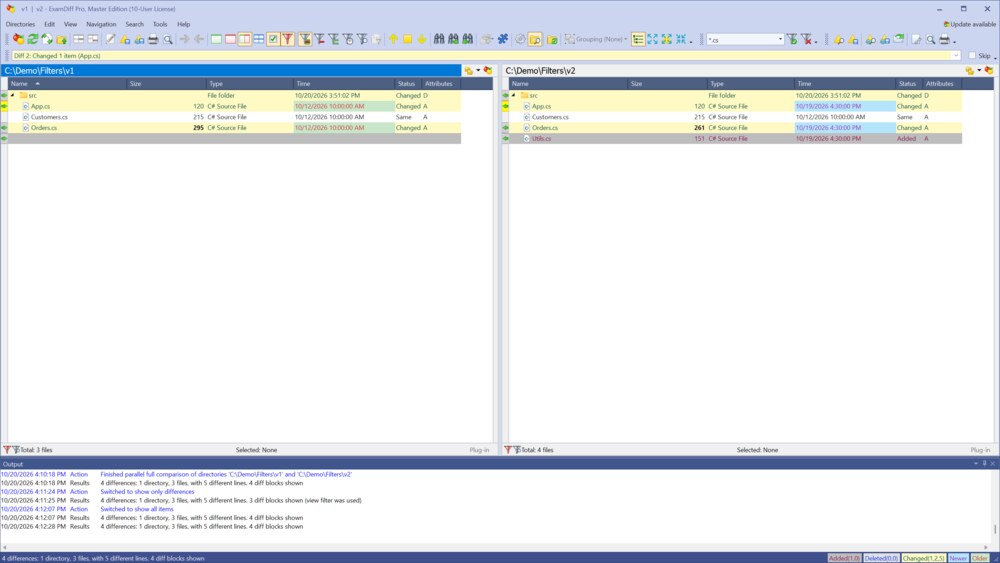
Questions
What is the difference between comparison filters and view filters?
Comparison filters decide which items are compared, so changing them needs a re-comparison, and the filtered-out items are not in the results. View filters only hide items that were already compared: they apply at once, and switching them off shows everything again without re-comparing. Both are listed in the Filtered-Out dialog.
How do I turn the filters off without deleting them?
Choose Tools | Use Comparison Filters to switch the comparison filters off and on. The view filters are switched with View | Use Status View Filter (Ctrl+D) and View | Use Path View Filter; their settings are in Tools | Options, Display | View Filters.
Can I hide items by name without leaving them out of the comparison?
Yes, with the path view filter: set include or exclude patterns in Tools | Options, Display | View Filters, and turn it on with View | Use Path View Filter. The quick path view filter on the toolbar works together with it.
Can I use filters from the command line?
Yes. /fi: sets the include filter and /fx: the exclude filter for a folder comparison, for example /fx:*.log,:*\bin\*. See Command-line options in the online help.
Can I compare only the files I choose?
Yes, with file lists; see How to Compare Two Lists of Files.