
ExamDiff Pro tutorial · File lists (Master edition)
How to Compare Two Lists of Files
Compare just the files you choose, wherever they are: put their paths in two text files, and ExamDiff Pro compares the two lists like two folders. Items are matched by name, so the files don't need to be in the same folder layout.
Video
Steps
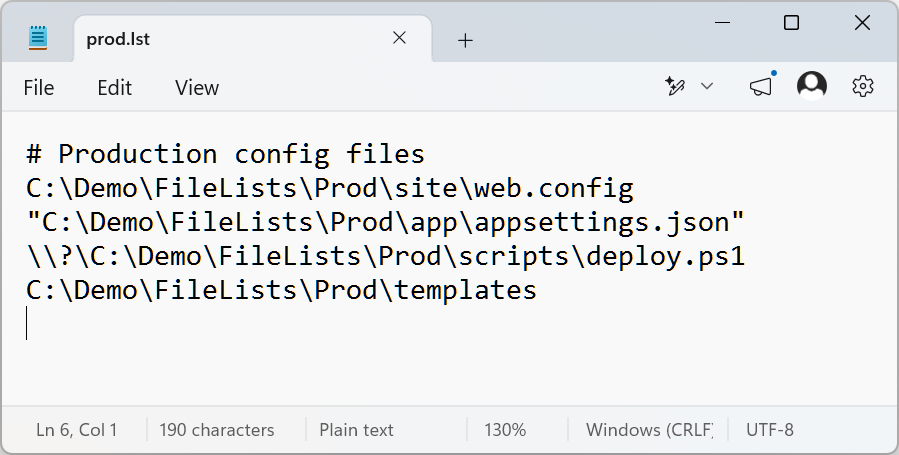
- Create a file list for each side: a text file with one full path per line. A path can be a file or a folder, with or without quotes, and can start with
\\?\for long paths. Lines that start with#are comments. In the example, two lists name the configuration files of a production and a staging deployment, whose folders are laid out differently.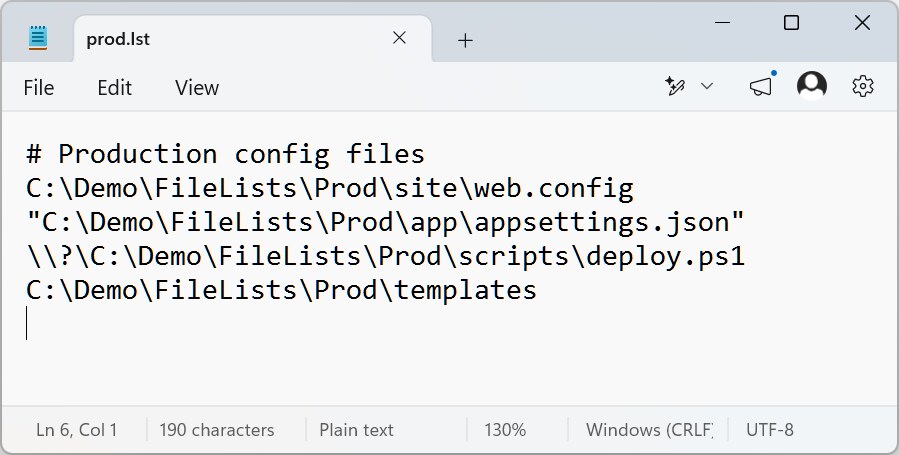
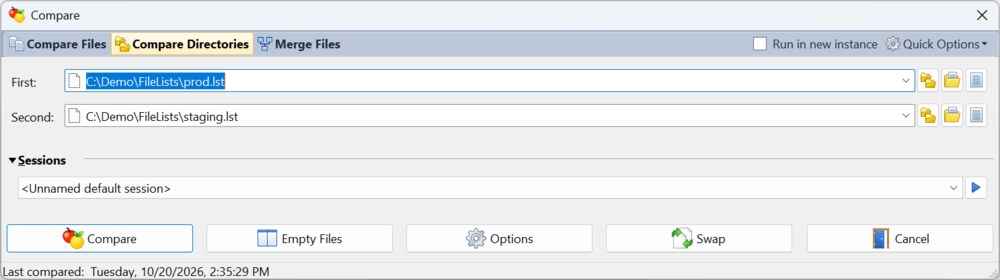
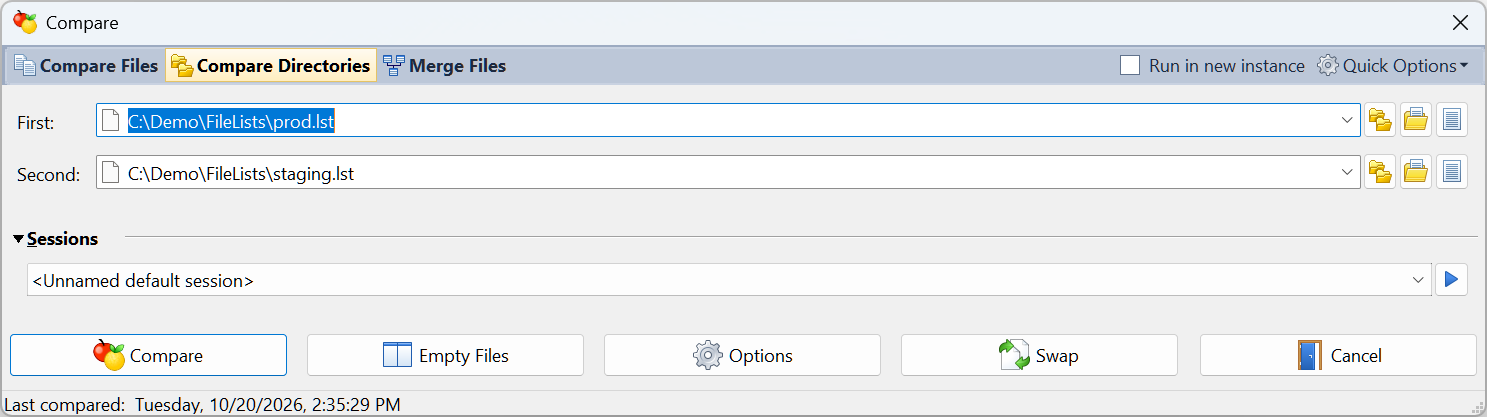
- Choose Files | New Comparison (Ctrl+E) and click Compare Directories. Click the Browse for file list button (the last button next to each box) and choose the first list, then do the same for the second list.
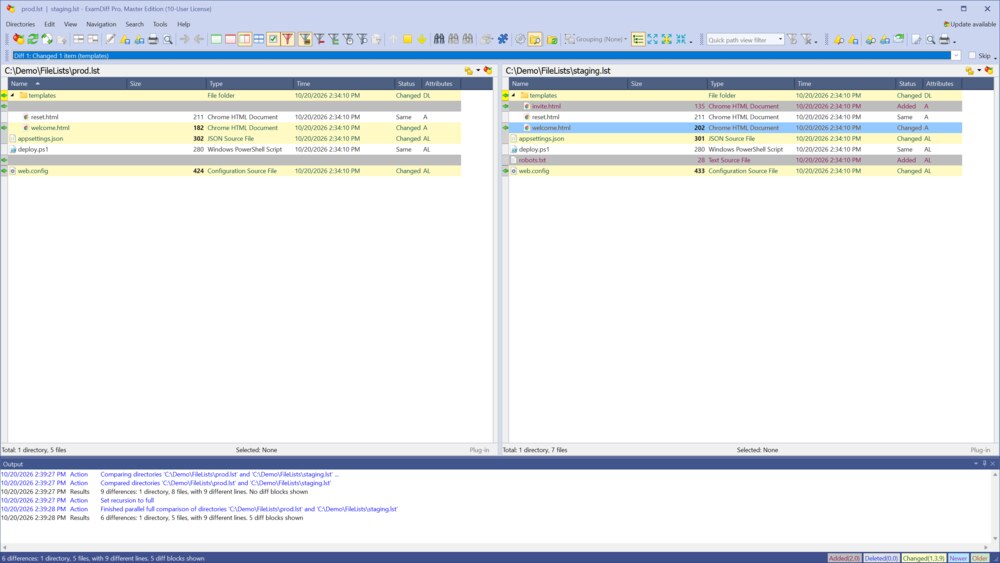
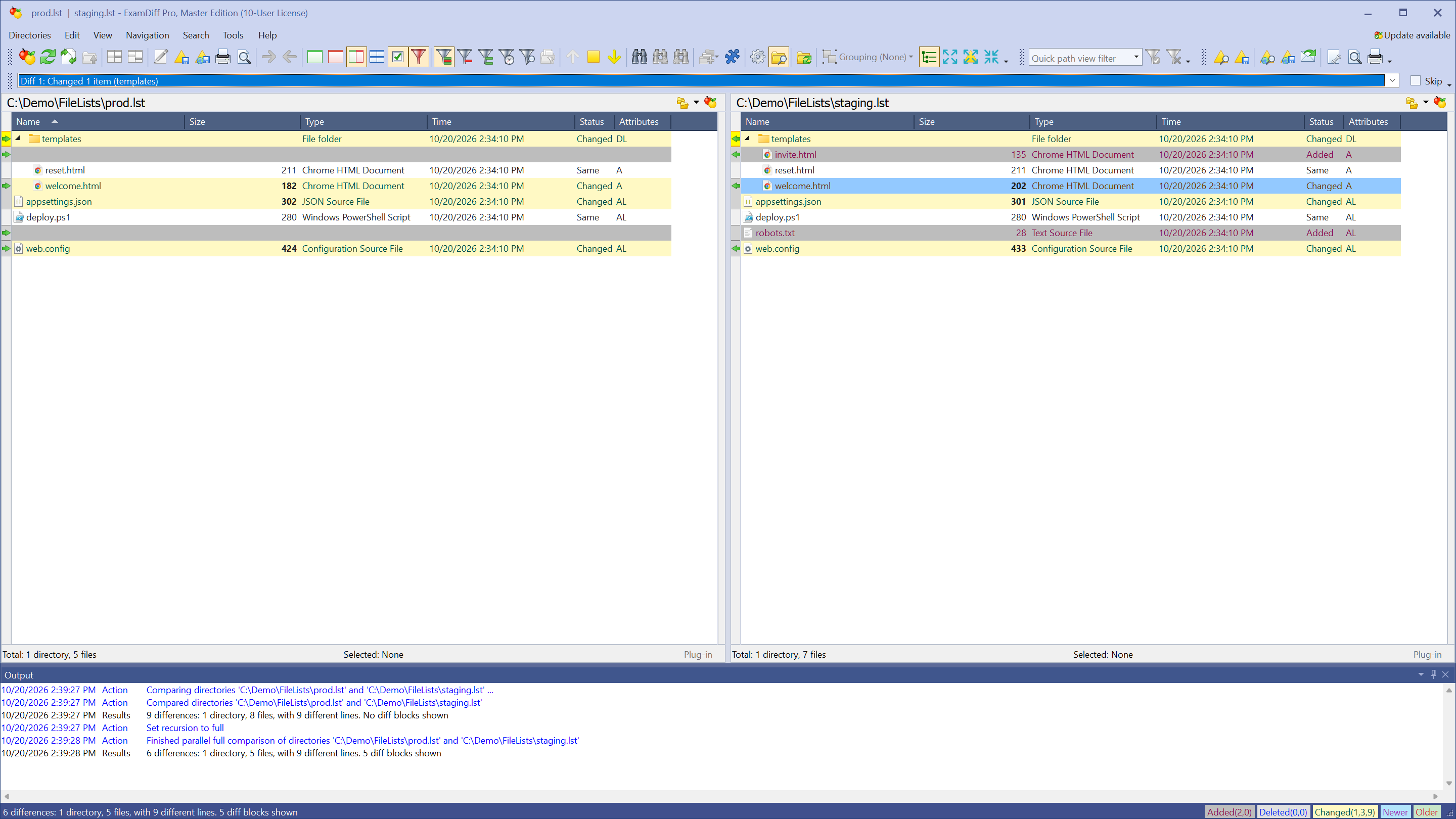
- Click Compare. The listed items are shown like the contents of two folders and matched by name, even when they come from different folders. A listed folder is compared with everything in it, and an item that is in only one list is shown as added or deleted. Files that are not on either list are not compared.
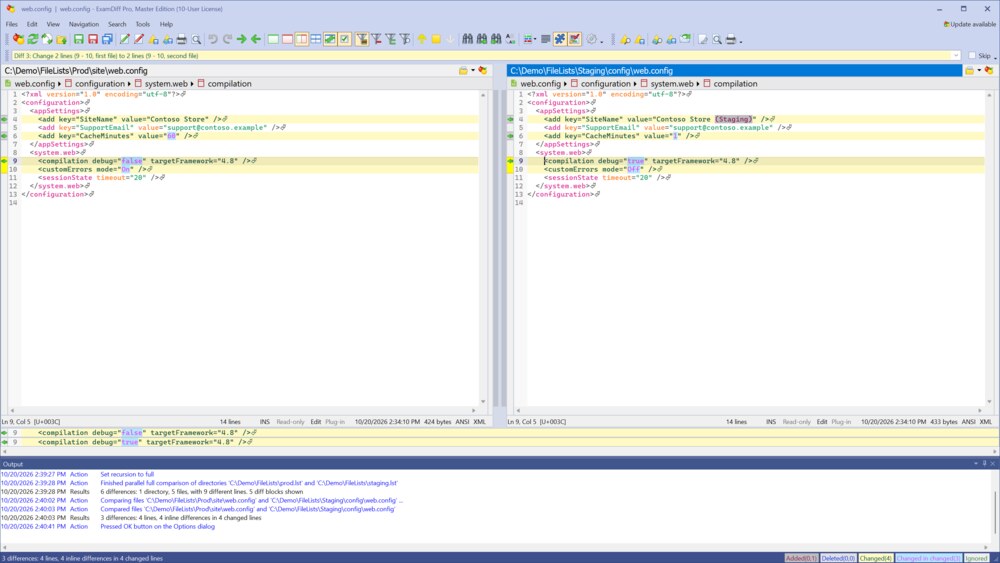
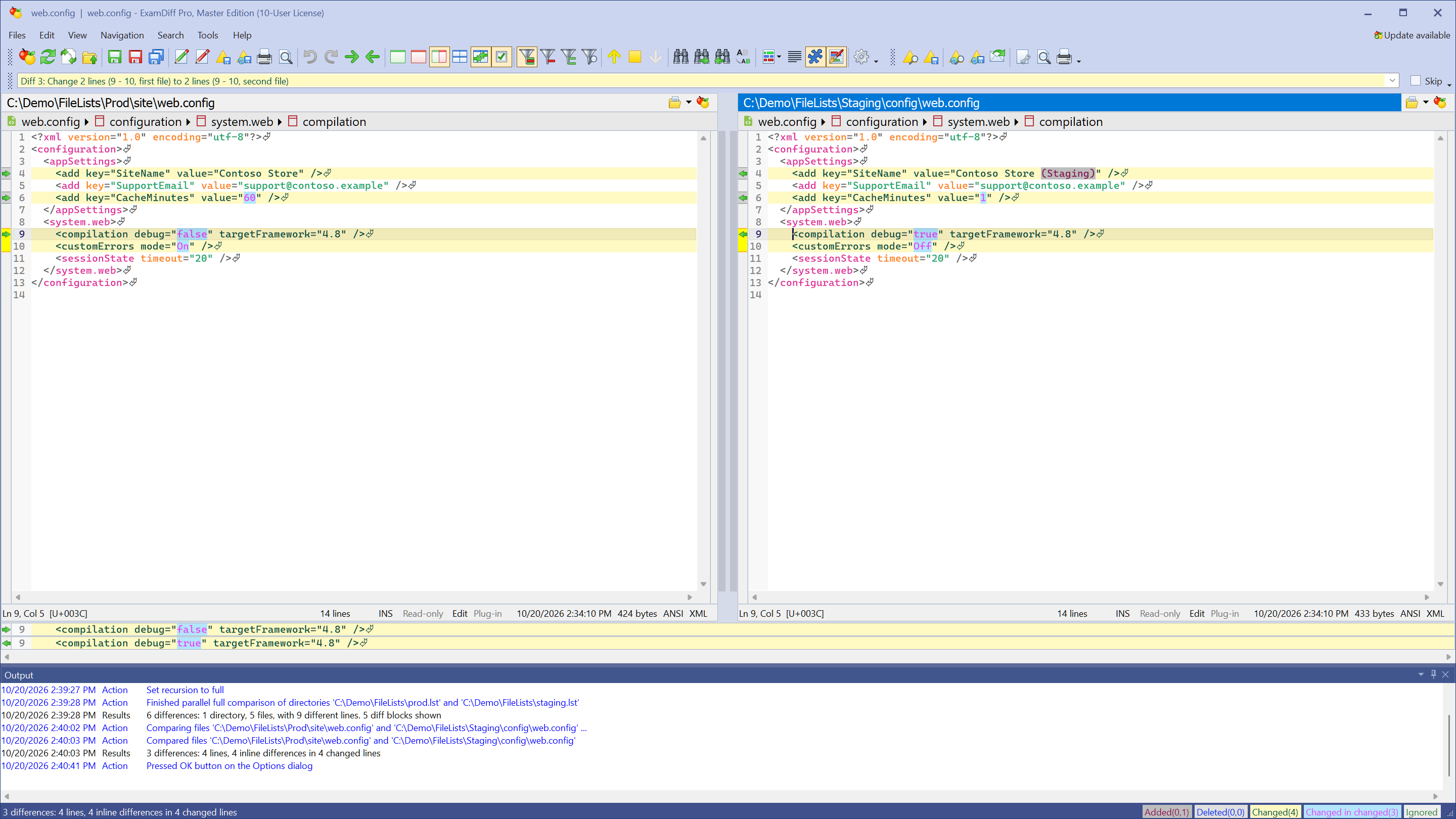
- Double-click a pair of files to see what changed in them.
Questions
Can two items in one list have the same name?
No. Items are matched by name, so each name can appear only once in a list. If two items share a name, only the first is compared, and ExamDiff Pro warns that some paths could not be compared.
ExamDiff Pro asks to restart as administrator. Why?
To show the listed items side by side, ExamDiff Pro creates symbolic links to them, which Windows allows only to administrators or with Developer Mode turned on. Restart as administrator, or turn on Developer Mode in Windows Settings.
Which edition do I need?
File list comparison is part of the Master edition of ExamDiff Pro. The free 30-day trial includes it.
Can I compare a file list with a folder?
Yes. Choose a file list on one side and a folder on the other. The listed items are matched by name with the items at the top of the folder.