

Online Help
The Main Window
The FtpVC main window consists of three panes: the File List, which is in the upper-right corner by default; the Folder View, which is in the upper-left corner by default; and the Output Pane, which is in the bottom by default. The Folder View and Output panes can be moved, resized, and hidden, but the File List pane is static and always occupies all space that is not occupied by the other panes.
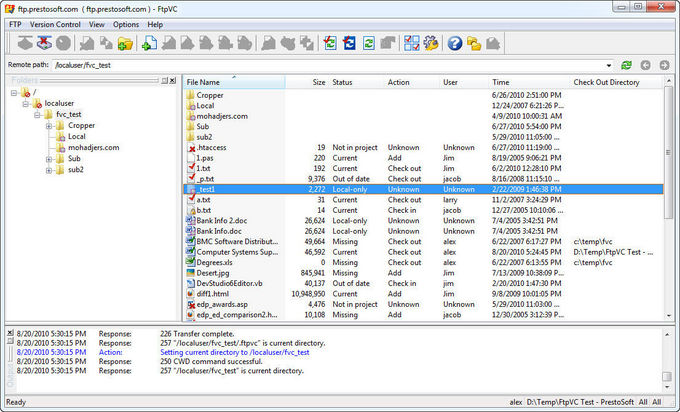
File List
The File List is the main pane that provides all version control information. It contains the following columns. Columns can be reordered and resized by dragging, and (except for File name and Relative path) can be hidden or shown by right-clicking on the header.
- File name
This column shows remote file names. If Show Local-Only Files command option is selected, it also shows local-only files. In non-recursive subdirectory mode this column also contains names of subdirectories of the currently selected remote directory in the tree. Version control icons are overlaid over the Windows icons, as shown below. If the Use Windows filetype icons option us not selected, FtpVC uses generic file icons instead.
- remote directory 
- local-only directory 
- symbolic link (Unix servers only) 
- remote file that was added or attached via FtpVC commands 
- remote file that doesn't belong to FtpVC version control 
- local-only file 
- file checked out by the current user 
- file checked out by another user 
- locked file
- Relative path (visible if the Recursive Subdirectories option in
Project Options | Misc is used)
This column shows remote subdirectory names relative to the currently selected remote directory. For example, if currently selected directory is \test, and file path is \test\sub1\a\a.txt, then the file name column will contain a.txt, and relative path column will contain sub1\a.
- Action
This column displays last version control action for each file. Possible actions include:Action Description Add Last action was "Add" Check out Last action was "Check out" Check in Last action was "Check in" Unknown Used for files that don't belong to FtpVC version control (i.e. files don't have stubs), and for local-only files. Also used after the Refresh Without Status command
- Status
This column is used to show the status of each file. The list of possible values is as follows:Status Description Current The local file is in sync with the remote one Modified The local file is newer than the remote one Out of date The local file is older than the remote one Missing The local file is missing Not in project The remote file's stub does not exist Local-only The remote file does not exist Unknown Either the CRC of the remote file is not recorded in its stub, or the Refresh Without Status command was used.
- User
This column contains the name of user who performed the last action. The name will be Unknown for files that don't belong to FtpVC version control, and for local-only files, or if Refresh Without Status command is used.
- Time
The column shows the time of the last version control action. For added, not-in-project, and local-only files, this column will contain the file timestamp.
- Check-out directory
For files checked out by the current user ,this column displays the check-out directory on the local computer. For all other files, this column is blank.
Folder View
This pane shows a tree of remote directories, with the current directory selected. Tree items are shown with different icons:
|
- remote directory |
|
- local-only directory |
 |
- unreachable directory |
|
- symbolic link (Unix servers only) |
 |
- directory in Find mode |
Output Pane
This pane shows FTP commands sent to the server and server responses.