
Online Help
Compare Files And Directories
Comparing files or directories with ExamDiff Pro is very simple: when the program starts, it presents the Compare dialog where names of files or directories you wish to compare need to be specified (by typing, browsing for, or dropping one or two files/directories from Windows Explorer).
You can also use the title controls to browse for new files or directories
or to compare previously compared items  .
To compare newly selected files or directories, click on the compare button
.
To compare newly selected files or directories, click on the compare button
 .
The drop-down menu can also be used to revert new names back to compared names,
swap names with the opposite pane, or set the option to compare items once the
drop-down menu is closed. Note that if you change the first name, and the
Autopick option is enabled, the second
name will be selected for you automatically, based on the last comparison
with the first name.
.
The drop-down menu can also be used to revert new names back to compared names,
swap names with the opposite pane, or set the option to compare items once the
drop-down menu is closed. Note that if you change the first name, and the
Autopick option is enabled, the second
name will be selected for you automatically, based on the last comparison
with the first name.
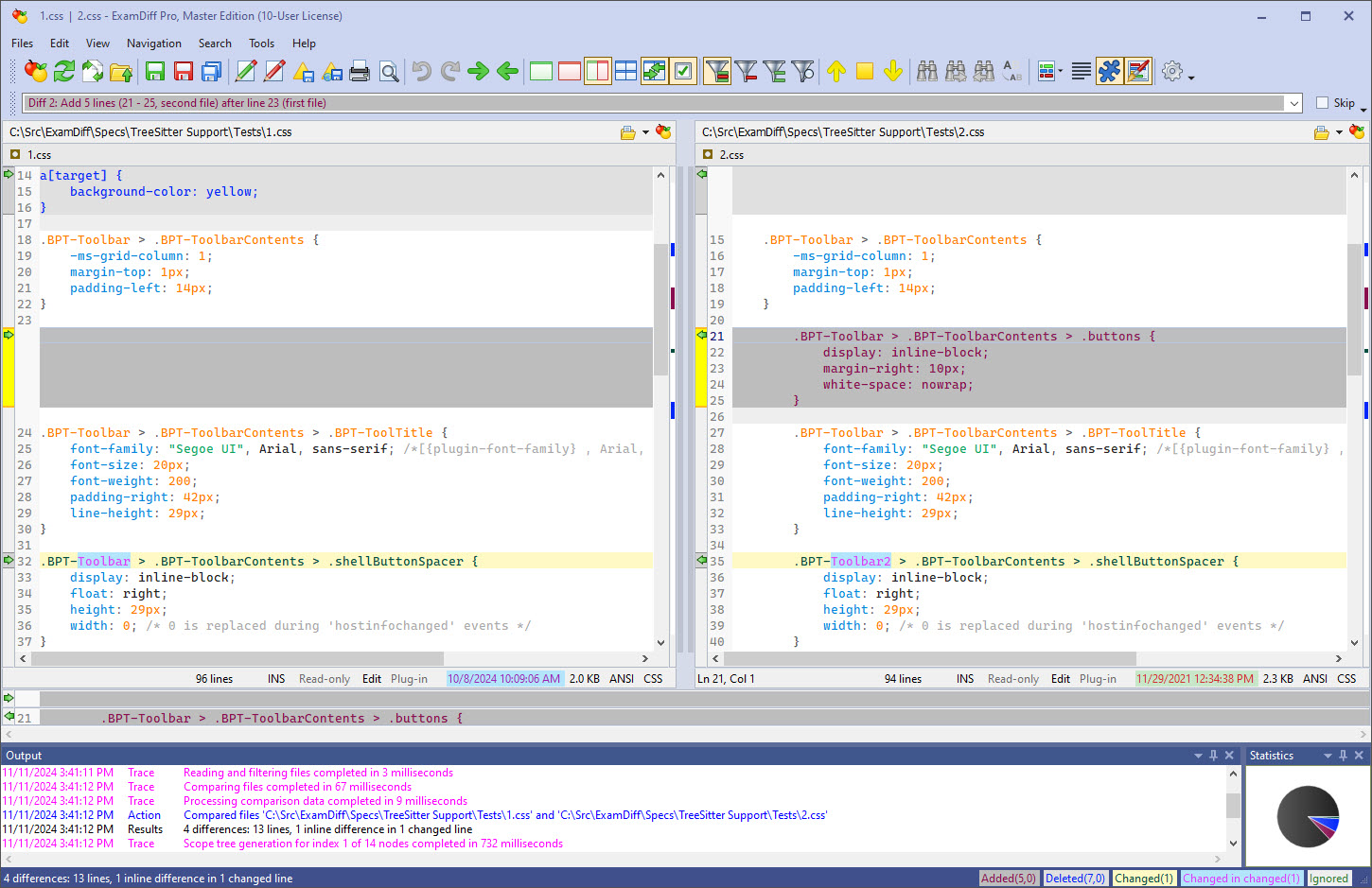
After comparison is finished, its results are shown in 2-pane window (ExamDiff Pro main window) with identical parts of compared files/directories synchronized, and modified parts identified as added (items unique to second file/directory), deleted (items unique to first file/directory), and changed (and also newer and older for timestamp-based directory comparison), and clearly marked by different colors. If files are compared, ExamDiff Pro automatically (unless forced by Options ) determines whether the files are text or binary, and shows comparison results in different views. Overall, there are three different comparison views: text file view, binary file view, and directory view.
Modified parts of compared items (files or directories) are referred to as blocks. ExamDiff Pro allows certain operations on blocks, such as deleting and copying from one item to another. ExamDiff Pro always maintains one block (or difference) as the current block (unless the compared items are identical), and block operations are performed on the current block.
ExamDiff Pro allows modifications to be viewed and printed. It provides multiple ways to navigate through them and allows synchronizing items via block operations or, in case of text files, via manual file editing using the built-it text editor.
You can hold Ctrl and scroll the mouse wheel to zoom in or out (increasing or decreasing the font size, respectively).
Scope Bars
Scope bars, located right below the titles, show "breadcrumbs" of the current cursor position in respective panes. Clicking on a breadcrumb opens a nested scope explorer, with scopes that are different (added, changed, or removed) between the two files being highlighted in bold.
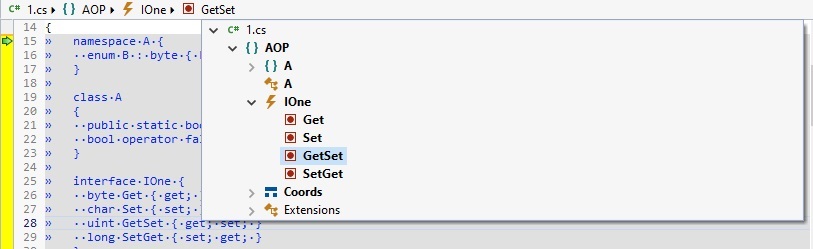
You can control visibility of scope bars by using the View | Scope Bars menu command.
Note that the scope bars will only appear for document types supported by the scope parser (this includes most built-in document types in Document Types options). If a file extension isn't recognized by default, you can use the Set Document Type feature manually to enable all type-related features (scope bar, syntax highlighting, etc)..
Output Pane
ExamDiff Pro logs its actions to the output pane, which by default is located ate the bottom of the screen. You can hide or minimize the output pane using the control buttons in its top right corner, or control its visibility using the View | Show Output Pane menu command.

Right-clicking inside the output pane brings up a context menu that allows you to perform simple text operations, such as Copy and Clear.
Statistics Pane
ExamDiff Pro shows comparison statistics chart in a separate pane, by default to right from the output pane. You can hide, minimize, or float the statistics pane using the control buttons in its top right corner, or control its visibility using the Show Statistics Pane command.
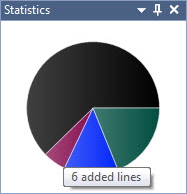
Double-clicking inside the pane results in the chart being enlarged and shown in the center of the main window. Note that the top-right corner menu contains some additional commands that control chart appearance. The Show Identicals command allows to show/hide identical items in the chart. The Colors To Display lets you select between foreground and background colors (these are the same colors that are defined in Display - Colors Options).
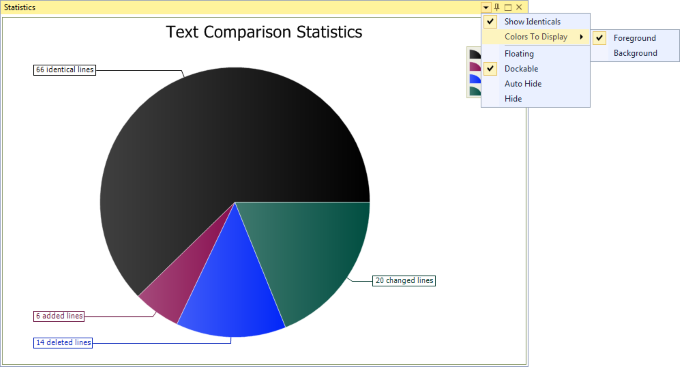
In the Merge mode, statistics chart shows the unresolved conflict slice (if it exists) in the exploded state, possibly splitting the conflict slice in two parts. Note that colors for Merge statistics chart are taken from Text Merge - Colors Options.