
ExamDiff Pro tutorial · Clipboard
How to Compare Clipboard Text on Windows
Compare two pieces of copied text without saving them to files: pick them from your clipboard history, or paste them into empty panes.
Video
Steps
- Copy the two texts you want to compare, for example from a document, an email, or a web page.
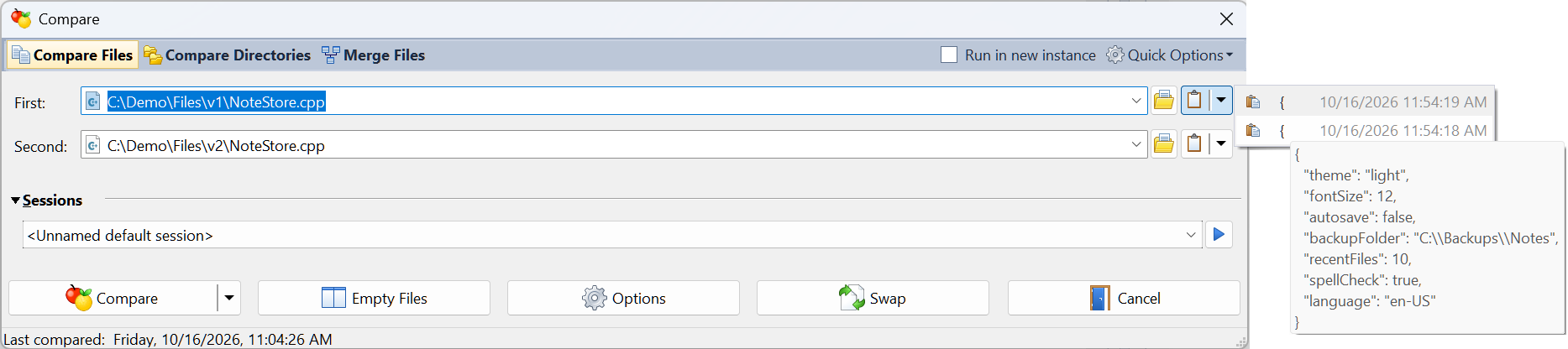
- Choose Files | New Comparison (Ctrl+E) and select Compare Files. Next to each file box, open the drop-down of the Clipboard button: it lists your 25 most recent clipboard items, with the time each was copied. Hover an item to preview it, and click it to select it. The box then shows Clipboard Contents and the size of the text.
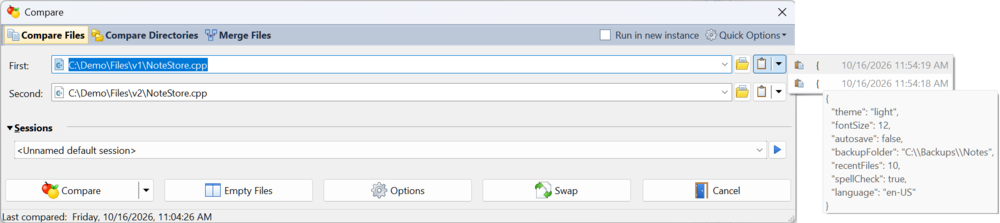
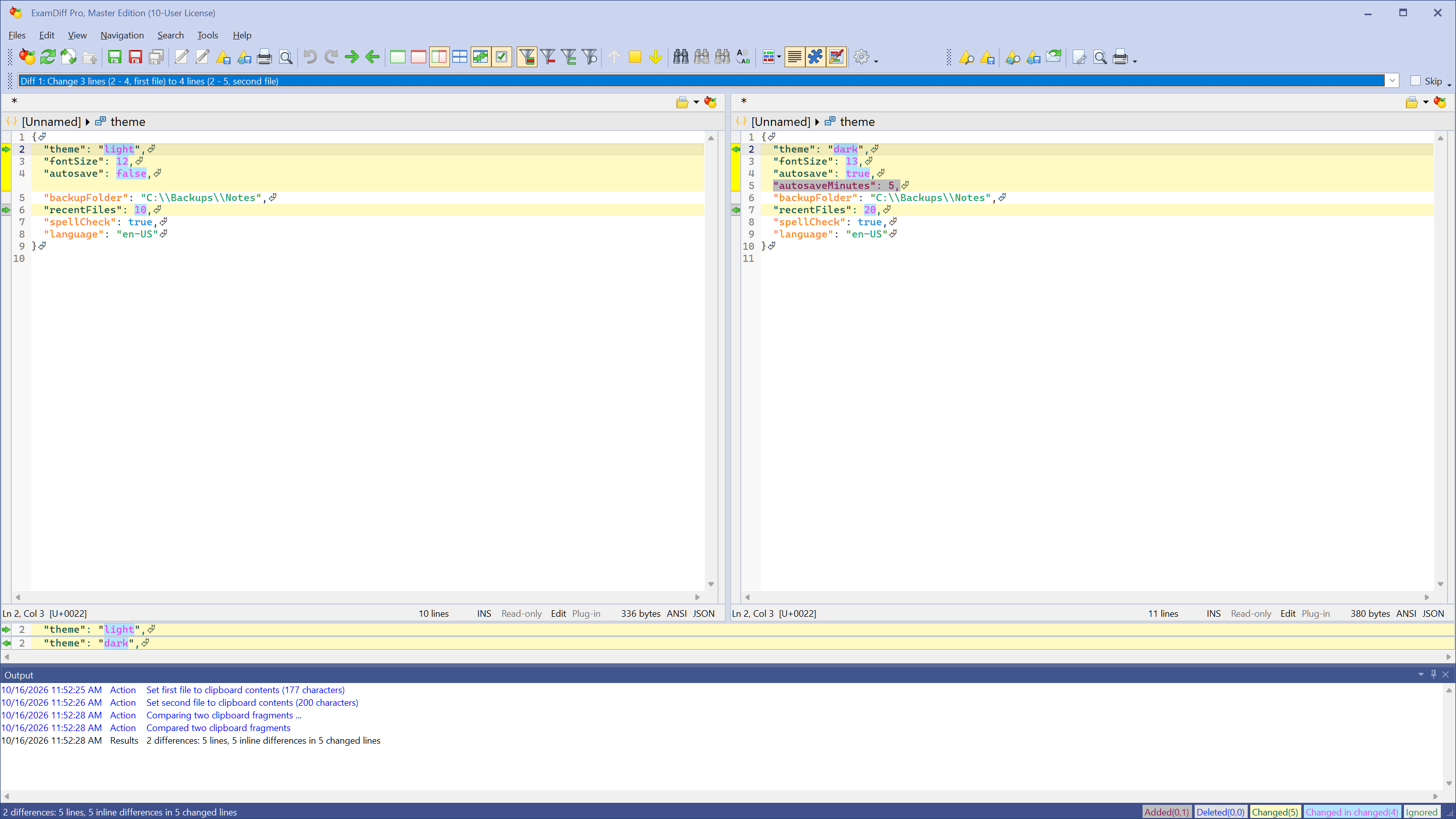
- Click Compare. The two texts appear side by side, with the differences highlighted.
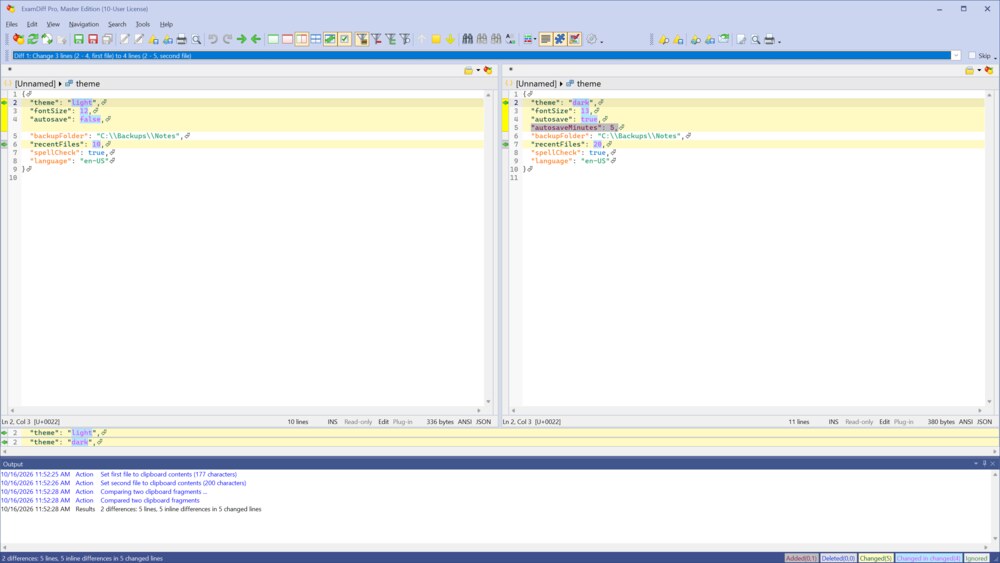
- You can also compare a file with clipboard text: pick a file for one side and a clipboard item for the other.
- Another way: click Empty Files in the Compare dialog, paste text into each pane with Edit | Paste or the right-click menu, and choose Files | Re-Compare (F5).
Questions
Where does the clipboard history come from?
From Windows. ExamDiff Pro shows the items in the Windows clipboard history, which you can also open with Win+V. If it is turned off, turn it on in Windows Settings | System | Clipboard.
Can I compare clipboard text online?
Yes, with DiffNow, which is powered by ExamDiff Pro: paste the two texts and compare.