
ExamDiff Pro tutorial · Printing
How to Print a Diff Report on Windows
Print the comparison of two files as a side-by-side report, with the differences in color, a legend, and your own header, or print only a selected part.
Video
Steps
- Compare two files as usual (Files | New Comparison).
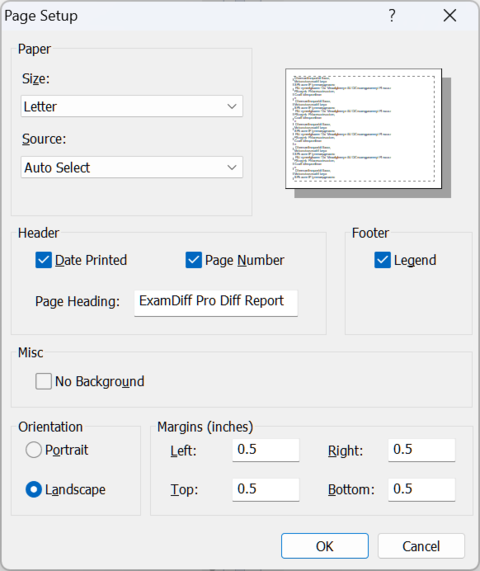
- Choose Files | Page Setup to set up the report: paper size, the page heading (by default "ExamDiff Pro Diff Report"), the date and page numbers, a color Legend in the footer, No Background to save ink, the orientation, and the margins.
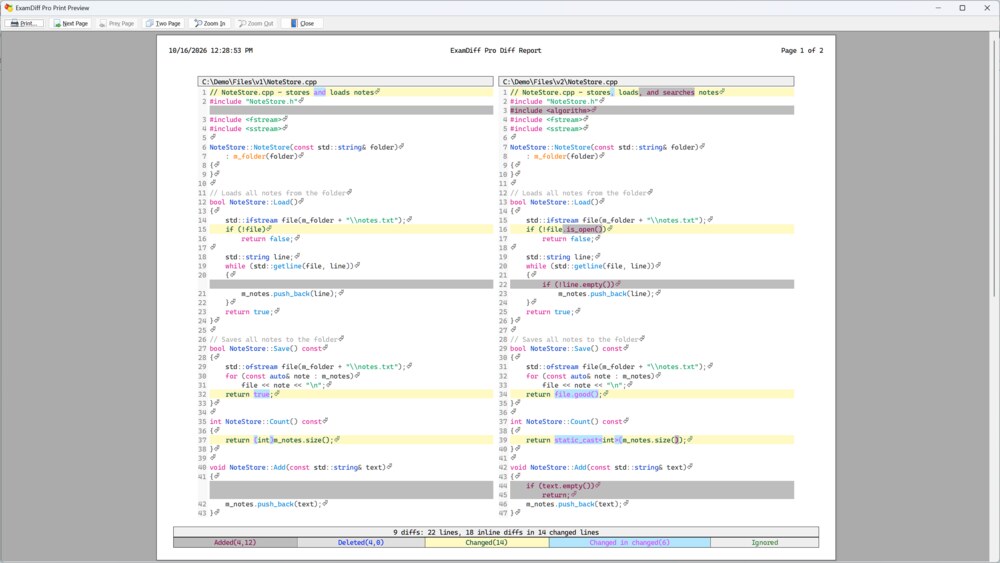
- Choose Files | Print Preview to see the report as it will print: both files side by side, with line numbers and the differences in color. Use Next Page, Two Page, and Zoom In to look it over.
- Choose Files | Print Diff Report (Ctrl+P) to print. To print only part of the files, select those lines first and choose Selection under Print range.
- Folder comparisons print the same way, as a list of the compared files with their status.
Questions
Can I save the report as a PDF?
Yes. Choose Microsoft Print to PDF as the printer in the Print dialog.
How do I share a report that people can open in a browser?
Create an HTML diff report instead: a single web page that anyone can open, with the same side-by-side view.