

Online Help
Directory Comparison - General Options
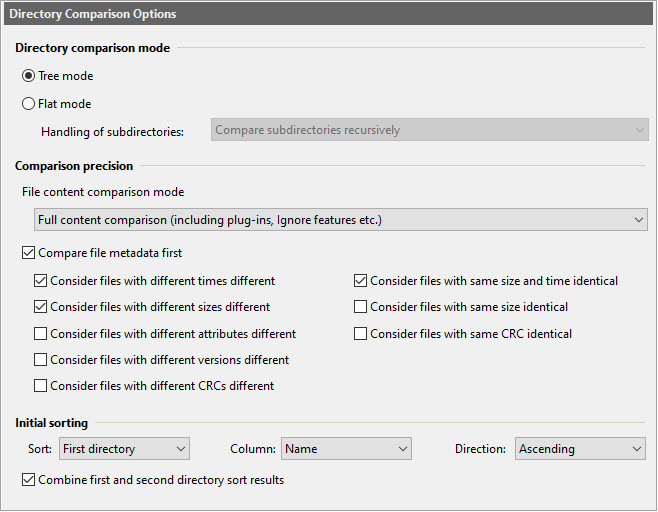
Dialog Box Options
Directory comparison modeUse these options to control how subdirectories are compared and displayed.
-
Tree mode
In this mode (the default starting in version 15.0), comparison results are displayed recursively in a tree view, with subdirectories that can be expanded and collapsed (just like in Windows Explorer).
Within each expanded subdirectory in tree mode, you can see both the items within it and a count of the number of items filtered out by comparison filters and/or view filters, if any. Clicking on the "X item(s) are hidden by comparison/view filters" message opens out the Filtered-Out Files and Directories dialog, which lists all filtered-out files and subdirectories within a given directory.
Additional options customizing the behavior of tree mode are found under Options | Directory Comparison | Other.
-
Flat mode
In this mode (the default prior to version 15.0), the contents of subdirectories are either ignored, not displayed, or displayed all together in a single flat view (as opposed to tree mode, see above).
-
Handling of subdirectories
Set the level of recursive comparison. Alternatively, you can use the Recursion drop-down toolbar button
 .
.
-
Ignore subdirectories
If this option is selected, ExamDiff Pro will not compare or display subdirectories in comparison results.
-
Do not compare subdirectories at all
If this option is selected, ExamDiff Pro will not attempt to compare subdirectories.
-
Compare subdirectories only to determine their status
If this option is selected, ExamDiff Pro will try to figure out whether contents of two subdirectories differ, and the subdirectories will be marked as identical or different.
-
Compare subdirectories recursively
If this option is selected, ExamDiff Pro will compare files in subdirectories recursively.
-
Ignore subdirectories
-
Handling of subdirectories
These options select what type of comparison of matching files should be performed.
You can also use the File Content Comparison toolbar button to switch between file content comparison and file metadata comparison.
You can also use the File Content Comparison toolbar button
to switch between file content comparison and file metadata comparison.- Perform file content comparison
If this option is selected, ExamDiff Pro will perform comparison based on file contents for each pair of matching files. This type of file comparison is always slower but is ultimately accurate; also, it will use all file comparison options and plug-ins (if they are enabled for directory comparison).
-
Compare files byte-by-byte (fast mode)
This option enables two optimizations to speed up file content comparison. First, file comparison options and plug-ins are all disabled. Secondly, the files are compared byte-by-byte, and comparison ends as soon as the first difference is found (if the files are different). In certain situations (such as very large files with many differences), this can save a huge amount of comparison time (because only a fraction of each file is being looked at), while still producing accurate results.
-
Compare files byte-by-byte (fast mode)
- Perform file metadata comparison (falling back to file content comparison)
If this option is selected, ExamDiff Pro will perform the selected tests below on each pair of files, in order, until it can conclude that the files are either identical or different. If none of the selected options apply for a pair of files, ExamDiff Pro will fall back to file content comparison (see above).
Note that enabling any of the "Consider" options below risks inaccuracies in comparison, because it is possible for two files to have identical attributes but still be different (though the likelihood of this is infinitesimal if CRCs are compared), and it is also possible for files to have different attributes but still be considered identical (for example, if white space is ignored).
- Consider files with same size and timestamp identical
Mark files as identical if their sizes and timestamps match exactly.
- Consider files with same CRC identical
Mark files as identical if their CRCs are the same.
- Consider files with different sizes different
Mark files as different if their sizes differ.
- Consider files with different timestamps different
Mark files as different if their modification times differ.
- Consider files with different attributes different
Mark files as different if any of their attributes (archive, hidden, read-only, system, etc.) differ.
- Consider files with different CRCs different
Mark files as different if their CRC32 values differ.
- Consider files with different versions different
Mark executable and DLL files as different if their file versions differ.
- Consider files with same size and timestamp identical
This option specifies the initial sorting (by pane, column, and direction)
of files in directory comparison. ExamDiff Pro uses these settings whenever
directories are compared or re-compared.
- Combine first and second directory sort results
If this option is enabled, as it is by default, files appearing only in the unsorted directory are also sorted. If this option is disabled, only files that are in the sorted directory are sorted, with the remaining files appearing at the end in no specific order (or, more accurately, retaining the previous sort order for these items).
Copyright © 1997-2024 PrestoSoft LLC. All rights reserved.