

Online Help
Directory Comparison - Filters Options
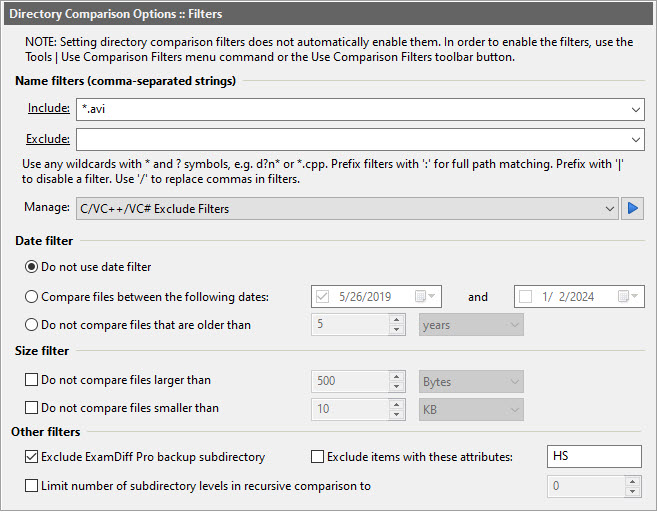
This options dialog controls the directory comparison filters, which filter out items from comparison based on their name, path, date, and/or size. The directory comparison filters can be disabled/enabled with the Use Comparison Filters command.
Dialog Box Options
Name filters (comma-separated patterns)Name filters are patterns describing the types of file/directory names to be
included/excluded in the comparison. ExamDiff Pro will compare only those files/directories
whose names match at least one pattern in the include filter, but do not match
any of the patterns in the exclude filters. Pattern in the include and exclude filter
must be separated by commas.
Note that include filters apply only to file names, while exclude filters apply to both file and directory names. (So, for example, if a directory name matches one of the exclude filters, then it will be excluded from comparison along with all of its contents.)
You can use the conventional wildcard characters ('?' to match a single character or '*' to match any number of characters) to specify these types. For example, d?n* and *.cpp are acceptable filter types.
By default only names are matched against the filter. In order to match full paths of files/directories, prefix filters with the ':' character (which will be ignored during matching); For instance, a name filter *file* will match against c:\xyz\abc\file1.txt and c:\xyz\abc\file2.txt files, while a path filter :*file* will in addition match against c:\xyz\new_files\abc.txt (note new_files in the path). A common use of path filters is to exclude or include files based on subdirectories they are located in; for this use the form :*\subdir\*.
There are two more special characters that the name filter lists use: '|' and '/'. Filters can be disabled by prefixing them with a '|' character (which will be ignored during matching and must be placed before a ':' character). Use '/' in place of commas in filter names.
The include and exclude filter together make up a filter set. The Manage combobox can be used to select between different preinstalled and user-defined filter sets. The following filter set management commands are available (when the arrow button on the right of the combo box is clicked):
Date filter
Note that include filters apply only to file names, while exclude filters apply to both file and directory names. (So, for example, if a directory name matches one of the exclude filters, then it will be excluded from comparison along with all of its contents.)
You can use the conventional wildcard characters ('?' to match a single character or '*' to match any number of characters) to specify these types. For example, d?n* and *.cpp are acceptable filter types.
By default only names are matched against the filter. In order to match full paths of files/directories, prefix filters with the ':' character (which will be ignored during matching); For instance, a name filter *file* will match against c:\xyz\abc\file1.txt and c:\xyz\abc\file2.txt files, while a path filter :*file* will in addition match against c:\xyz\new_files\abc.txt (note new_files in the path). A common use of path filters is to exclude or include files based on subdirectories they are located in; for this use the form :*\subdir\*.
There are two more special characters that the name filter lists use: '|' and '/'. Filters can be disabled by prefixing them with a '|' character (which will be ignored during matching and must be placed before a ':' character). Use '/' in place of commas in filter names.
The include and exclude filter together make up a filter set. The Manage combobox can be used to select between different preinstalled and user-defined filter sets. The following filter set management commands are available (when the arrow button on the right of the combo box is clicked):
- Edit Filter
Launch the Include/Exclude Filters dialog.
- New Filter
Create a new filter set, optionally by cloning an existing one.
- Delete Filter
Delete the selected filter set.
- Rename Filter
Rename the selected filter set.
The Date filter, if enabled, compares files only if their Last Modified date
falls within the specified limits. The Date filter gives you three options: you can either
disable the Date filter, only compare files whose date falls between two set dates, or only
compare files that are not older than a certain age.
Size filter
The Size filter, if enabled, compares files only if their size falls between
the upper and lower limits. Both the upper and lower limits may be enabled or disabled by
checking or unchecking the checkbox next to them, respectively.
Note that date and size filters apply only to files, not to directories, and if a file in
one pane is compared, the matching file (if any) in the opposite pane will be compared as well.
Other filters
-
Exclude ExamDiff Pro backup directory
Use this option to ignore items under ExamDiff Pro backup directories defined in Directory Comparison - Other Options .
-
Exclude items with these attributes
This option allows to ignore items with specified attributes. You can use any combination of valid Windows attributes defined by single characters as follows:
D Directory R Readonly H Hidden S System A Archive C Compressed N Normal L Reparse Point O Offline P Sparse File I Not Content-indexed T Temporary E Encrypted
-
Limit number of subdirectories in recursive comparison
Use this option to set the recursion limit when recursive comparison is performed.
Copyright © 1997-2025 PrestoSoft LLC. All rights reserved.