

ExamDiff Pro Basic Tutorial #3
How to compare binary files
Tutorial Description: This tutorial describes how to compare binary files, and discusses various binary file comparison options.
Video Demonstration
Steps:
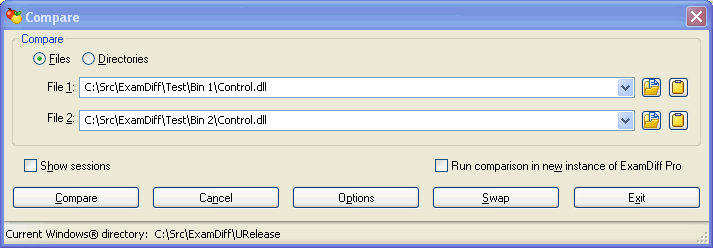
- Open ExamDiff Pro and select the Files option in the Compare dialog.
Then select two binary files to compare, such as two DLLs.
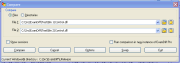
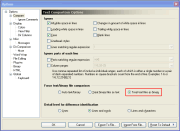
- By default, ExamDiff Pro automatically determines whether files are text or
binary. The program can automatically recognize text files encoded in ASCII (ANSI),
UTF-8, and UTF-16 (both little and big endian) formats (UTF-16 files are detected by
byte order marks -- 0xFFFE for little endian and 0xFEFF for big endian). If none of these
four encodings are detected, ExamDiff Pro will treat files as binary files. Alternatively,
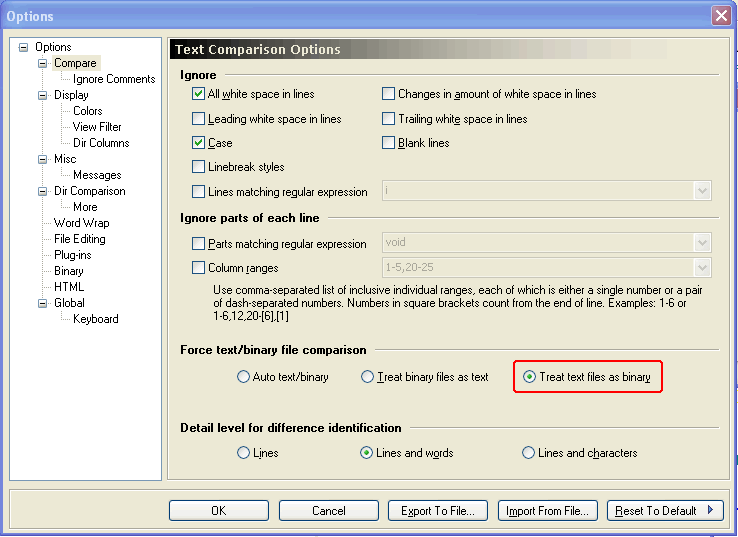
you can select Treat text files as binary in Options | Compare.
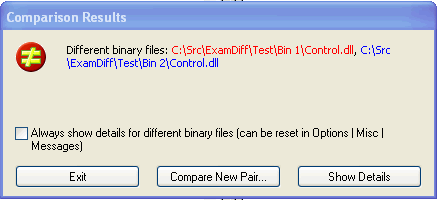
- Click Compare. You will get a message similar to this:
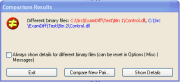
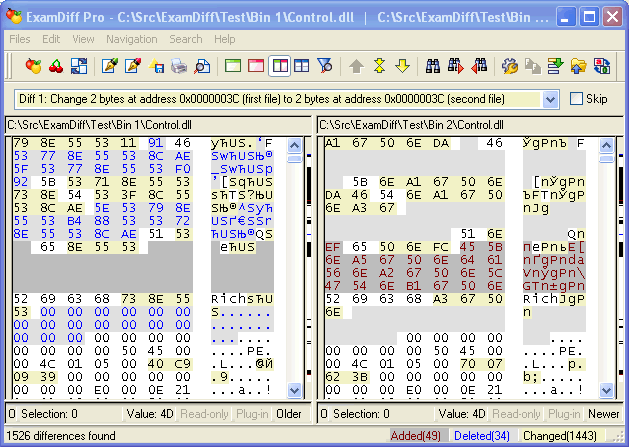
- Now click Show Details.
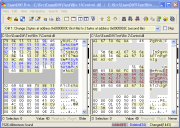
- Let's try out some binary comparison options. Press Ctrl-J
or click on the Options toolbar button
 to open the Options dialog, and navigate to the Dir Comparison page.
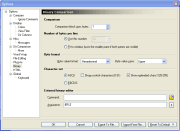
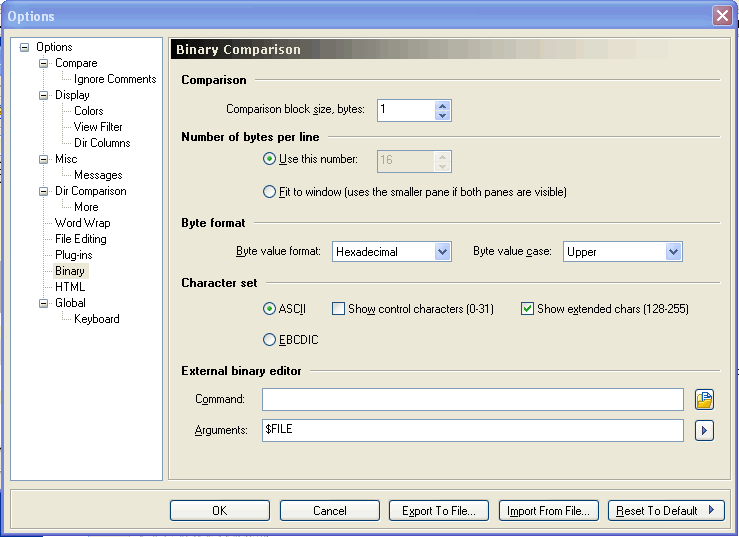
- The first option we will examine is Comparison block size. By
default, this is set to 1 byte, which provides the most accurate binary
comparison. However, for large file comparison may take such a long time
that it makes sense to sacrifice some precision for better performance.
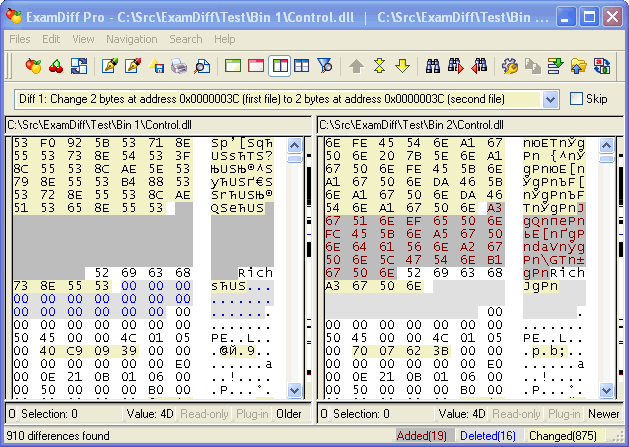
Let's change it to 2 bytes:
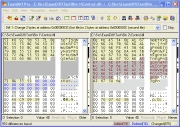
You can see that we get a less-detailed comparison report (e.g. the numbers of differences is now 910 versus 1526 when we used 1-byte blocks) but this result was achieved faster that the first one.
- The next options, Number of bytes per line, Byte format,
Character set, and External binary editor are self-explanatory
and well-documented in the online Help.
- One more thing: if, after comparing two text files, you want to see the
results of their binary comparison, you can use the Files | Toggle Text/Binary
Comparison menu command, or the Toggle Text/Binary Comparison toolbar
button
 .
(If you can't find the Toggle Text/Binary Comparison toolbar button on
your ExamDiff Pro toolbar, you may have to customize your toolbar, as demonstrated
in Basic Tutorial #2, Step 6.)
.
(If you can't find the Toggle Text/Binary Comparison toolbar button on
your ExamDiff Pro toolbar, you may have to customize your toolbar, as demonstrated
in Basic Tutorial #2, Step 6.)
Copyright © 1997-2024 PrestoSoft LLC. All rights reserved.