

Online Help
File Editing Options
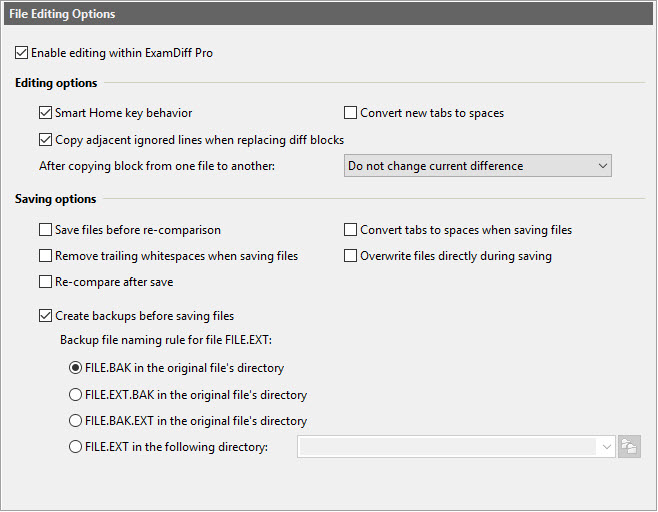
Dialog Box Options
Enable editing within ExamDiff ProEnable or disable file editing within ExamDiff Pro. Note that file editing
is not supported in two modes: Show Differences Only and Word Wrap.
Editing options
- Smart Home key behavior
Select this option if you want the Home key to alternately move the cursor between the first non-space character and the left margin.
- Convert new tabs to spaces
Select this option if you want newly entered tabs to be converted to spaces, using the Tab size defined for this document type in Document Types Options.
- Copy adjacent blank lines when replacing diff blocks
Copy blank lines that are immediately above or below a diff block when it is copied as part of a Replace operation.
- After copying block from one file to another
This option controls the current difference position after copying a block from one file to another. The current difference may stay where it was, move to the next difference (if it exists), or move to the previous difference (if it exists). Using this option allows you to copy block after block without manually advancing to the next or previous difference.
- Save files before re-comparison
Automatically save changed files before running re-comparison. Note that this option does not apply to clipboard fragments.
- Convert tabs to spaces when saving files
When files are saved, tabs will be converted to spaces using the Tab size defined for this document type in Document Types Options.
- Remove trailing whitespaces when saving files
When files are saved, trailing whitespaces will be removed from each line.
- Overwrite files directly during saving
By default, when a file is saved, ExamDiff Pro saves changes to a temporary file, then deletes the original file and renames the temporary file to the original file. While this guarantees that the original file is preserved even if the save operation fails, some file information, such as its attributes, summary, security, and creation information, may be lost (ExamDiff Pro will try to preserve security attributes even when a temporary file is used). If this option is checked, the original file is overwritten directly, which preserves the file information, but the file itself may be corrupted if the save fails. If you use this option, it is recommended that you also enable the next option, Create backups before saving files.
- Re-compare after save
Automatically re-compare files after one or both are saved within ExamDiff Pro.
- Create backups before saving files
If this option is enabled, ExamDiff Pro will create a backup file every time a file is saved. The backup file naming rule for the file FILE.EXT allows you to specify how backup files are named and where they are saved.
Copyright © 1997-2026 PrestoSoft LLC. All rights reserved.