
ExamDiff Pro tutorial · Navigation
How to Navigate Through Differences
Move through a comparison quickly: from one changed block to the next, straight to any difference in the list, word by word within a changed line, and back to the lines you bookmarked.
Video
Steps
- Compare two files. The commands below are in the Navigation menu and on the toolbar.
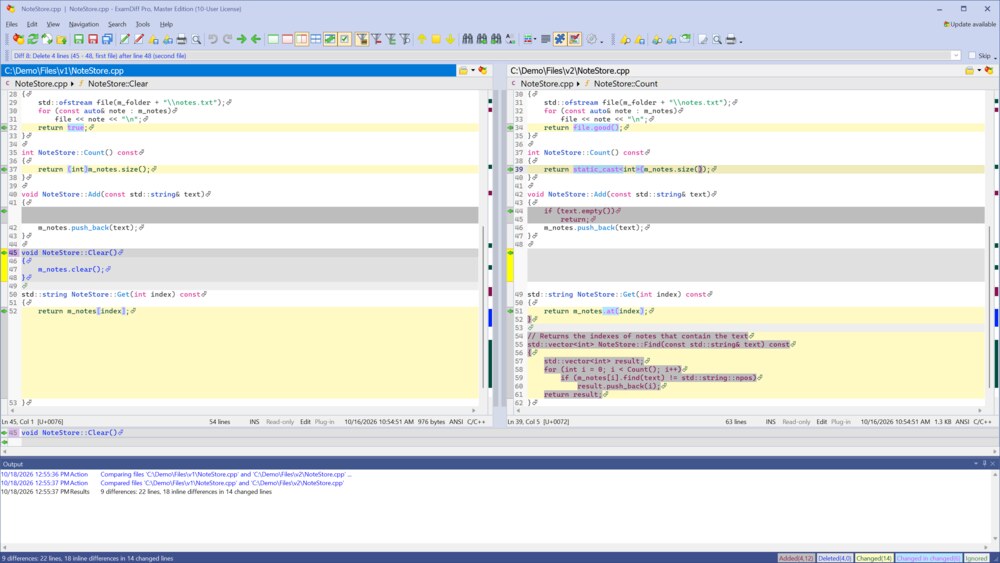
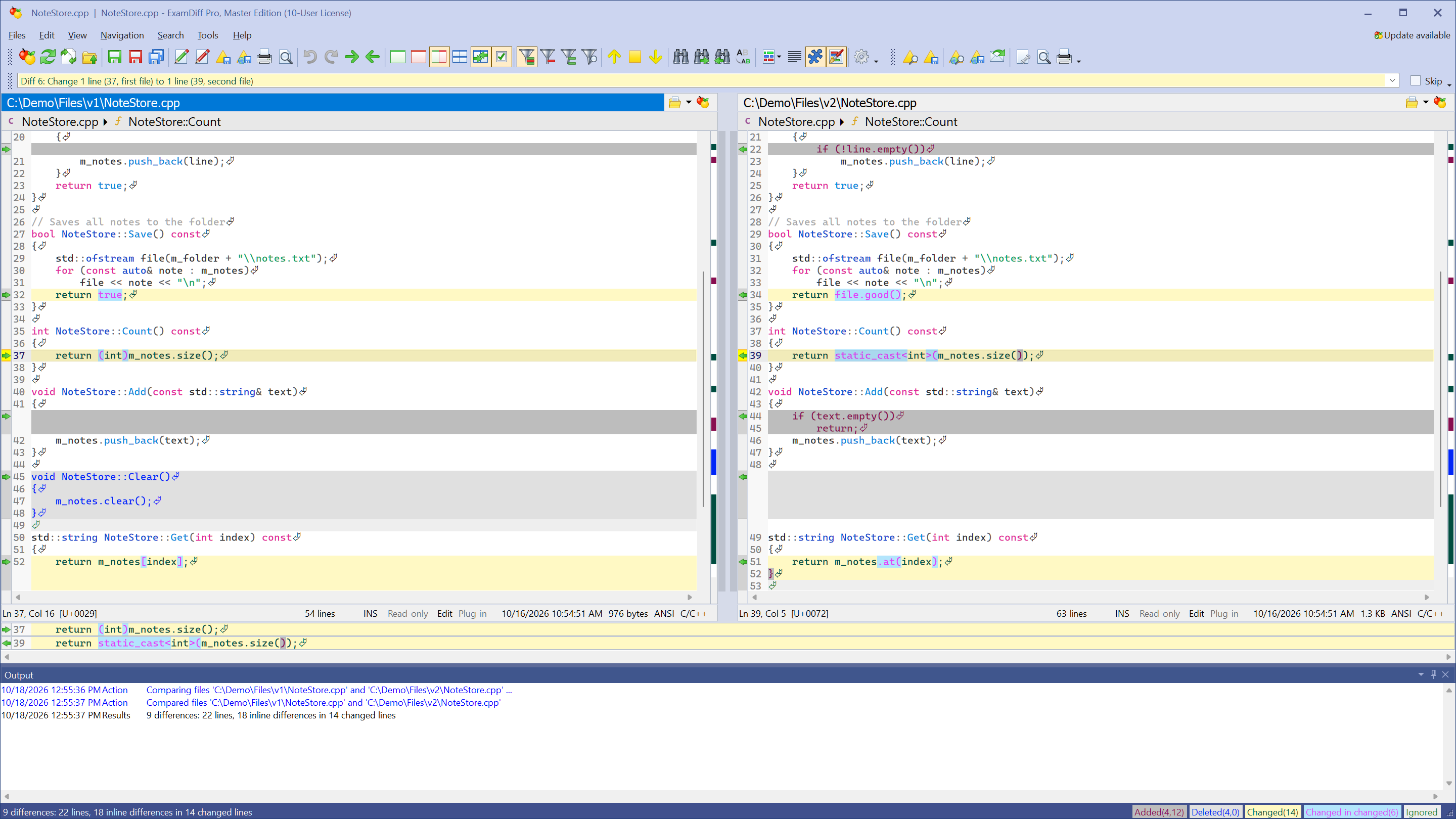
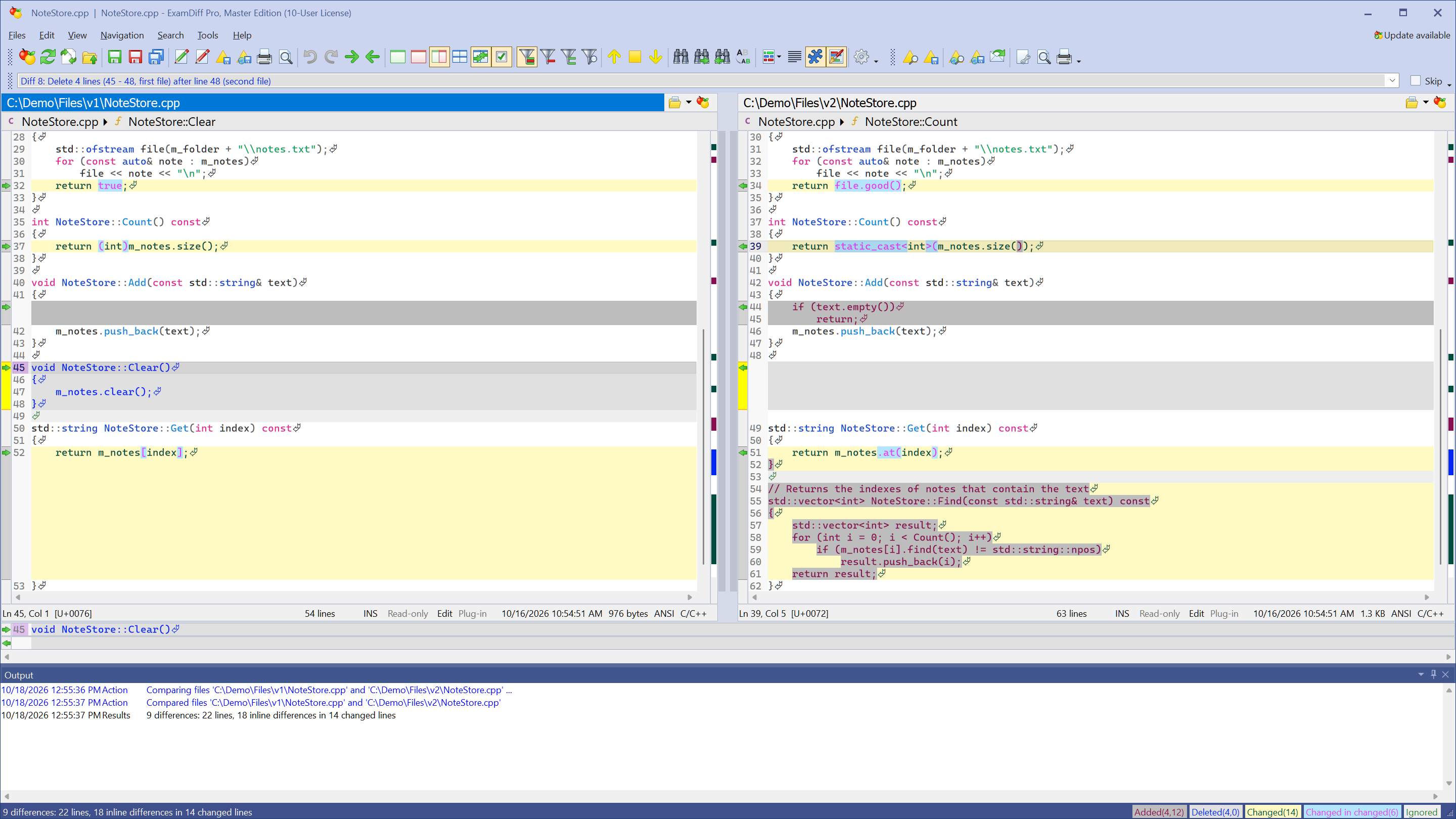
- Choose Navigation | Next Difference (Alt+Down Arrow) or Previous Difference (Alt+Up Arrow) to go from one changed block to the next. First Difference and Last Difference jump to the ends, and Current Difference brings the selected one back into view.
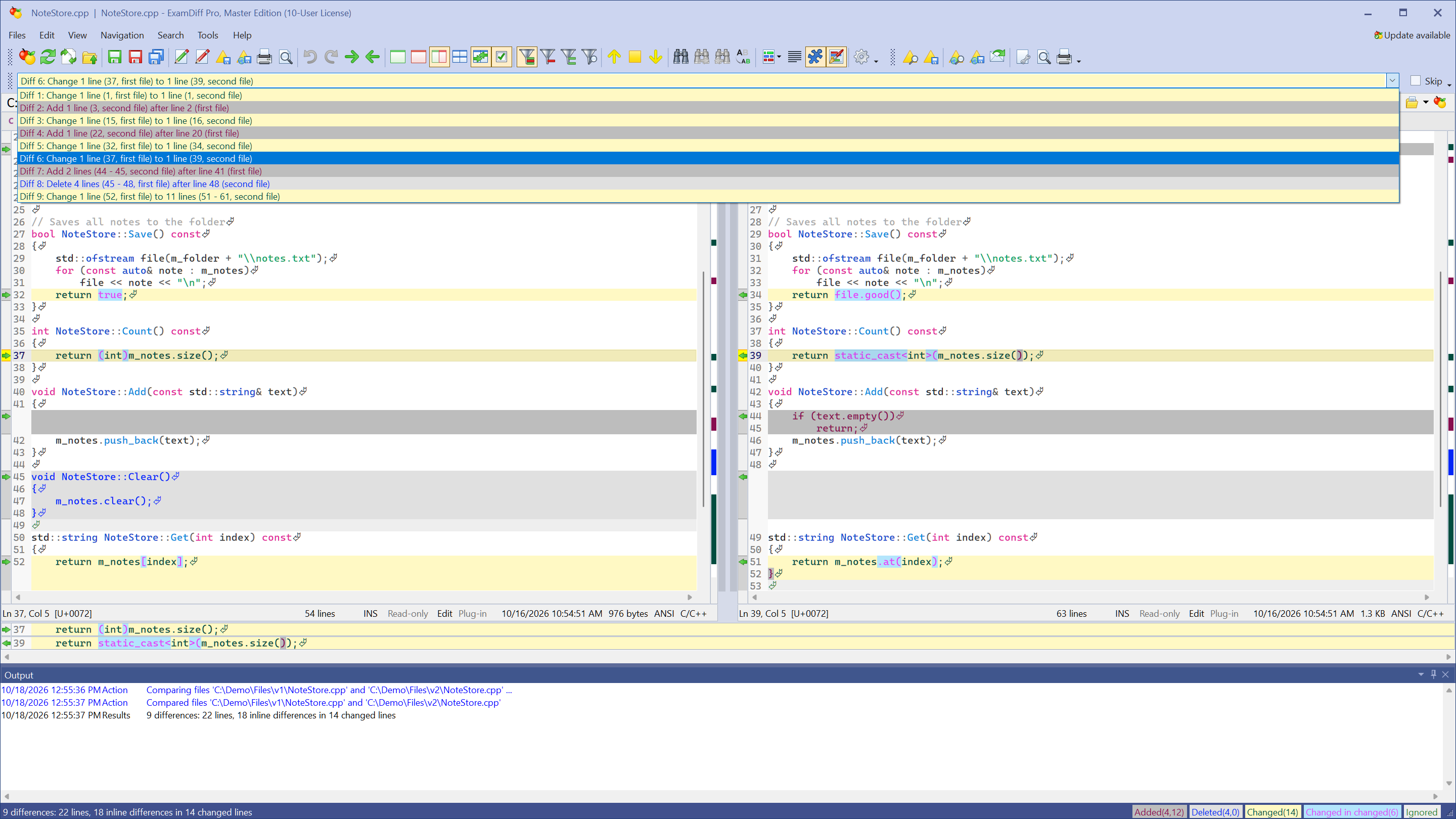
- The difference list below the toolbar shows every difference with its type and line numbers. Open it and pick one to go straight to it.
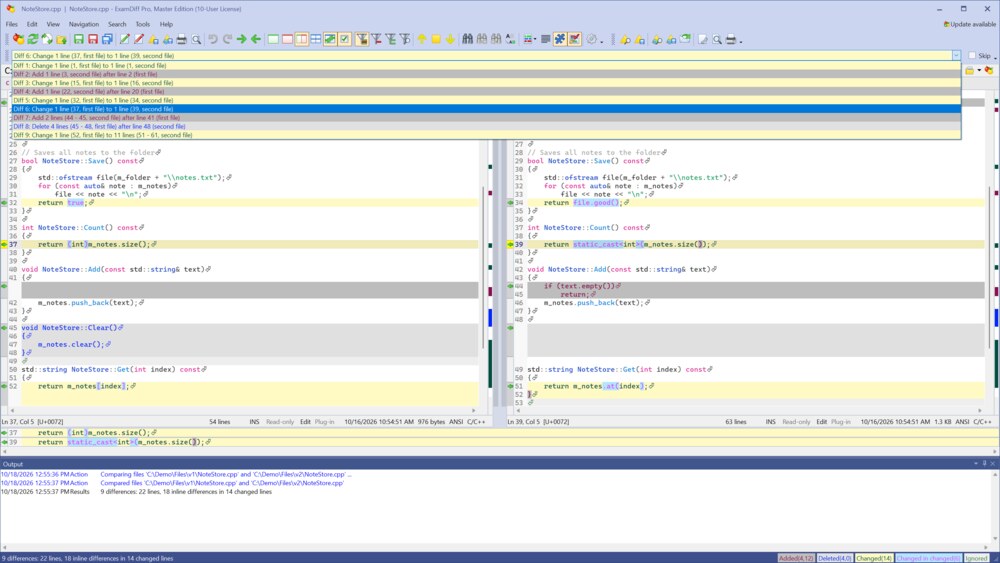
- Within a changed line, choose Navigation | Next Difference in Line (Alt+Right Arrow) or Previous Difference in Line (Alt+Left Arrow) to step from one changed word to the next. Next Overall Difference (Ctrl+Shift+Down Arrow) and Previous Overall Difference (Ctrl+Shift+Up Arrow) go to the next change of any kind, a changed word or a whole added or deleted block.
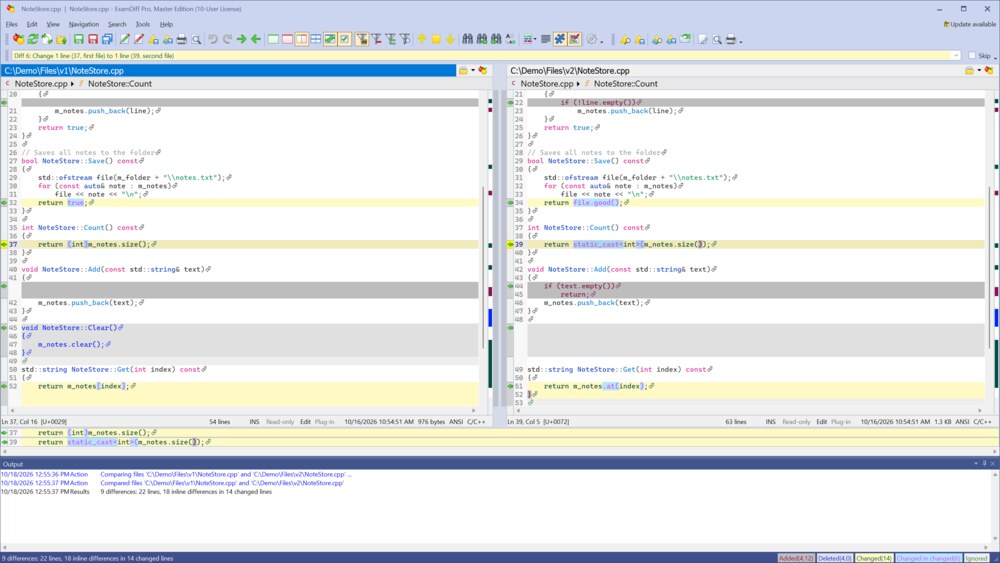
- To mark lines you want to come back to, click a line and choose Navigation | Bookmarks | Toggle Bookmark (Ctrl+F2). Next Bookmark (F2) and Previous Bookmark (Shift+F2) jump between them, and Clear All Bookmarks (Ctrl+Shift+F2) removes them.
Questions
Can I go to a specific line?
Yes: Navigation | Move Cursor to Line (Ctrl+G).
Can I change the shortcuts?
Yes, in Tools | Options | Global | Keyboard.
Does this work in folder comparisons too?
Yes. Next Difference, Previous Difference, and the difference list also move from one changed file or folder to the next in a folder comparison.