

ExamDiff Pro Basic Tutorial #4
How to compare clipboard contents
Tutorial Description: This tutorial describes how to compare clipboard contents.
Video Demonstration
Steps:
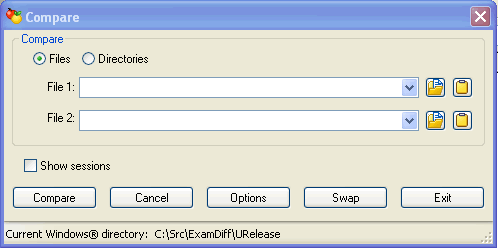
- Open ExamDiff Pro and select the Files option in the Compare dialog.
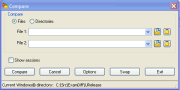
- We will be discussing two methods to compare clipboard contents. The first
method involves using the Select Current Clipboard Contents buttons. First,
copy a text fragment in some program (such as Microsoft Word) to the clipboard and
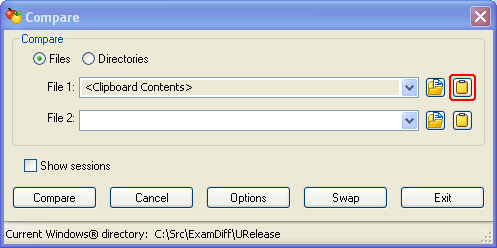
then click on the Select current Clipboard contents as first file button
 (or press
Ctrl-1):
(or press
Ctrl-1):
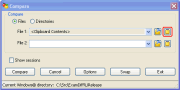
- Next, copy a different text fragment to the clipboard and click on the Select
current Clipboard contents as second file button
(or press
Ctrl-2):
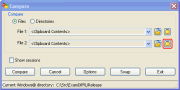
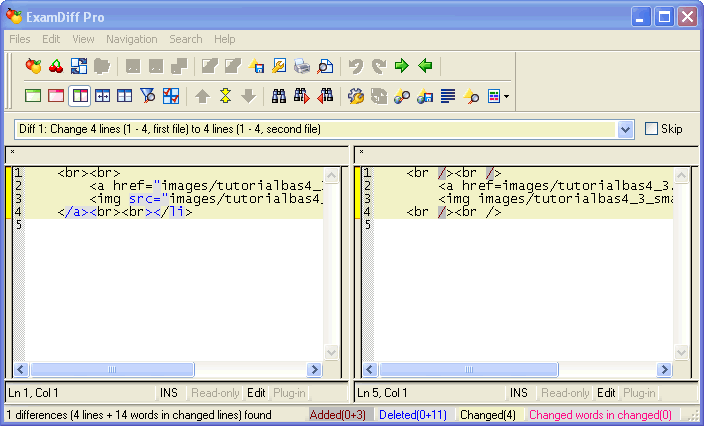
- Finally, click Compare and we're done!
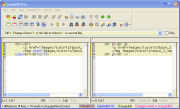
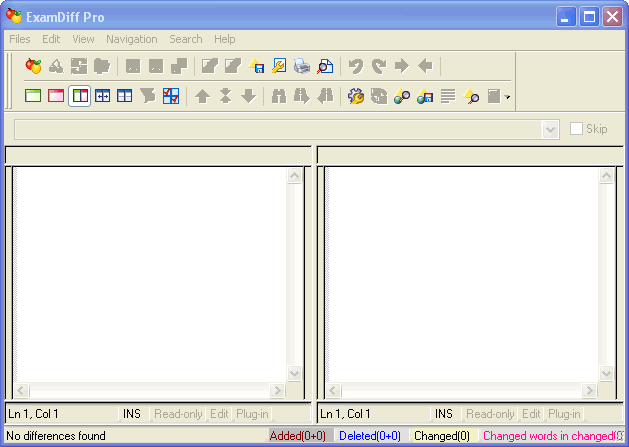
- Now let's try a different method. Quit ExamDiff Pro and open it again. This time
click on Cancel.
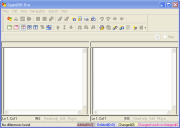
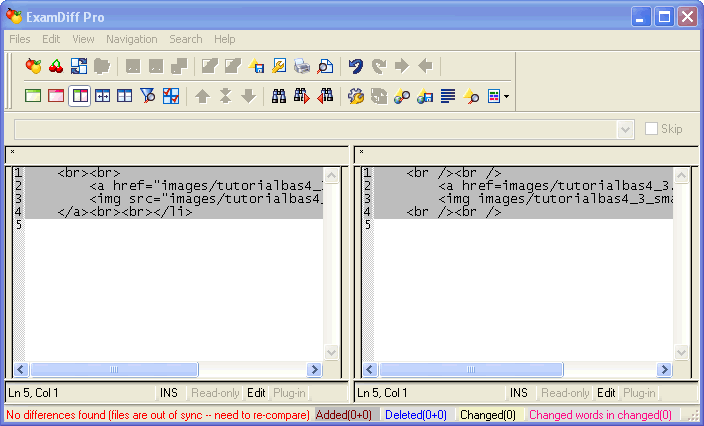
- Next, copy a text fragment in some program, and paste it into the first file.
Then copy another text fragment in some program, and paste it into the second file.
(Note: If you are unable to paste the text into ExamDiff Pro, please see
this FAQ.)
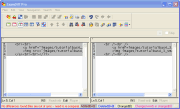
- Finally, click on the Recompare button
 (or press
F5), and we're done!
(or press
F5), and we're done!
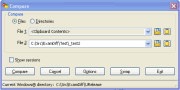
- Note that you can also compare clipboard contents to a file:


Copyright © 1997-2025 PrestoSoft LLC. All rights reserved.