HOME

EXAMDIFF PRO

FTPVC

BLOG

FORUMS

NEWS

SUPPORT

ABOUT US

TRY NOW

BUY NOW

ExamDiff Pro Basic Tutorial #1

ExamDiff Pro

• Overview

• Features

• Benefits

• Screenshots

• Info Card

• Download  Download ExamDiff Pro

Ordering

• Purchase  Buy ExamDiff Pro

• Price

Users and Reviews

• Testimonials

• Awards

• Corporate Clients

For Current Users

• History

• Wish List

• Plug-ins

Support

• Online Help

• Tutorials  Video tutorials available

• FAQ

ExamDiff (Freeware)

• Overview

• Download Download ExamDiff Pro

• History

• Awards

How to compare files

Tutorial Description: This tutorial describes various methods for comparing files.

New feature! View video demonstration

Steps:

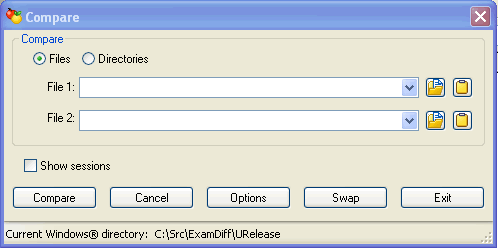
  1. Open ExamDiff Pro and select the Files option in the Compare dialog.
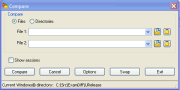
    ExamDiff Pro main compare dialog

  2. The first way you can choose the files you want to compare is by typing the file paths into the two text boxes. Note that these text boxes use AutoComplete - as you type a file path the program will attempt to complete it.
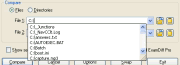
    ExamDiff Pro intuitive AutoComplete feature

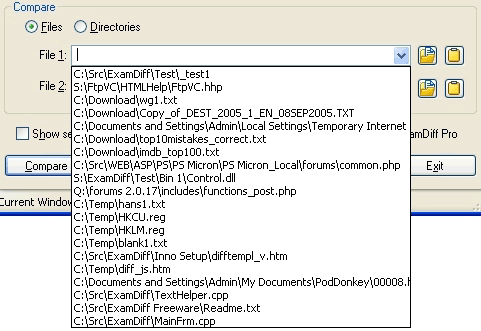
  3. Another way to select the files is by clicking on the a drop-down arrow. The drop-down boxes remember the last 20 files you compared by default, and this number can be changed in Options | Misc.
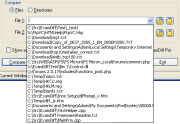
    By clicking on the drop-down arrows in ExamDiff Pro main compare dialog, ExamDiff Pro brings up a list of the last twenty files you compared

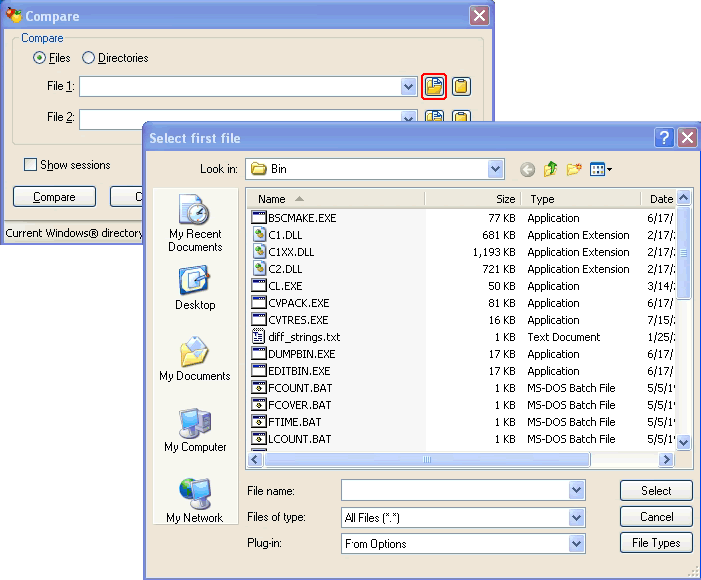
  4. A third way to specify the files is by clicking on the Browse buttons ExamDiff Pro Browse button (the ones closest to the text boxes), and then browsing for the files you want.
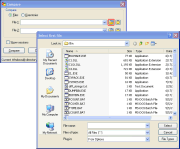
    ExamDiff Pro Browse dialog shown next to the main compare dialog, with the Browse button (the one next to the combo box) outlined

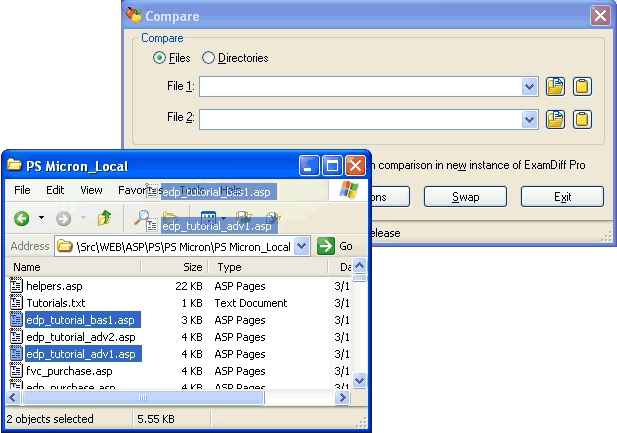
  5. Yet another way to choose the files is through drag-and-drop. Select a file or files from anywhere outside of ExamDiff (preferably from Windows Explorer or some other file management program) and drag them onto the Compare dialog box.
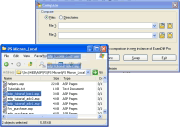
    Windows Explorer shown next to ExamDiff Pro main compare dialog, with two files being dragged from the Windows Explorer into ExamDiff Pro

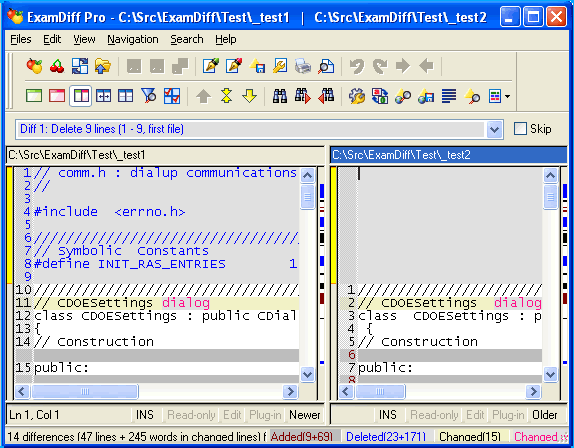
  6. Finally, after you have chosen the files to compare, click on the Compare button, and the files will be compared.
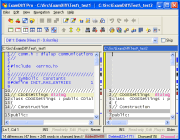
    ExamDiff Pro main window, with two files being compared

Note: One more way to choose the files you wish to compare is through Shell extensions. This will be covered in a later tutorial.

ExamDiff Pro main compare dialog
ExamDiff Pro intuitive AutoComplete feature
By clicking on the drop-down arrows in ExamDiff Pro main compare dialog, ExamDiff Pro brings up a list of the last twenty files you compared
ExamDiff Pro Browse dialog shown next to the main compare dialog, with the Browse button (the one next to the combo box) outlined
Windows Explorer shown next to ExamDiff Pro main compare dialog, with two files being dragged from the Windows Explorer into ExamDiff Pro
ExamDiff Pro main window, with two files being compared