
ExamDiff Pro 15.0: Directory Filtering Improvements |
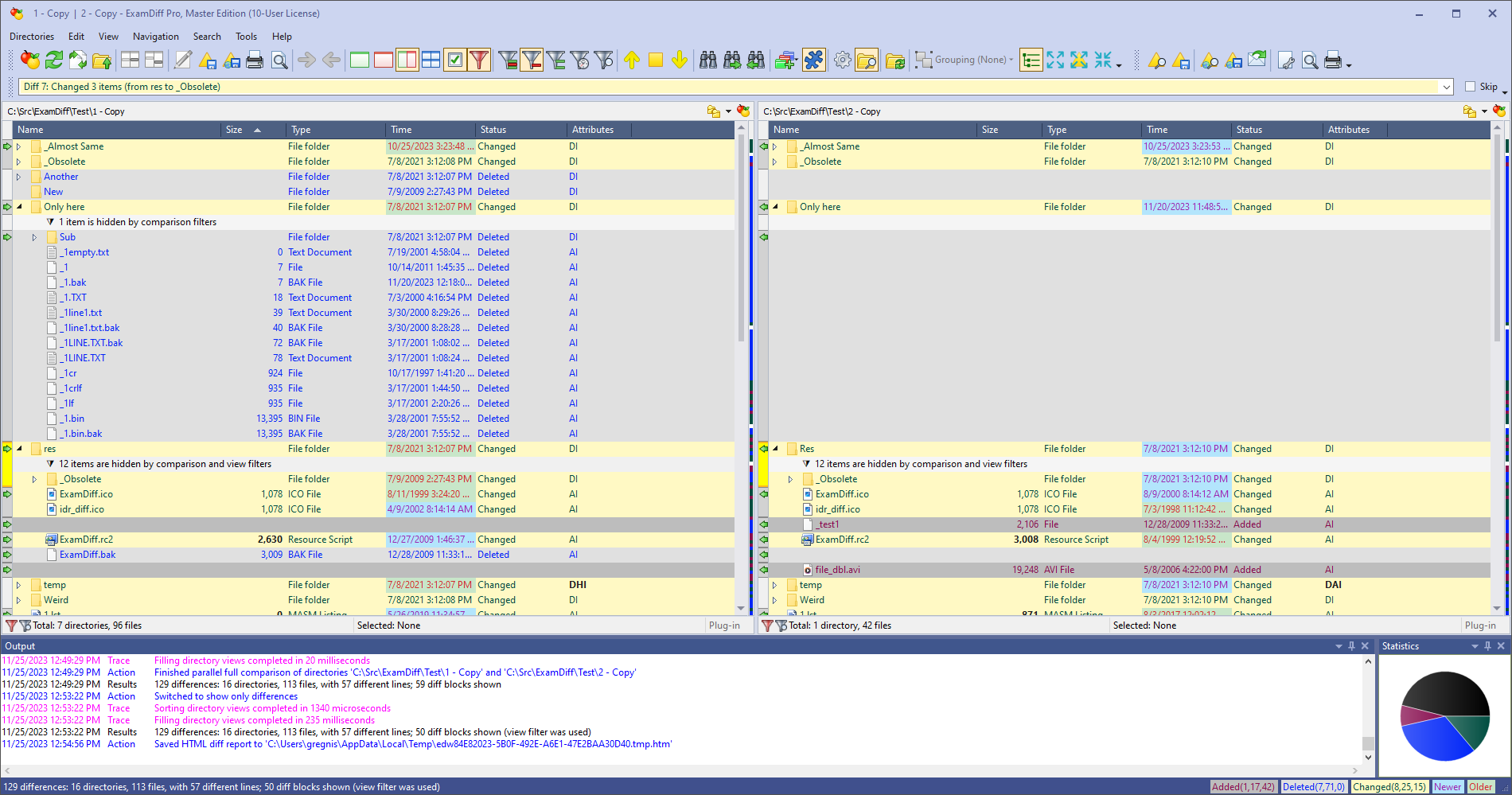
ExamDiff Pro 15.0 will introduce a set of features to improve the experience around using view filters in directory comparison.
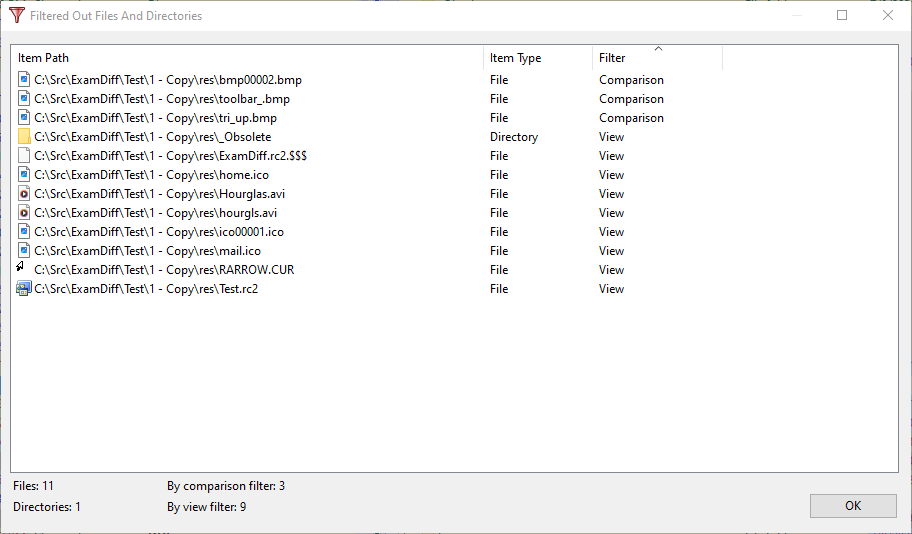
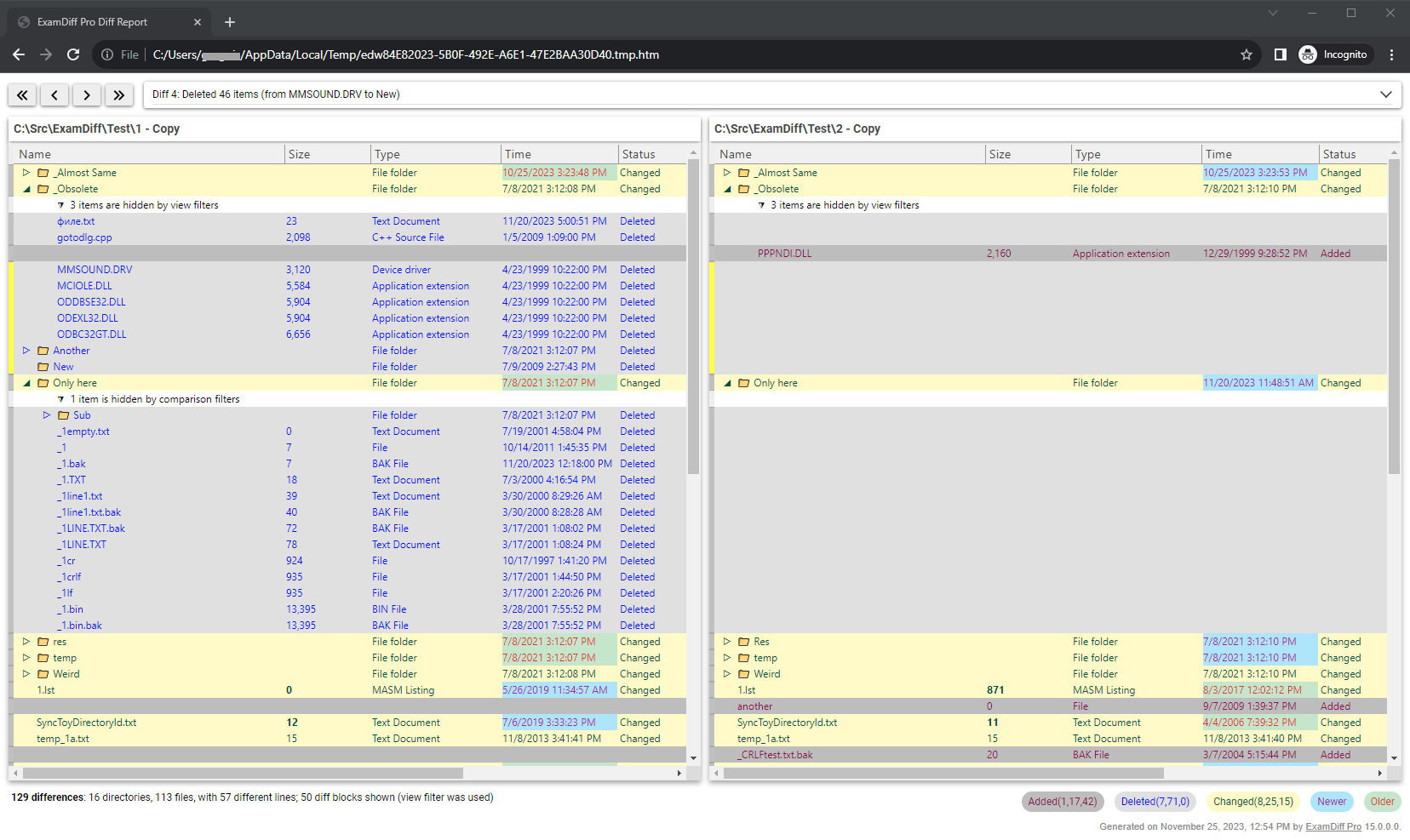
View filters let you quickly filter which items (files/directories) are shown in a directory comparison session, filtering either based on an item's path or by an item's comparison status.
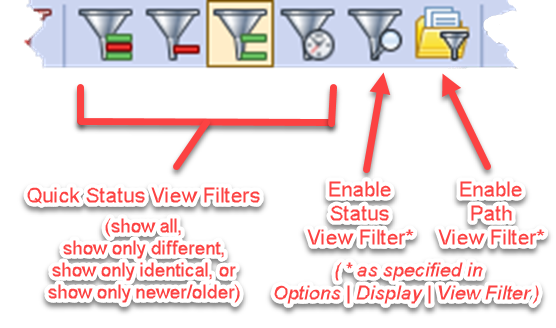 This can be useful in situations where you want to toggle either the status or path filter on and off while keeping the other filter set. For example, you might want to exclude certain directories from the view (using the path view filter), and you want to repeatedly toggle whether identical items are shown or hidden (using the status view filter). Prior to this change, you would have had to toggle the entire View Filter on and off, but this would also toggle the path view filter, causing directories that you don't care about to come into view – annoying! Now you'll be able to actually control these two filters independently.
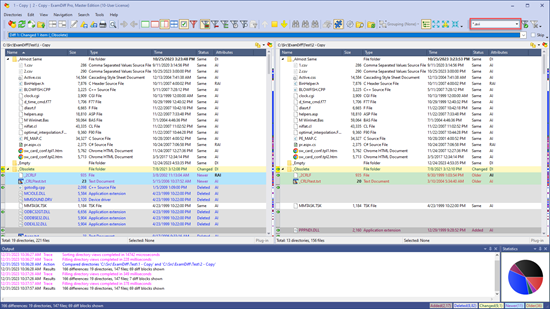
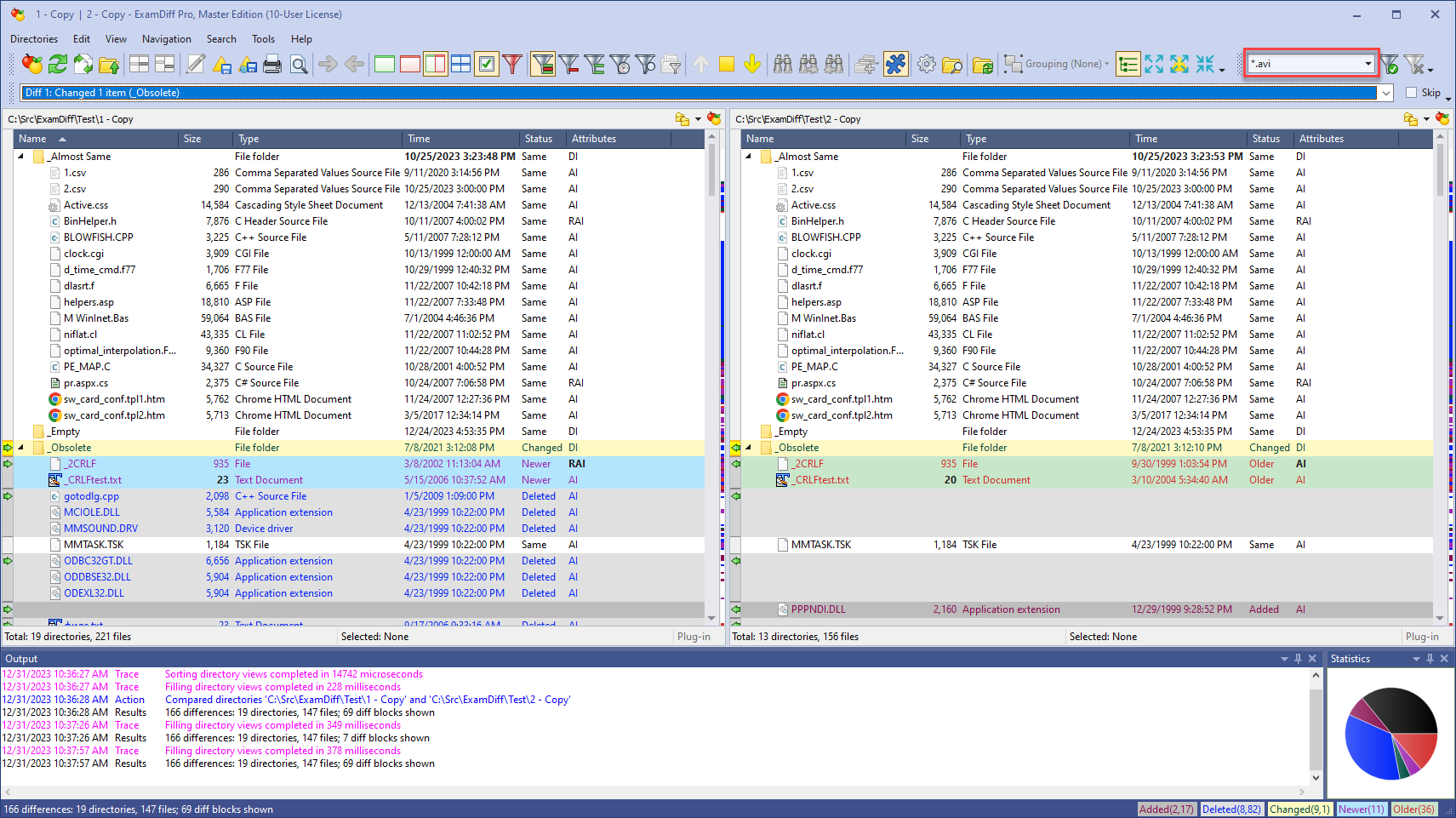
For example, let's say I'm comparing a pair of directories, and I want to hone in on just the AVI files within these directories. All I have to do is type "*.avi" into the Quick path view filter text box:
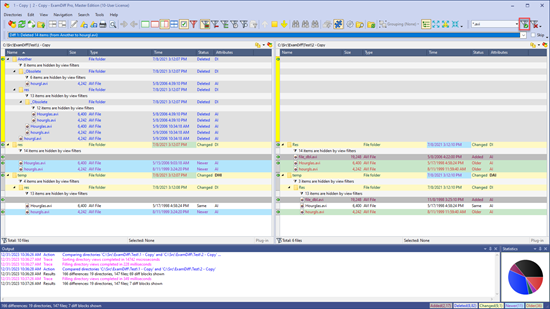
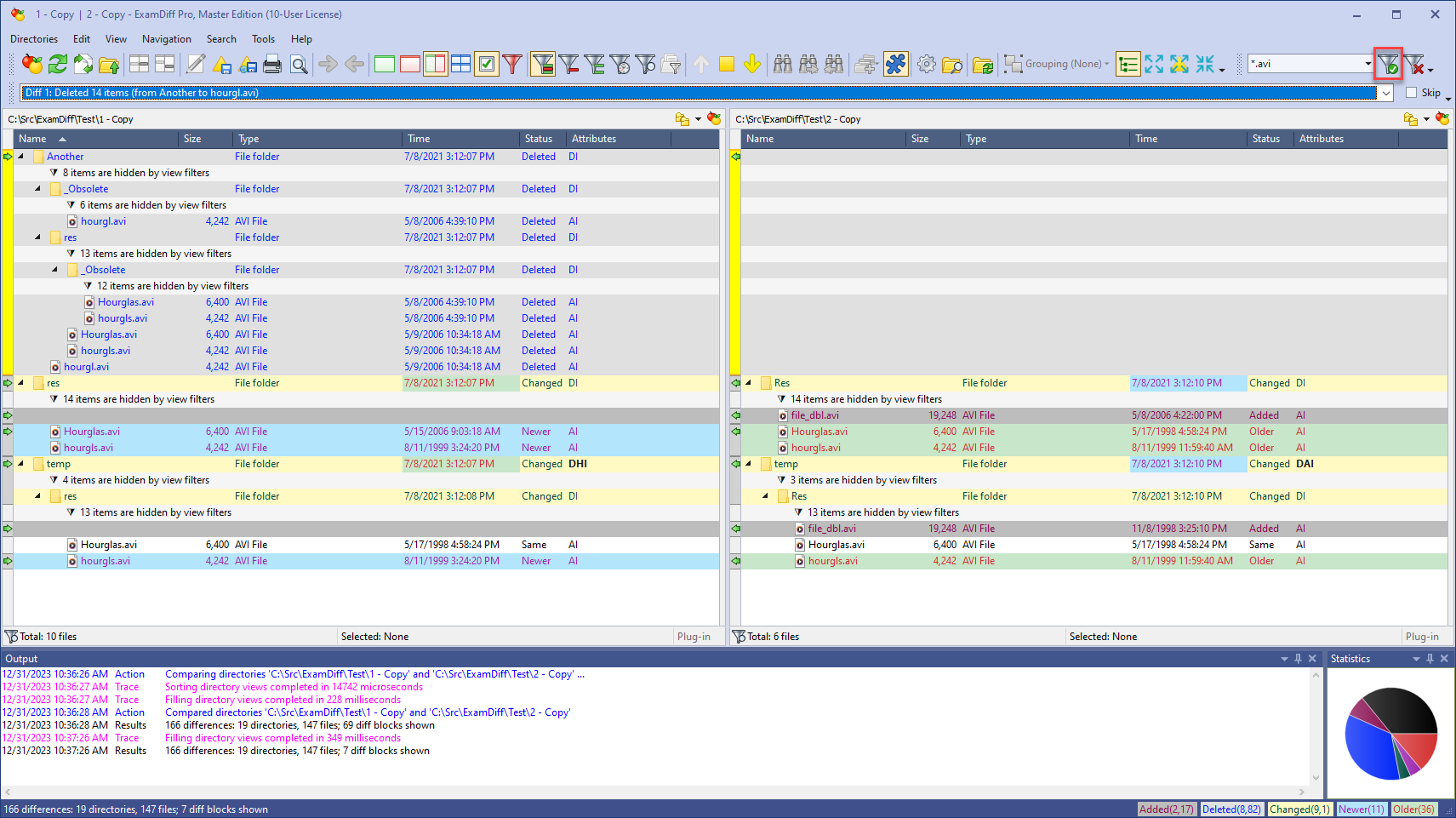
 And when I press Enter or click the Apply Filter button, the filter is immediately applied:
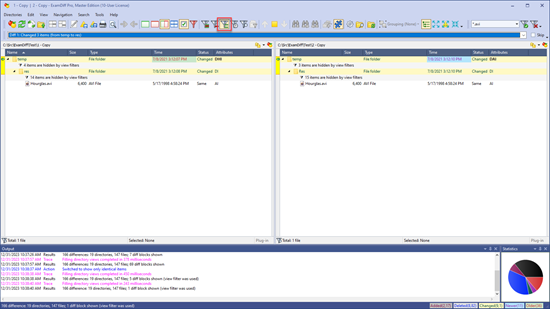
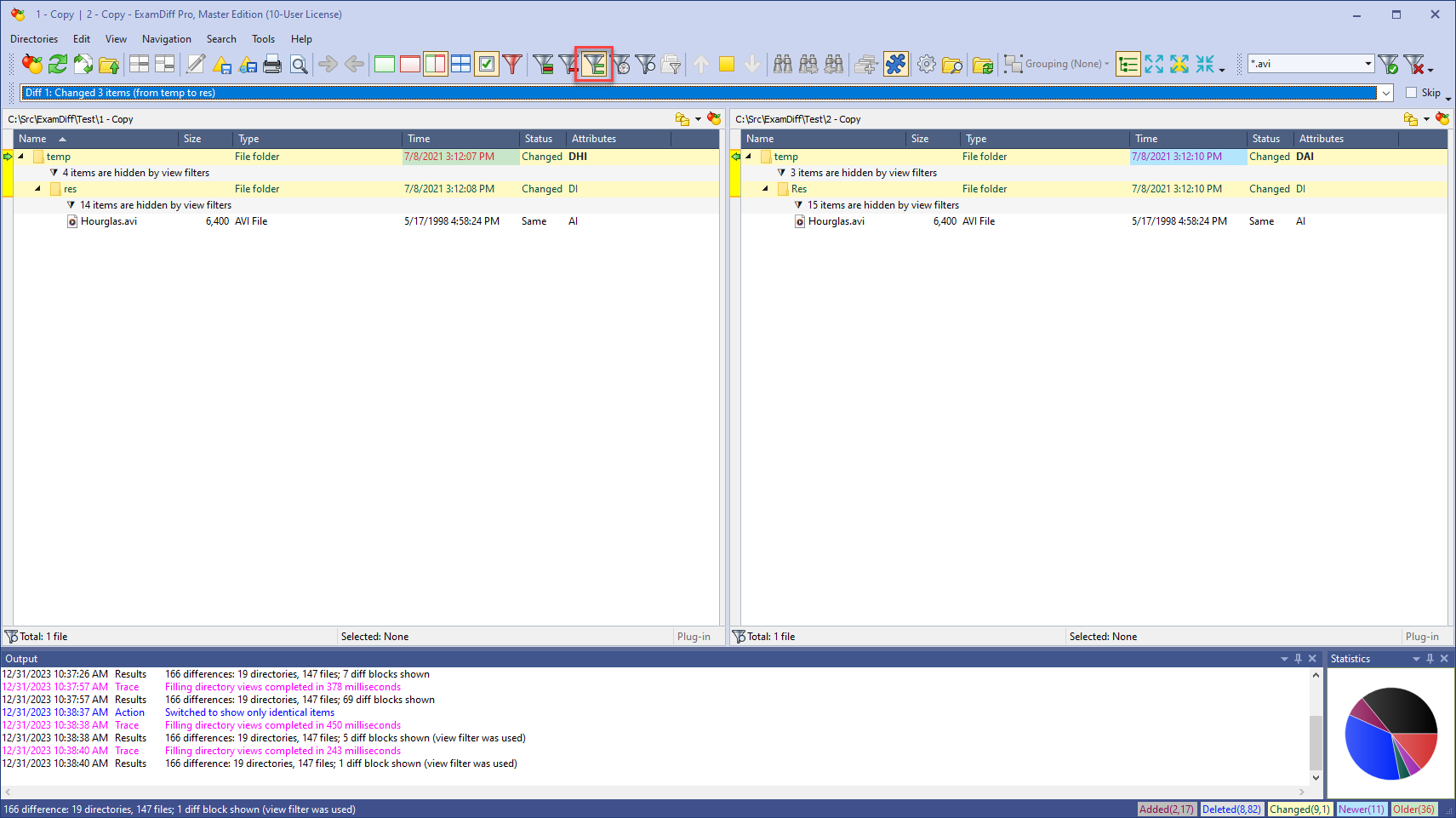
 Because this view filter is also controlled separately from the others, we can separately enable a status view filter as well. For example, if I want to check if any of these *.avi files are identical, I can just click the Show Only Identical quick status filter toolbar button:
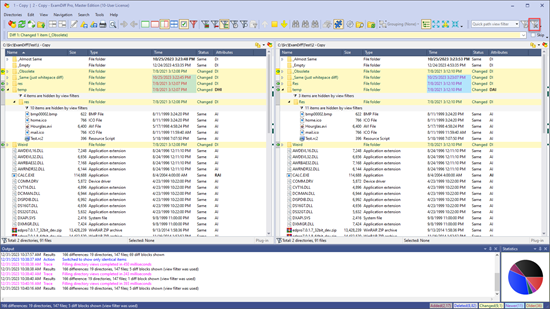
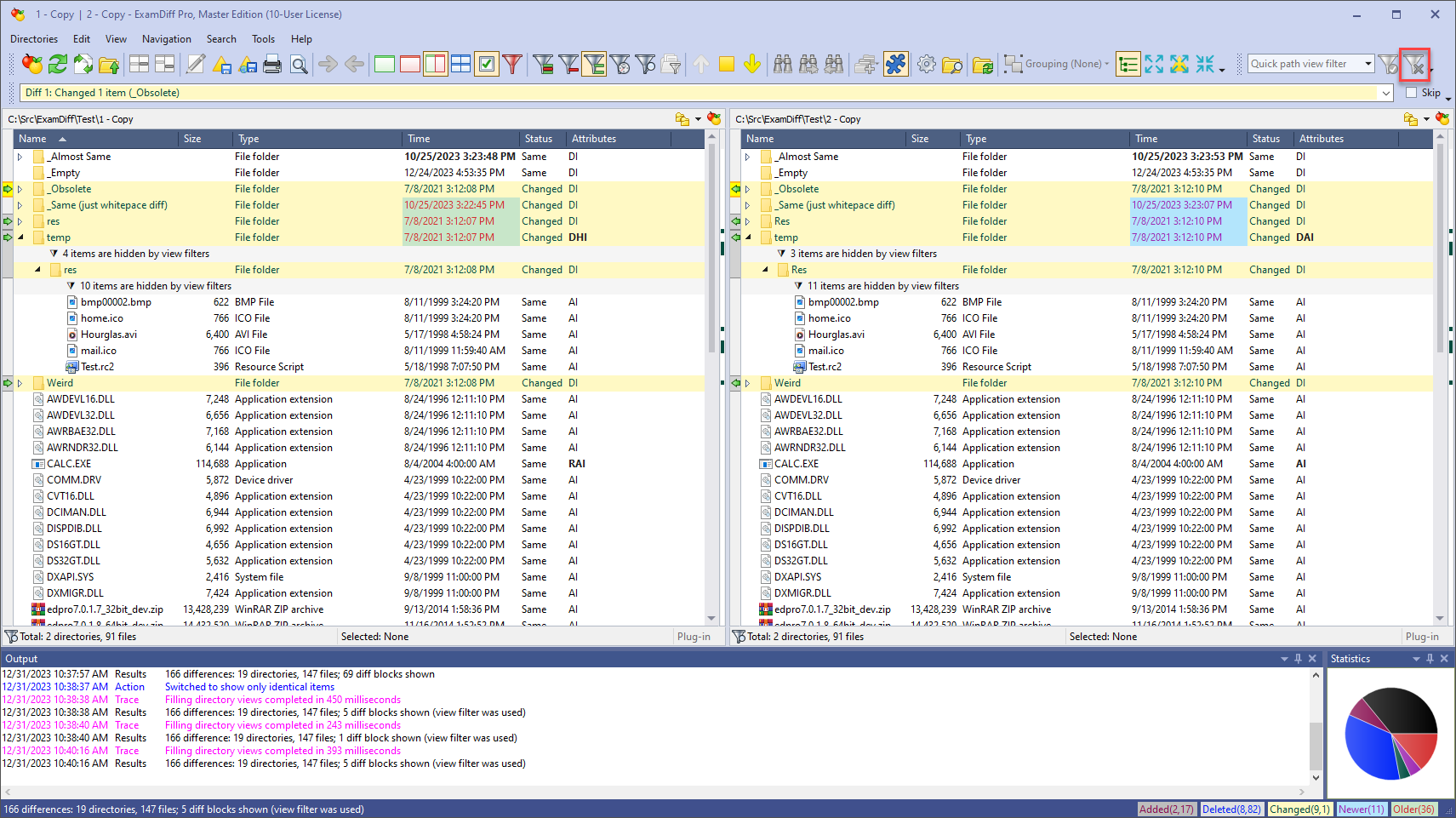
 If I'm done focusing on *.avi files, I can now clear the quick path view filter by clicking on the Clear Filter button next to the textbox. Note that the Show Only Identical status filter continues to be set because it's controlled independently:
Separate toggles for Status View Filter and Path View Filter
First, the View | Use View Filter command is being separated into two separate commands, View | Use Status View Filter and View | Use Path View Filter, with two separate corresponding toolbar buttons, that allow controlling these two options separately, as shown below. (Note that the actual view filter options continue to be under Options | Display | View Filter.)
Quick Path View Filter toolbar
But what if you want to see certain files, and you don't want to have to keep opening the Options dialog each time you change the path filter? ExamDiff Pro 15.0 introduces a Quick path view filter to help with this. It's an additional path filter that you can control directly from the toolbar. You can think of this feature as basically a fancy search bar, because it lets you immediately find files and directories by simply typing in their names, paths, or extensions.For example, let's say I'm comparing a pair of directories, and I want to hone in on just the AVI files within these directories. All I have to do is type "*.avi" into the Quick path view filter text box:
Labels: 15.0, ExamDiff Pro, Features