

Online Help
Display - General Options
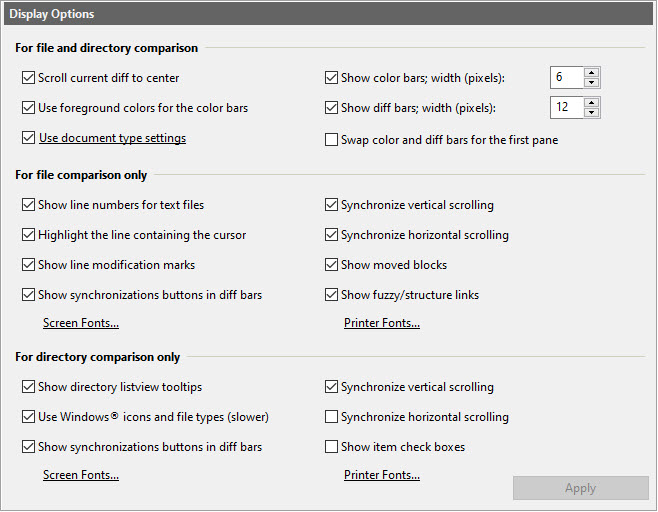
Dialog Box Options
For file and directory comparison- Scroll current diff to center
Select this option if you want the program to scroll panes so that the entire current difference is centered vertically. If that is not possible (because the difference is larger than the pane height), the first line of the difference is scrolled to the [top + 1 line] position.
- Use foreground colors for the color bars
Select this option if you want foreground colors to be used in the color bars. Otherwise, background colors will be used.
- Use document type settings
Use document type settings to display files in text comparison mode, as defined by the document type in use. Note that Ignore Comments is enabled separately, in Compare Options. The settings enabled by this feature are Tab size and Syntax highlighting.
- Show color bars
Select this option if you want to see color bars for graphical presentation of differences. You can also specify the width (in pixels) of the bars.
- Show diff bars
Select this option if you want to see diff bars marking the current difference. You can also specify the width (in pixels) of the bars.
- Swap color and diff bars for the first pane
Select this option to swap the positions of the color and diff bars in the first pane. This option only takes effect when the panes are split vertically and synchronization buttons are shown.
-
Show line numbers for text files
Select this option if you want to see line numbers in file comparison panes.
-
Highlight the line containing the cursor
Select this option if you want to highlight the line containing the cursor in text file comparison.
-
Show line modification marks
Select this option if you want to see line modification marks in text file comparison.
-
Show synchronization buttons in diff bars
Select this option if you want to see synchronization buttons to be shown in diff bars and in the line inspector during file comparison.
Alternatively, you can use the Show/hide synchronization buttons toolbar button ,
which is not shown by default but can be added to the toolbar.
,
which is not shown by default but can be added to the toolbar.
-
Synchronize vertical scrolling
Select this option if you want to synchronize vertical scrolling of file comparison panes.
If you hold Alt while scrolling, this feature is temporarily disabled, and the pane will be scrolled independently of the opposite pane. However, once you let go of Alt and begin normal scrolling, the opposite pane will once again be synchronized with the pane that you just scrolled, provided that this option is checked.
Alternatively, you can use the Synchronize vertical scrolling toolbar button ,
which is not shown by default but can be added to the toolbar.
,
which is not shown by default but can be added to the toolbar.
-
Synchronize horizontal scrolling
Select this option if you want to synchronize horizontal scrolling of file comparison panes. Hold the Alt key while scrolling to temporarily disable synchronization.
Alternatively, you can use the Synchronize horizontal scrolling toolbar button ,
which is not shown by default but can be added to the toolbar.
,
which is not shown by default but can be added to the toolbar.
-
Show moved blocks
Select this option if you want moved blocks to be displayed.
-
Show fuzzy/structure links
Select this option if you want to display the links that are automatically created by the fuzzy matching and structure matching features. If enabled, these links are shown in the synchronizing splitter and are indicated by a lighter color than manual synchronization links.
-
Screen fonts
Change the file comparison screen font, font size, and font style.
-
Printer fonts
Change the file comparison printer font, font size, and font style.
- Show directory listview tooltips
Select this option if you want to see tooltips in directory comparison panes.
- Use Windows icons and file types
Select this option if you want to see file icons and types in directory comparison panes, just like you see them in Windows Explorer. This generally results in slightly slower comparison.
- Show synchronization buttons in diff bars
Select this option if you want to see synchronization buttons to be shown in diff bars in directory comparison.
Alternatively, you can use the Show/hide synchronization buttons toolbar button,
which is not shown by default but can be added to the toolbar.
- Synchronize vertical scrolling
Select this option if you want to synchronize vertical scrolling of directory comparison panes.Hold the Alt key while scrolling to temporarily disable synchronization.
Alternatively, you can use the Synchronize vertical scrolling toolbar button,
which is not shown by default but can be added to the toolbar.
- Synchronize horizontal scrolling
Select this option if you want to synchronize horizontal scrolling of directory comparison panes. Hold the Alt key while scrolling to temporarily disable synchronization.
Alternatively, you can use the Synchronize horizontal scrolling toolbar button,
which is not shown by default but can be added to the toolbar.
- Show item check boxes
Use this option to show check boxes to the left of item names, to make selecting files and folders easier. This options is particularly useful when your device has no physical keyboard and comes with a touch screen.
- Screen fonts
Change the directory comparison screen font, font size, and font style.
- Printer fonts
Change the directory comparison printer font, font size, and font style.
Apply changes to the current view.
Copyright © 1997-2024 PrestoSoft LLC. All rights reserved.