

ExamDiff Pro Basic Tutorial #7
How to create and use directory snapshots
Tutorial Description: This tutorial describes how to create and use ExamDiff directory snapshots. Directory snapshots are XML files that contain information about the contents of a specific directory, and can be compared as directories.
Video Demonstration
Steps:
- Open ExamDiff Pro and compare two directories. Now, to create a directory snapshot,
right-click anywhere within a directory view and select Save Snapshot
 (or press Ctrl - F11
or Ctrl - F12 to save a snapshot of the first or second directory, respectively).
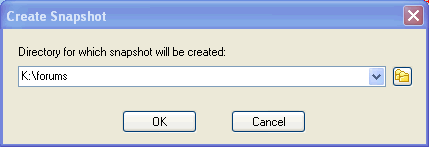
To save a snapshot of a directory not being currently compared, go to Directories |
Create Snapshot... (or press Ctrl - N) and select the directory you want to
create a snapshot of.
(or press Ctrl - F11
or Ctrl - F12 to save a snapshot of the first or second directory, respectively).
To save a snapshot of a directory not being currently compared, go to Directories |
Create Snapshot... (or press Ctrl - N) and select the directory you want to
create a snapshot of.
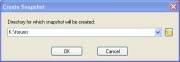
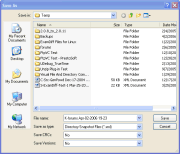
- Now select the location you want to save the directory snapshot to and click Save.
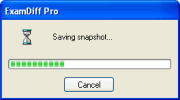
The directory snapshot has been created.
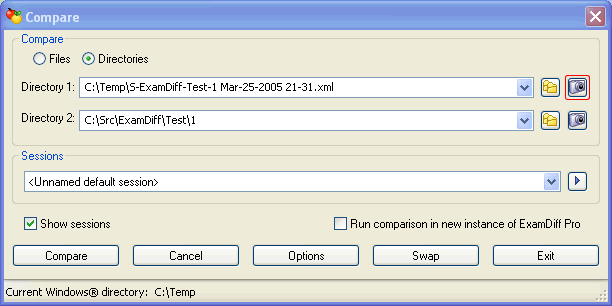
- Now we will compare directory snapshots. Go to Directories | Compare New Pair... (
or press Ctrl - E, or click on the Compare New Pair toolbar button)
 to show the Compare dialog.
Select Directories if you haven't already, and click on a Browse for directory
snapshot button to select a directory snapshot to compare.
to show the Compare dialog.
Select Directories if you haven't already, and click on a Browse for directory
snapshot button to select a directory snapshot to compare.
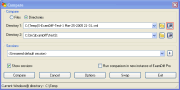
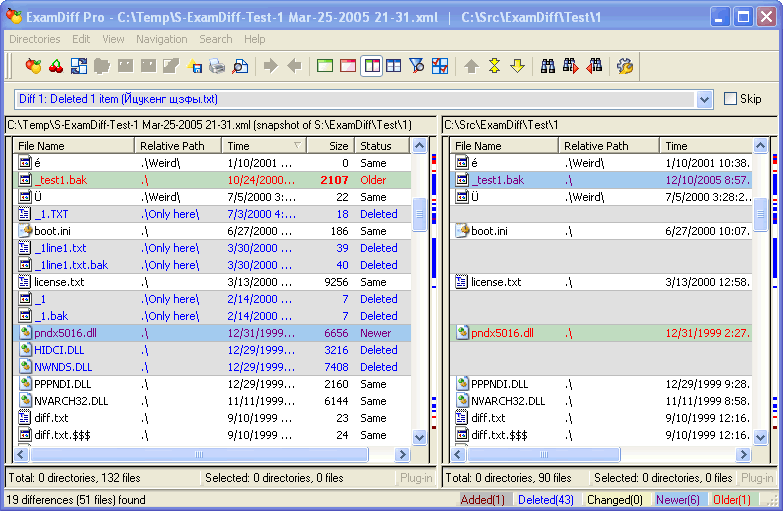
- Two directory snapshots can be compared to each other, or a directory snapshot can be compared
to a directory. After selecting the directory snapshots you want to compare, click on the
Compare button and we're done!
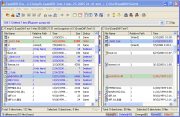
- Finally, to refresh (update) a snapshot previously taken, compare that snapshot (as shown above) to any directory, right-click anywhere within the snapshot's directory view, and select Refresh Snapshot.


Copyright © 1997-2024 PrestoSoft LLC. All rights reserved.